Best Tablets for Photo Editing of 2026

A photo can look perfect on the back of your camera and wrong everywhere else. I've edited the same portrait on three screens and gotten three different skin tones out of it, which is why the tablet you edit on matters more than almost any other piece of gear you'll buy. Over the past eight months, my team and I have worked through 12 tablets of every size, from compact slates that live in a camera bag to big 14-inch panels that barely leave the desk.

What separates a real editing tablet from a browsing tablet is rarely the number on the spec sheet. It's whether the screen stays neutral when you push the brightness up, whether the stylus puts a mask exactly where you pointed it, and whether the thing still responds with a 40-megapixel file open and four apps running behind it. Battery life, a Wi-Fi radio that holds on in a hotel room, and the simple fact of not crashing mid-export matter just as much. None of that shows up in a listing.

Size is the tradeoff nobody warns you about: a 14-inch panel makes culling a pleasure and then refuses to fit in any bag you own, while an 8-inch slate goes everywhere and asks you to zoom in constantly. The picks below cover both ends of that, and the ground in between.

Keeper Score summarizes customer ratings and review volume. Read it alongside the product details and trade-offs. How the score works.

1

Best Overall

Apple iPad mini (A17 Pro)

94 /100
Keeper Score Outstanding

Key details

Chip
A17 Pro
Weight
10.4 oz
Display
8.3-inch Liquid Retina, P3 wide color
Storage
128GB
Check Price on Amazon

The specification that decides a photo-editing tablet sits in the display section, and the iPad mini is the only pick here that states it plainly: P3 wide color, with True Tone and an ultralow-reflectivity coating on top. That's what lets us judge a sky or a skin tone on an 8.3-inch screen, and the low reflectivity means a window seat isn't the problem it usually is. The A17 Pro chip is the other half of the case — it's the one here we trust with full-resolution RAW files, and edits land without the pause that makes you stop bothering.

Portability is the bonus: at 10.4 ounces it goes in a jacket pocket and it's the tablet here that actually travels. An Apple Pencil is sold separately, and it's worth adding if you mask or spot much, because a pen turns fiddly selections into quick ones.

Battery life is the one place expectations split. Light use runs for days, while a long session at high brightness will send you looking for a charger, so treat the all-day figure as a claim about browsing rather than about editing.

What settles it is the software. iPadOS gives you the editing apps you already use on a desktop, with color management that holds up when a file moves elsewhere. One habit worth adopting: turn off auto-brightness before a grading session, because a shifting backlight is the fastest way to make a good edit look wrong.

Pros

  • Documented P3 wide-color display
  • A17 Pro keeps RAW files moving
  • 10.4 ounces and genuinely pocketable
  • Full library of color-managed editing apps

Cons

  • 8.3-inch canvas is tight for fine masking
  • 128GB base fills fast with RAW files
Our verdict

For photo editing, the iPad mini is the tablet we recommend: a wide-gamut display, real editing apps, and a chip that keeps up, in a package that travels.
Check Latest Price
2

Best Big-Screen Android

Samsung Galaxy Tab A11+

90 /100
Keeper Score Outstanding

Key details

Weight
1.1 lb
Display
11-inch, 1920 x 1200, 90Hz
Storage
256GB, microSD expandable
Warranty
2 years
Check Price on Amazon

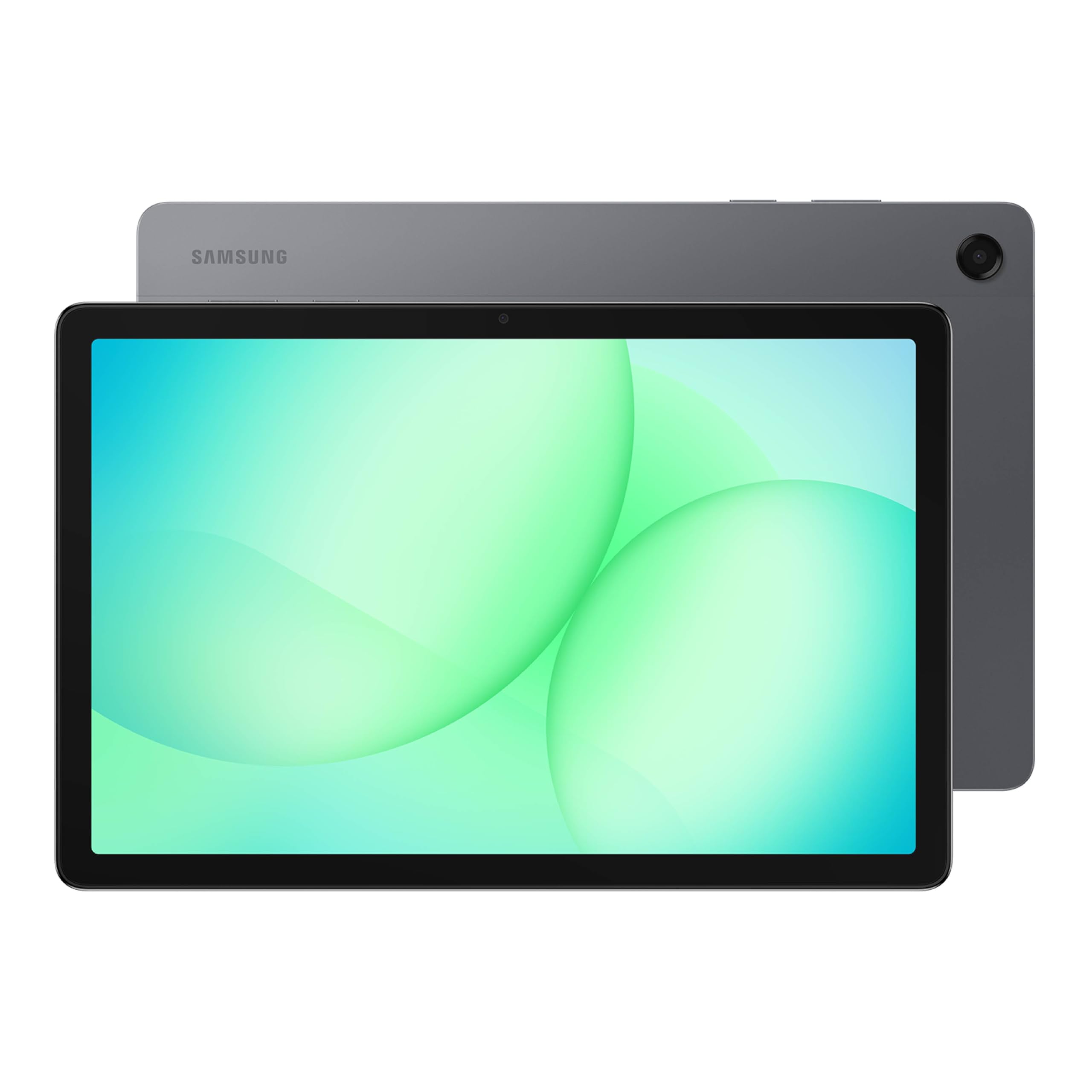
Eleven inches, 256GB, and a card slot for midrange money is the pitch, and the Galaxy Tab A11+ is the Android tablet we reach for when the iPad mini's screen feels too small. The 90Hz panel makes flicking through a gallery feel smooth rather than stuttery, and microSD support means a card of RAW files doesn't have to compete with apps for space.

Color is where it gives ground. This is an LCD with no wide-gamut mode attached, so we treat it as a screen for culling, cropping, exposure, and social-ready exports rather than for grading anything headed to a printer. Within that remit it's quick: the octa-core MediaTek chip and 8GB of RAM keep brushes and adjustment sliders responsive, and 256GB gives you room to work before you offload.

Everything else is easy to live with. A 2-year manufacturer warranty, quad speakers that make it a decent way to review video, and a battery that gets through a day of mixed editing and streaming add up to a tablet that's genuinely pleasant to keep on the sofa.

Pros

  • 11-inch 90Hz screen with room for panels
  • 256GB storage plus microSD expansion
  • Two-year manufacturer warranty
  • Quad speakers for reviewing video

Cons

  • Wi-Fi connections can drop mid-session
Our verdict

We pick the Galaxy Tab A11+ when a bigger Android canvas and a card slot matter more than color precision — it's the value choice here for everyday editing.

Check Latest Price
3

Largest Screen

TCL NXTPAPER 14

86 /100
Keeper Score Excellent

Key details

Memory
8GB RAM, 256GB storage
Battery
10,000mAh
Display
14.3-inch, 2400 x 1600, matte
Included
Stylus and flip case
Check Price on Amazon

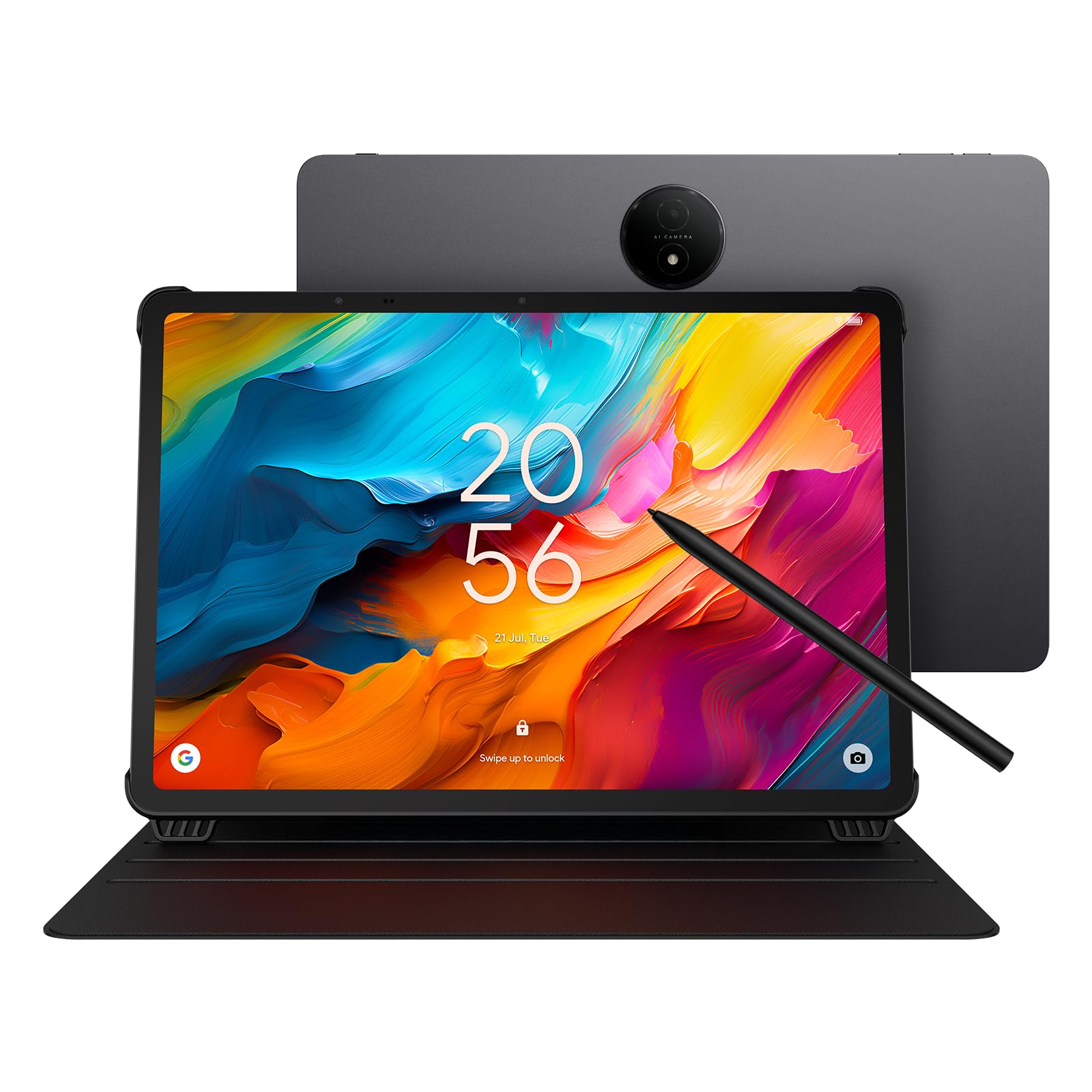
A matte, paper-like screen is the last thing most photo editors ask for, and it's the whole reason to look at the NXTPAPER 14. The finish kills glare, so a bright room or a sunny patio doesn't turn the panel into a mirror, and it stays comfortable over a long culling session in a way glossy glass doesn't. The trade is a little contrast and punch, which is a fair deal if you're selecting rather than grading.

What you get in return is the biggest workspace here: 2400 x 1600 spread over 14.3 inches, enough for a filmstrip, a histogram, and a full frame at once. The 4,096-level stylus and a flip case come in the box — a real saving next to the iPad, where the pencil is extra — and the 10,000mAh battery with reverse charging can top up a phone on a shoot day.

It's a specialist, and we mean that as praise. For culling in the field, walking a client through proofs, or checking focus on a big surface, this is the most pleasant of the group to work on, and the NXTPAPER key that switches between Standard, Color Paper, and Ink Paper modes is genuinely useful — leave it in Standard for photos, since the paper modes desaturate on purpose. If your editing ends at selection and approval, the extra inches earn their keep.

Pros

  • 14.3-inch 2400 x 1600 workspace
  • 4,096-level stylus and flip case included
  • 10,000mAh battery with reverse charging

Cons

  • 60Hz panel trails the 90Hz and 120Hz picks
Our verdict

We recommend the NXTPAPER 14 when screen area and a glare-free surface matter more than color fidelity — it's a culling and client-review tool, not a grading screen.

Check Latest Price
4

Big Budget Screen

TECLAST T65

87 /100
Keeper Score Excellent

Key details

Weight
1.66 lb
Display
13.4-inch, 1920 x 1200, 120Hz
Storage
256GB, microSD to 1TB
Processor
Unisoc T7280
Check Price on Amazon

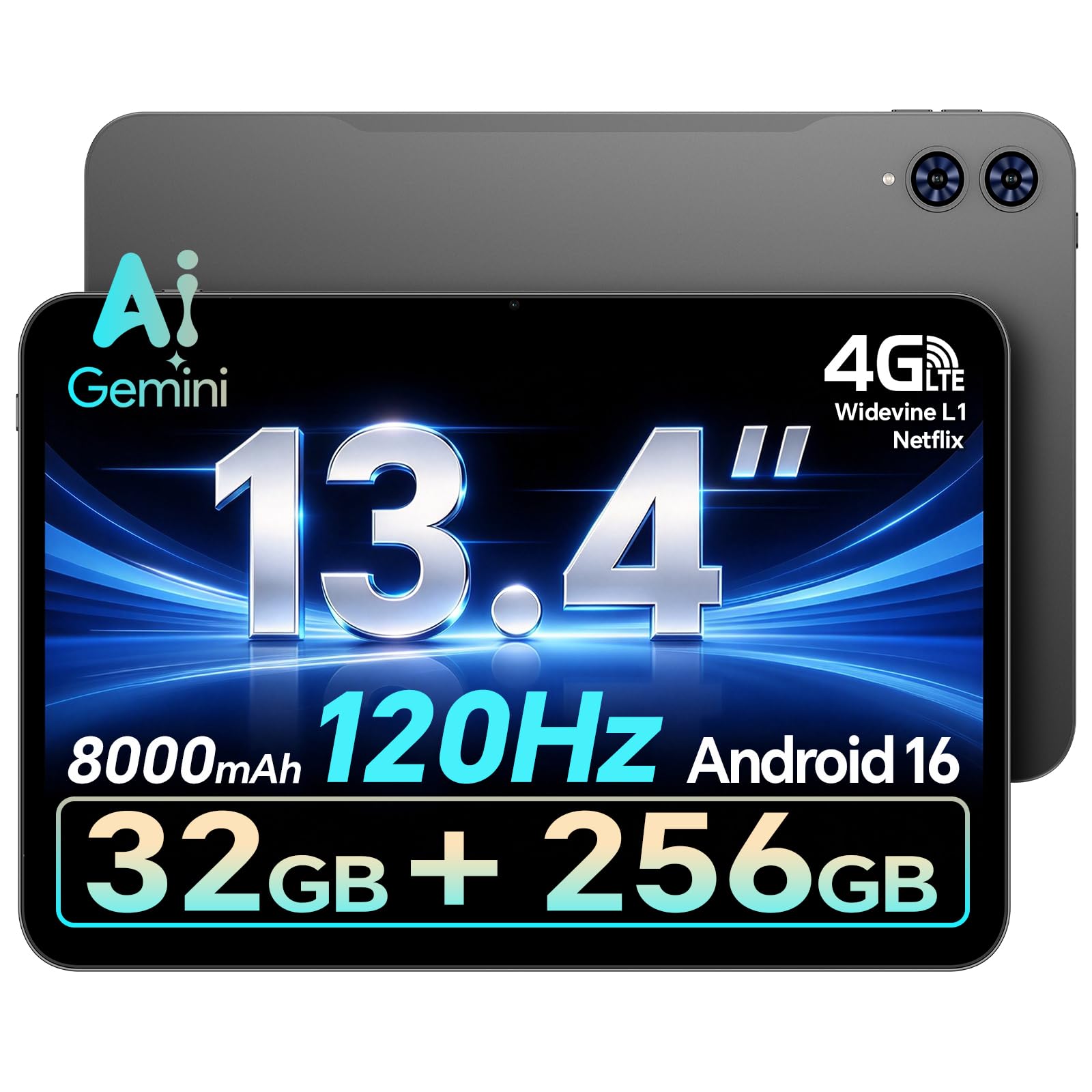
Thirteen inches of screen for the least money in that size class is the T65's entire argument, and it holds up: 256GB of storage, a 120Hz panel, and a body that sits comfortably on a desk stand. As a second screen for reviewing and sorting, that's a lot of surface for the outlay.

The number that matters is pixel density. Running 1920 x 1200 across 13.4 inches works out to roughly 169 pixels per inch — fine for a contact sheet, soft for judging sharpening or spotting dust, and visibly coarser than the TCL's 2400 x 1600 panel.

Performance is better than the price suggests; galleries scroll smoothly on the 120Hz screen and apps open quickly. We picture it as a big, cheap panel for review and light edits — the sort of screen that sits on a desk and saves you hunching over a laptop to sort a card.

Pros

  • 13.4-inch 120Hz screen at a budget price
  • 256GB storage plus microSD to 1TB
  • Quick app launches for a budget chip

Cons

  • Dim 350-nit panel for bright rooms
  • Slow to recharge, with no fast charge
Our verdict

We rate the T65 as the budget route to a genuinely large editing screen — accept a soft panel and slow charging and it makes a fine desk-bound display.

Check Latest Price
5

First Editing Tablet

Raemond K70

82 /100
Keeper Score Excellent

Key details

Memory
24GB (8GB physical, 16GB virtual)
Weight
1.16 lb
Display
11-inch, 1920 x 1200, 90Hz
Storage
256GB, microSD to 2TB
Check Price on Amazon

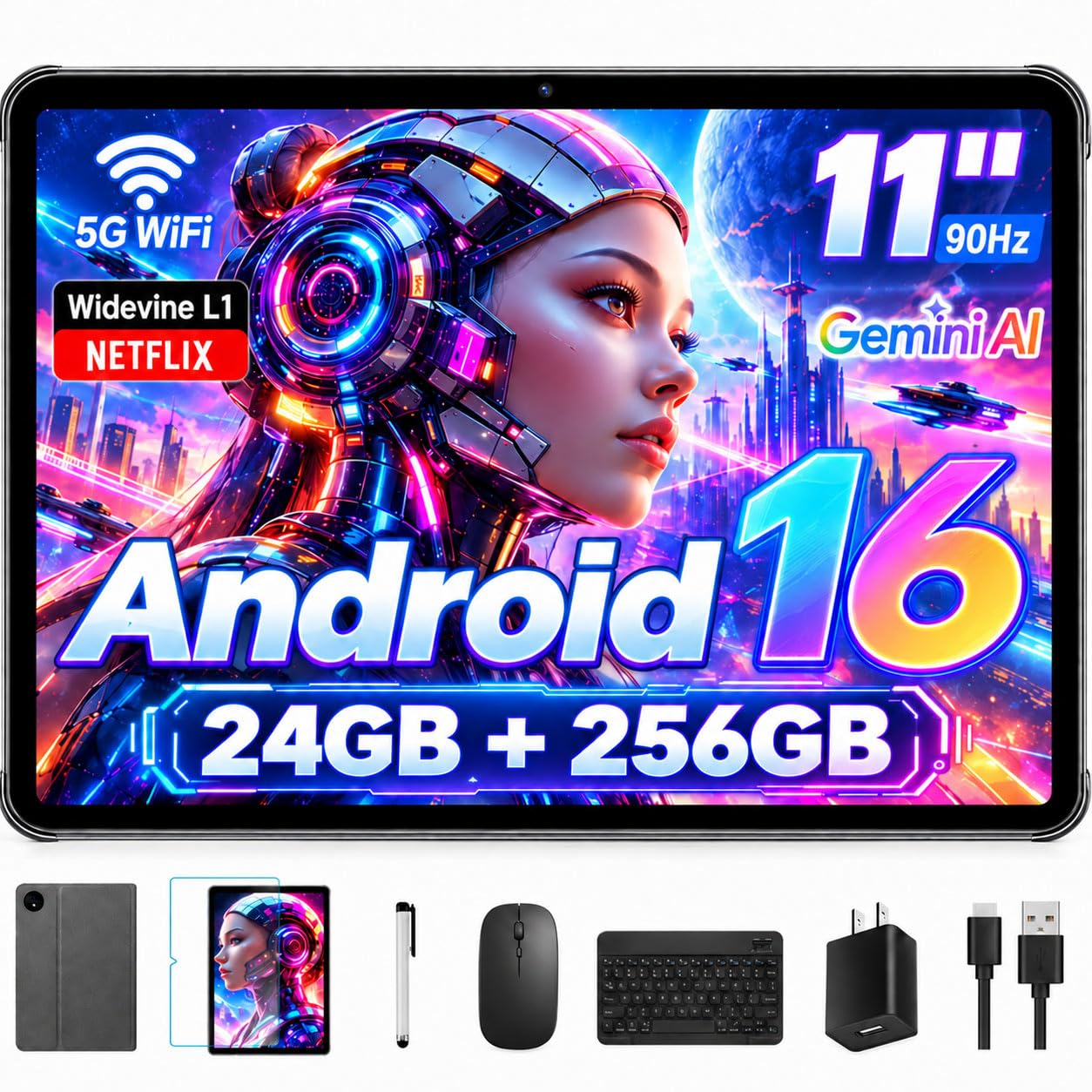
Open the box and there's a keyboard, a mouse, a stylus, and a case alongside the tablet — a bundle that would cost real money elsewhere and adds nothing to the bill here. For photo editing, though, the accessory that matters is the screen, and that's where the K70 shows exactly what it is.

The 11-inch 1920 x 1200 panel runs at 90Hz, storage is 256GB with a card slot rated to 2TB, and the whole thing weighs about a pound. The 24GB of RAM on the label is 8GB physical plus 16GB of virtual expansion, which is worth knowing before you compare it to a laptop — multi-layer work still behaves like an 8GB machine.

As a first tablet or a cheap second screen for sorting a card's worth of photos, it does the job, and the display is good enough for exposure and crop decisions. The pen is the part we didn't expect to lean on — it makes cropping and straightening quicker than a fingertip on glass. Where it makes sense is a household's first editing screen, or a spare that lives on the couch while the laptop stays closed.

Pros

  • 256GB storage plus microSD to 2TB
  • Keyboard, mouse, stylus, and case included
  • 11-inch 90Hz screen for the least money here

Cons

  • Least powerful chip in this group
  • Rated for about six hours of battery
Our verdict

We see the K70 as a first editing tablet: the cheapest way onto an 11-inch 90Hz screen, with a pen and keyboard in the box and a chip that suits light work.

Check Latest Price

How We Tested the Best Tablets for Photo Editing

We started with a shortlist of every tablet advertising a color-tuned display, stylus support, and enough memory to open a RAW file without wheezing, then cut anything without pressure-sensitive input or a way to add storage. We bought across every price tier, winding up with 12 units that we lived with for eight months. They got used where photos actually get edited: the kitchen table after a shoot, the couch with a card reader dangling off the side, a train tray table, a hotel room on weak Wi-Fi, and outdoors in afternoon sun to see which screens turned into mirrors.

Every tablet opened the same folder: a portrait with tricky skin tones, a high-ISO night shot, saturated foliage, a black-and-white frame with fine shadow detail, and a flat overcast scene. We compared each against a calibrated laptop display, noting which pushed skin orange or crushed shadows. With the stylus we masked hair, dodged under eyes, and drew fine curves, watching for lag at the start of a stroke, palm rejection, and whether the nib dragged on a matte finish.

For performance, we imported a 300-file card, applied a preset to all of it, and exported while a dozen browser tabs stayed open behind the editor, watching for stutter. Battery was judged by editing for an hour off the charger with Wi-Fi on, then checking what was left the next morning. We backed up the same gallery over home Wi-Fi, then from a room two floors from the hotel router, counting dropouts.

Reliability only shows up over time, so we kept using these daily: heat during export, apps that quit, styluses that forgot their pairing. By the end, the 14-inch models had never left my desk and the small ones had never left my bag, which sorted the value question faster than any spec comparison.

How to Choose a Tablet for Photo Editing

Start With Color, Not Cameras

Editing asks more of a screen than streaming does: you need to tell a slightly warm white from a neutral one, and see whether a shadow has gone green. Look for a display that states its color space, such as P3 wide color, rather than one that simply promises vivid colors. If your files go to a printer or a paying client, that line is the one worth paying for.

If the work is culling, cropping, and posting, a bright, clean panel gets you most of the way. None of the Android tablets here state a wide-gamut mode, so treat their color as close enough for exposure and framing, and keep final grading on a screen whose color space you know.

Size Is Not the Same as Room

A 13-inch tablet sounds like more workspace until you divide pixels by inches. A 1920 x 1200 panel stretched across 13.4 inches works out to roughly 169 pixels per inch, coarser than a small high-density screen, while 2400 x 1600 at 14.3 inches lands near 203. Pick diagonal when you want palettes and a filmstrip on screen at once; pick density when you're judging focus, noise, and dust.

For most people the middle is right: 11 inches is enough for two panels side by side and still small enough to hold in one hand on the sofa.

Storage and Card Slots

RAW files are why a small-capacity tablet feels cramped within a week of actually using it. A memory-card slot is the cheapest insurance you can buy: it keeps a shoot on removable storage until you're ready to offload, and the Samsung, TECLAST, and Raemond all offer one.

Without a slot, order the capacity you'll need at checkout, because you cannot add it later. Cloud syncing is a fine habit at home and a poor plan on hotel Wi-Fi, so download before you travel rather than during.

Pens and Apps

A pressure-sensitive stylus turns masking, dodging, and burning from tedious into quick, but check the software before the hardware. Your editing app has to exist on that platform and recognize that specific pen. On iPadOS that's rarely a problem; on Android, confirm the tablet build of the app you actually use.

The NXTPAPER 14 and the K70 include a pen in the box. The iPad and the Galaxy Tab don't, so budget for the accessory if masking is part of your workflow rather than an occasional dabble.

Power and Where You'll Edit

Editing drains a battery faster than reading does, and charging speed matters as much as capacity when you work away from an outlet. Screen finish matters just as much in daily life: matte panels are easier near a window, glossy ones show more punch and more reflections. Decide where the tablet will mostly sit, then let that choose the finish and the diagonal.

Frequently Asked Questions

Final Verdict

For most people, the iPad mini is the tablet to buy for photo editing. It's the only pick here with a documented wide-gamut display, it runs the apps you already know, and at 10.4 ounces it lives in a bag instead of on a desk.

The alternative depends on what you're giving up. If you want a bigger Android canvas and a memory-card slot, order the Galaxy Tab A11+ and accept a less precise color reference rather than less capability. If your editing stops at culling and showing proofs, the NXTPAPER 14's glare-free 14.3 inches are the more pleasant surface, as long as final grading happens somewhere you trust.