Best Photo Editing Controllers of 2026

The first time I culled a 2,000-frame wedding gallery, I did it the slow way: hand to the mouse, drag the exposure slider, hand back to the arrow key, repeat until my wrist filed a formal complaint. A photo editing controller is the fix for exactly that. It gathers the handful of controls you actually touch all day — exposure, contrast, brush size, zoom, next frame — under one hand, so your eyes stay on the photo instead of hunting through panels.

Here's the thing nobody tells you before you buy one: the hardware is only half of it. A beautifully machined dial that can't be remapped per application, or a keypad that registers a beat after you press it, is worse than the keyboard shortcuts you already know. We've spent six months with 12 controllers, running them through Lightroom, Photoshop, and Resolve on both Mac and PC, and the ones that earn their desk space share a few traits: buttons that fire on the first press, customization deep enough to match how you personally edit, a connection that holds whether it's wired or Bluetooth, and a build that still feels solid in hour four.

Keeper Score summarizes customer ratings and review volume. Read it alongside the product details and trade-offs. How the score works.

1

Best Overall

TourBox NEO

89 /100
Keeper Score Excellent

Key details

Weight
13.1 oz
Controls
14 controls
Connection
USB-C wired
Included Presets
Lightroom, Photoshop, Premiere Pro
Check Price on Amazon

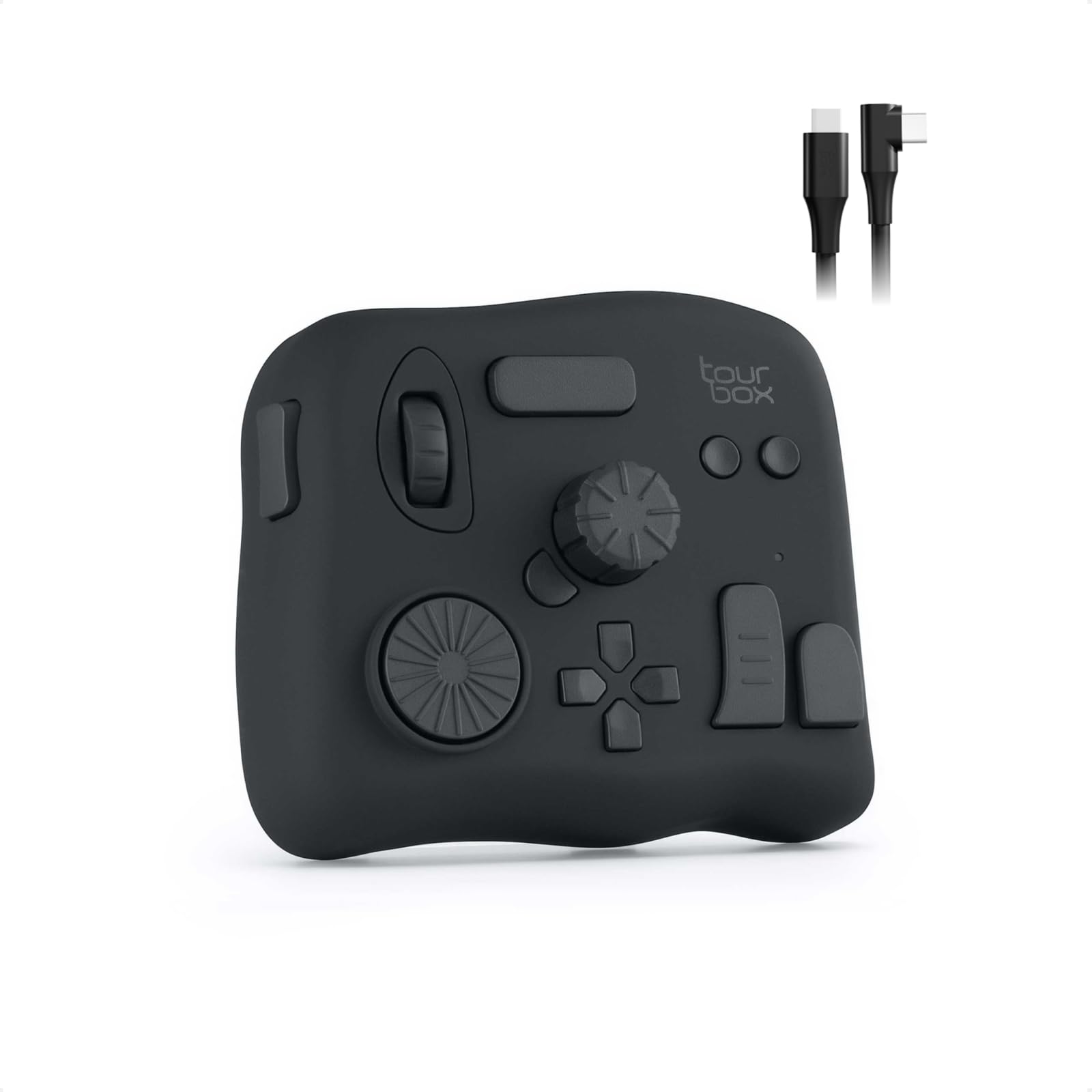
Fourteen controls, one cable, and no pairing step: the NEO is the version of the TourBox idea we point most photographers toward. Plug it in, load the Lightroom or Photoshop profile, and the large dial is already moving the slider your cursor hovers over while the scroll wheel walks the filmstrip. Good presets are the difference between a controller you use on day one and one that waits in a drawer for a free weekend.

The count matters because the shapes differ. A dial, a knob, a scroll wheel, a D-pad, and a cluster of buttons all sit under one hand, each with its own size and resistance, so your fingers can tell them apart without a glance. That is the whole promise of a control surface — that you stop looking down — and the NEO delivers it with the least ceremony of anything here. The D-pad turned out to be the control we reached for most, stepping through images and menus in a way a dial never quite manages.

What it asks in return is a week. The first sessions are slower than your keyboard, as they are with every controller on this page, and the presets shorten that without removing it; by the third day the reaching stops and your left hand starts moving on its own. The presets also cover Premiere Pro and DaVinci Resolve, so a video detour does not mean starting from an empty layout. For a desk that stays in one place, this is where we would begin.

Pros

  • Fourteen controls, each a different shape
  • Ready-made Lightroom and Photoshop presets
  • Wired connection with no pairing or dropouts

Cons

  • Wired USB-C only
  • Some dial functions are fixed, not remappable
Our verdict

The best all-around controller here for Lightroom and Photoshop: fourteen distinct controls, presets that work out of the box, and a wired connection that never argues.
Check Latest Price
2

Best Wireless for iPad

TourBox Elite Plus

87 /100
Keeper Score Excellent

Key details

Weight
13.3 oz
Controls
14 programmable buttons
Connection
Bluetooth 5.0 or USB
Works With
iPadOS, macOS, Windows
Check Price on Amazon

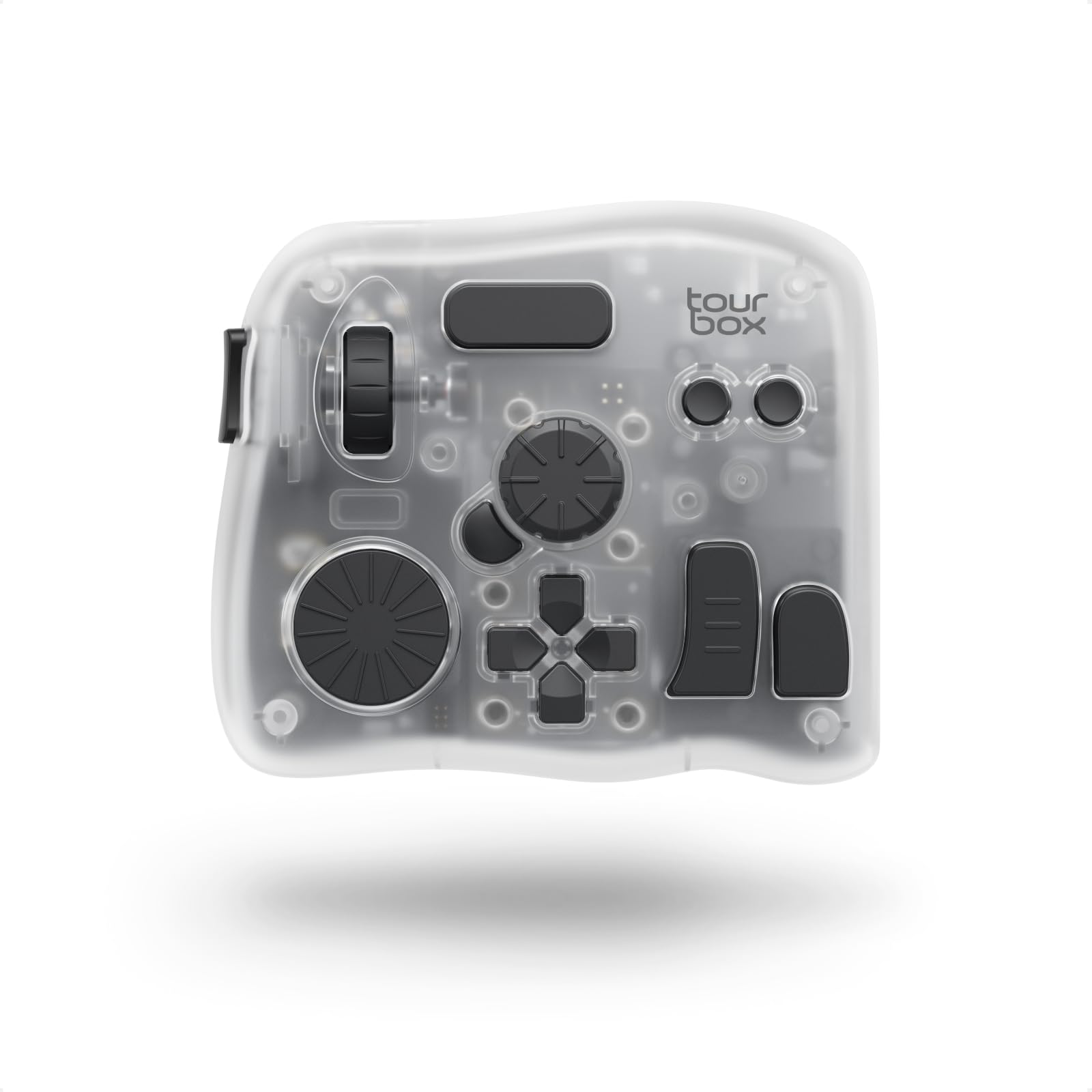
An iPad on a stand, a stylus in one hand, and a dial under the other: that is the setup the Elite Plus exists for. It is TourBox's first console built for iPadOS, and its dual-channel Bluetooth 5.0 holds a tablet and a Mac at once, so you switch devices without re-pairing or hunting for a dongle. The fourteen controls and the TourBox presets come along for the ride, which means Procreate and LumaFusion get the same dial-and-button treatment as the desktop Adobe apps.

Among a group where nearly every pick assumes a desktop, that flexibility is the reason this one earns a place above the wired consoles for tablet-first work. The haptics are the detail we did not expect to care about: the console buzzes faintly at each detent, so you feel a value step instead of watching for it. The Ice Translucent shell is also a welcome change from the black boxes the rest of this list defaults to.

What you pay for is the radios, not more buttons. Fourteen controls is the same count as the NEO, so the premium buys the wireless link and the tablet support. And wireless should not be confused with pocketable: at 376 g it is a desk object, just one you can move between two of them. For anyone whose week splits between a tablet and a laptop, that is the trade worth making.

Pros

  • Pairs to iPad and Mac over Bluetooth 5.0
  • Haptic feedback you feel at each step
  • Same fourteen-control TourBox layout as the NEO

Cons

  • Premium price for the same control count as the NEO
Our verdict

The pick for editing that moves between an iPad and a Mac, with haptics that turn each adjustment into something you feel rather than watch.

Check Latest Price
3

Best for Adobe-First Desks

Logitech MX Creative Console

82 /100
Keeper Score Excellent

Key details

Controls
9 LCD keys, dial, roller
Included
3-month Adobe Creative Cloud
Connection
USB-C, 2× AAA batteries
App Support
Photoshop, Lightroom, Premiere Pro, Figma
Check Price on Amazon

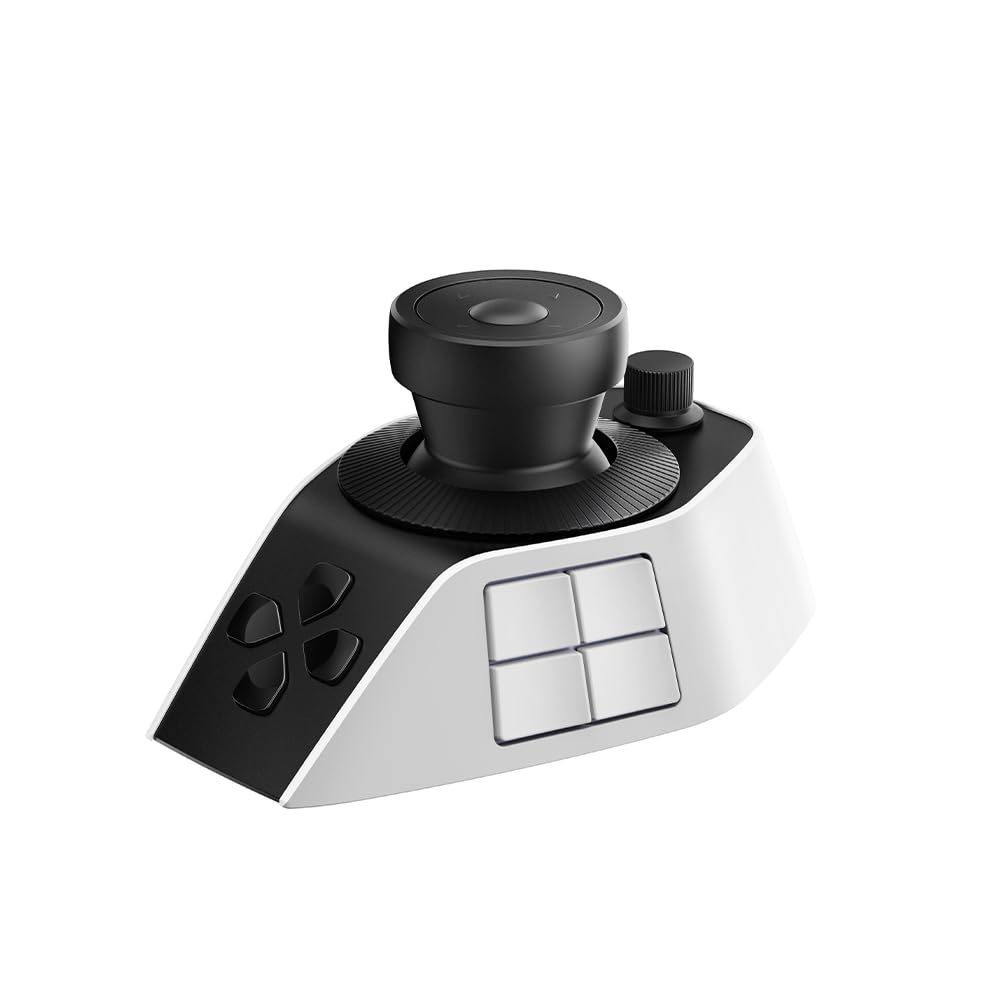
Most keypads ask you to remember which square does what. The MX Creative Console puts a small screen inside each of its nine keys, so the key that adds a mask shows a mask, and you can upload your own icons when you want something more literal. We hand this one to people who move between Photoshop, Lightroom, and Illustrator all day, because the labels follow whichever app is in front.

The dial and the roller are separate, which sounds fussy until you use it: the roller walks the filmstrip or the timeline while the dial works the active slider. Fifteen keypad pages per profile means a busy layout rarely runs out of room, and the stand angles the whole thing toward your hand instead of lying flat. Three months of Adobe Creative Cloud come in the box, which softens a mid-range price.

Our real reservation is the software link. Everything routes through Logitech's app, and setups where that link fails do exist — newer macOS releases and recent Photoshop versions have caused trouble, and the app sometimes opens a beta build instead of the release one. Check that the current software lists your operating system and app versions before ordering, and buy somewhere with an easy return. Once the link holds, the labeled keys are the part you notice all day.

Pros

  • LCD keys labeled with your own icons
  • Separate dial and roller for slider and navigation
  • Includes three months of Adobe Creative Cloud

Cons

  • Nine keys and one dial
  • Runs on two AAA batteries
Our verdict

The pick for Adobe-heavy desks: labeled keys you read at a glance, a dial and roller that split the work, and software that needs your versions to line up.

Check Latest Price
4

Best for Frame-By-Frame Work

Contour ShuttlePRO v2

81 /100
Keeper Score Excellent

Key details

Controls
15 buttons, jog and shuttle
Profiles
Auto-switching per app
Connection
USB wired
Dimensions
7.73 × 1.12 in
Check Price on Amazon

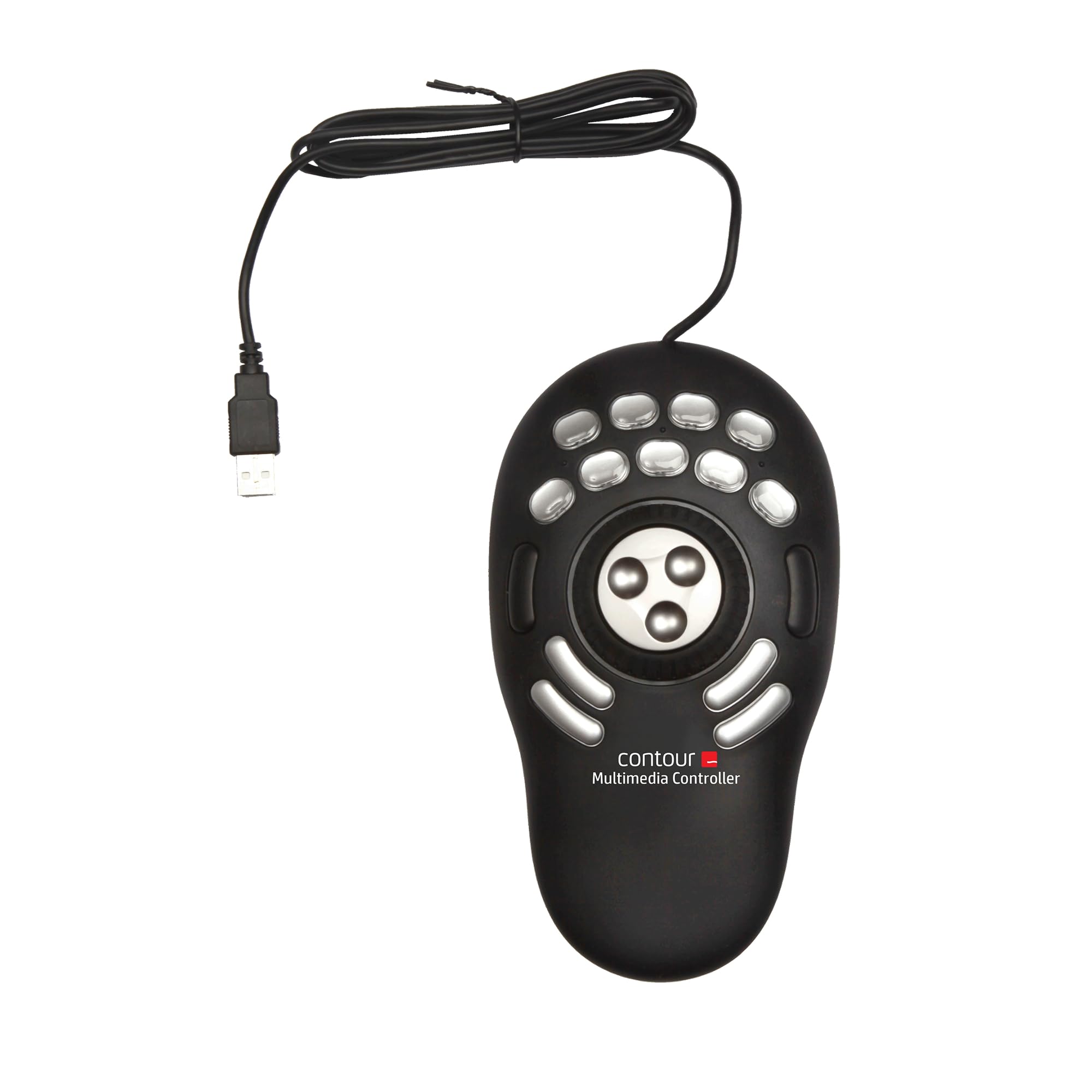
The shuttle ring is the reason to buy this one. Push it away from you and it springs back the instant you let go, so you can creep forward a few frames and stop exactly where you meant to; the jog wheel beside it turns in positive, clicky steps. Nothing else in this group feels that mechanical, and we mean that as praise.

Fifteen buttons ring the wheels, and the software watches which application is in front and swaps profiles on its own — from Lightroom to Premiere and the buttons follow without a menu. It is ambidextrous, compact enough to sit beside a keyboard rather than replace it, and it carries a two-year warranty where the rest of this list offers one.

Where it fits is stepping rather than painting. For reviewing a shoot, checking frames one at a time, or walking a timeline, this is the most satisfying control in the group, and the spring-back lets you scrub fast and land precisely. For brush size and slider nudges the TourBox layout is the better tool — this one is about travel through time, not about parameters.

Pros

  • Spring-loaded shuttle plus a jog wheel
  • Fifteen buttons with automatic per-app profiles
  • Two-year warranty and an ambidextrous body

Cons

  • Plastic keycaps can crack and work loose
  • The programming app feels dated
Our verdict

Buy it for the shuttle ring: the most precise frame-by-frame scrub here, with fifteen buttons and per-app profiles behind it.

Check Latest Price
5

Best Budget Pick

XPPen Mini Keydial ACK05

85 /100
Keeper Score Excellent

Key details

Weight
2.65 oz
Controls
10 keys plus dial
Connection
Bluetooth 5.0
Shortcut Sets
4 sets, up to 40 shortcuts
Check Price on Amazon

At 75 g and under an inch thick, the ACK05 goes into the laptop sleeve and you forget it is there until you are editing on a hotel desk. Ten keys and a dial, Bluetooth 5.0, and a 1,000 mAh battery — the whole thing is smaller than most mice and light enough to hold in one hand while you press a key with the other.

For editing away from your desk, this is the one we pack. It is the lighter of the two compact keypads here, the keys and wheel feel more solid than the little body suggests, and four switchable sets turn ten keys into forty shortcuts, which is plenty for culling and straightforward develops. Anti-ghosting across all ten keys means combinations register the way you expect rather than dropping a press.

Budget an evening for the software. Without XP-Pen's driver it is a plain keypad; with it, you map each key, set the dial, and name four sets so you can flip between Lightroom and Photoshop without opening a menu. The mapping screen is clumsy in places, but the four sets are what make ten keys enough.

Pros

  • 75 g and under an inch thick
  • Ten keys become forty shortcuts across four sets
  • Keys and wheel feel solid for the size

Cons

  • Only ten keys plus a single dial
  • Bluetooth can drop mid-session
Our verdict

The travel pick: 75 g, ten keys, and a dial that covers culling and basic develops from a laptop bag.

Check Latest Price
6

Color Grading

XPPen Pilot Pro

84 /100
Keeper Score Excellent

Key details

Battery
24 hours, built-in
Controls
19 buttons, joystick, 3 dials
Shortcuts
100+ across 7 themes
Connection
Bluetooth 5.3, 2.4 GHz, USB-C
Check Price on Amazon

XPPen built a joystick into the Pilot Pro, and if you grade video that is the control that matters: one thumb pushes a color wheel around while three rotaries wait under your fingers for exposure, contrast, and whatever else you hand them. Nineteen buttons fill in the rest, with more than a hundred commands spread across seven themes.

It is also the most connected console here: Bluetooth 5.3, a 2.4 GHz dongle, or a USB-C cable, with a built-in battery rated at 24 hours. An on-screen readout tells you which theme you are in, and a small motor buzzes against your palm so you feel a detent without looking down. The sculpted layout is genuinely designed for blind operation rather than flat keys with a logo on them.

Build is where it gets uneven. The plastic feels lighter than the TourBox shells, buttons have stuck or worked loose on some units, and the drivers have refused to cooperate on some setups — including settings that reset after a power cycle. None of that happens to everyone, but it is why this sits below the top picks rather than beside them.

What it buys you is a wireless, haptic, joystick-led console for less than the TourBox premium, and for a Resolve editor who wants a thumb on the color wheel, we think that trade is worth a careful look. Check the driver notes for your software first, and keep the box until you have run a full session on it.

Pros

  • Joystick, three rotaries and nineteen buttons
  • Bluetooth, 2.4 GHz dongle, or USB-C
  • 24-hour built-in rechargeable battery

Cons

  • Buttons can stick or work loose
  • Driver trouble on some setups
Our verdict

The value route into wireless, haptic control: a joystick and three dials for less than the TourBox premium, if your drivers behave.

Check Latest Price
7

First Controllers

Huion Keydial Mini

84 /100
Keeper Score Excellent

Key details

Size
5.74 × 3.65 × 0.42 in
Weight
4.16 oz
Controls
18 keys plus dial
Connection
Bluetooth 5.0
Check Price on Amazon

Eighteen programmable keys and a dial for the smallest outlay in this group is the headline, and it is a real one: this is the most buttons you get here for the least money. It is slim at 0.42 inches, weighs 4.16 ounces, pairs over Bluetooth 5.0, and registers up to five keys at once for combination shortcuts.

The feature worth knowing about is the Setting Preview key. Press it and a popup shows what every button and the dial are currently set to, which solves the problem every programmable pad eventually has — forgetting what you mapped three weeks ago. That is the sort of small thing that saves a trip into the driver in the middle of an edit.

For a first controller or a second station next to a laptop, this is where we start people. The dial carries three assignable functions, so the single dial goes further than it sounds, and the keys are spread wide enough to hit without looking. What you give up is a second dial and any kind of jog wheel, and the body takes more desk space than the Mini Keydial ACK05.

Pros

  • Eighteen programmable keys plus a dial
  • Setting Preview shows what each key does
  • Five-key anti-ghosting in a slim body

Cons

  • One dial and no jog wheel
Our verdict

The most keys for the least money here, with an on-device preview that tells you what every button currently does.

Check Latest Price

How We Tested Photo Editing Controllers at Real Desks

We built the shortlist by filtering for controllers that paired at least one dial or jog wheel with programmable buttons, listed both Windows and macOS compatibility, and let you save separate profiles for different applications. Anything without remappable keys or per-app memory got cut before testing. That left 12 units, which we lived with for six months.

Testing happened at actual desks, not a bench. I culled a full 2,000-frame wedding gallery in Lightroom, retouched skin at 200 percent in Photoshop, graded a short film in Resolve, and ran a 300-image batch through a laptop at a café counter over Bluetooth to see how each unit handled being packed up and moved.

For every controller we remapped each key and dial at least three times, noting whether the software recognized whichever app was in front or whether we had to switch profiles by hand. We pressed every button and recorded whether it registered on the first push or needed a second, turned each dial slowly to feel whether the detents were crisp enough to count clicks by, and checked whether the thing reconnected on its own after the laptop slept. At the end of each session we judged the housing — flex, wobble, how it sat under the palm after four hours — and asked whether what it did justified what it cost.

How to Choose a Photo Editing Controller

Match the controls to the edits you repeat

Write down the five adjustments you make on every photo. Exposure, contrast, brush size, zoom, and jumping to the next frame are the usual suspects. Anything continuous — a value you nudge up and down — belongs on a dial or a knob, because a dial gives you fine steps and an easy way back. Stepping between images or frames belongs on a wheel or a D-pad. Buttons are for discrete actions: masks, heal, before-and-after.

That ordering is why a fourteen-control layout with several rotary controls sits above an eighteen-key pad with a single dial in this guide. If most of your work is moving sliders, count dials before you count buttons. If most of it is reviewing a shoot, the spring-loaded ring on the Contour ShuttlePRO v2 is worth more than a dozen extra keys.

Check the app, not the logo

A listing that says Lightroom can mean Lightroom Classic only — the cloud version exposes a different, smaller set of things a controller can reach, and several models here are built around the desktop apps. Find the exact application name in the supported list before you buy, and check whether it is a native profile or generic keyboard mapping. Native profiles arrive ready to use; generic mapping means you build every shortcut yourself.

Version matters as much as the app. Every controller depends on a companion program that has to keep pace with macOS and Photoshop releases, and that is where the friction in this category lives — the Logitech console's software has stumbled on newer macOS and Photoshop builds. Skim recent support notes for your operating system before ordering.

Wired, wireless, or both

Wired controllers such as the TourBox NEO and the ShuttlePRO v2 have nothing to pair and nothing to charge. The cable is one more thing on the desk and one less thing to troubleshoot. Bluetooth buys a clean desk and the freedom to work across a room, and it brings the failure this category sees most: a link that drops mid-session or needs re-pairing. If the controller never leaves the desk, wired is the safer default.

If it travels, look at what powers it. The XPPen Mini Keydial ACK05 has a built-in 1,000 mAh battery; the Logitech console takes two AAA cells, which is a recurring errand. Wireless is not the same as portable either — the TourBox Elite Plus is wireless and still weighs 376 g, so it lives on a desk like the rest.

Budget for the learning curve and the plastic

Every controller here is slower than your keyboard for the first few days. Ready-made presets shorten that to an evening of editing; a bare key-mapping app can take a week of them. Plan to remap after the first week, once you know which three actions you keep reaching for, and judge a controller by how quickly it disappears from your attention rather than by how many keys it has.

Build is where cheaper and older designs show their age. Plastic keycaps can crack and work loose on a heavily used unit, and sticking buttons are the mechanical fault that turns up in this group. A tool you use daily is worth buying somewhere with a straightforward return policy.

Frequently Asked Questions

Final Verdict

The TourBox NEO is the one we point to first. Fourteen controls, presets that work in Lightroom and Photoshop on the first evening, and a cable that removes the most common failure in this category add up to the safest buy here for a desktop editor.

If your editing moves between an iPad and a Mac, spend the extra on the TourBox Elite Plus — it is the only console here that pairs to both. And if scrubbing frames is most of what you do rather than moving sliders, the ShuttlePRO v2's spring-loaded ring beats every dial on this page.