Best Monitors for Video Editing of 2026

You finish a grade at midnight, export it, and by morning the same clip looks flat, green, and a stop too dark on your phone. That's rarely your fault — it's the panel you were staring at. A monitor made for video editing shows you the footage close to what everyone else will see, so the color you push and the scopes you trust actually agree with each other. Over the past six months my team and I have cut and graded on 12 different monitors, from modest 27-inch 4K panels to a 40-inch ultrawide, and the spread between them was wider than the prices suggested.

The spec that sells monitors is resolution, but the one that decides your edit is color accuracy after calibration — wide gamut coverage means little if the panel drifts an hour into a session or clips highlights when you push HDR brightness. Ports matter more than beginners expect, too: a USB-C connection that charges your laptop while carrying the picture turns a tangle of dongles into one cable, and a monitor that splits its screen lets you park reference footage beside your timeline.

The picks below were chosen for color work first — accuracy, an even backlight, a stand that holds its position — not for frame rates or gaming tricks. Some cost more than others; every one of them earns it somewhere visible.

Keeper Score summarizes customer ratings and review volume. Read it alongside the product details and trade-offs. How the score works.

1

Best Overall

LG 27UP850K-W UltraFine 4K

87 /100
Keeper Score Excellent

Key details

Stand
Height, tilt, pivot
Resolution
3840 x 2160
USB-C Power
90W
Color Coverage
95% DCI-P3
Check Price on Amazon

One cable is the whole argument for this monitor. The USB-C port carries a 4K signal, the USB hub and up to 90 watts to a laptop, so a MacBook or a thin Windows machine runs a full session without the charger leaving the bag. That tidiness, plus 95% DCI-P3 coverage on a 400-nit panel, is why we make this the default pick for video editing here: color lands close enough that we did not spend the first hour in the menu, and the matte coating stops a window behind the desk from turning the timeline into a mirror.

The panel is a 27-inch IPS at 3840 x 2160 with 1200:1 contrast, 60Hz and a 5ms response — nothing for gamers, everything for editors. Height, tilt and pivot are all on the stand, which matters more than it sounds: pivot the screen and you get a full-height vertical column for a second timeline, a chat window or a portrait reference feed. Brightness tops out at 400 nits, which is enough that we happily grade SDR with the lights on.

Two things we flag before you buy. The speakers are the weakest part of the package — fine for a call, thin for anything with music in it — so plan on the ones you already own. And the downstream USB-A ports are the piece of this monitor we trust least; run card readers and drives through a powered hub instead. Neither changes the recommendation for a single-machine editor, and print work still belongs with the ASUS below.

Pros

  • 95% DCI-P3 on a 400-nit panel
  • USB-C carries video and 90W of charge
  • Height, tilt and pivot stand included
  • Matte anti-glare finish with wide angles

Cons

  • Thin built-in speakers
  • DisplayHDR 400 only, so no reference HDR grading
Our verdict

The monitor we recommend for most editing desks: accurate 95% DCI-P3 color, real 4K, an adjustable stand, and one USB-C cable that powers your laptop.

Check Latest Price
2

Best Color Coverage

ASUS ProArt PA279CRV

83 /100
Keeper Score Excellent

Key details

Accuracy
Delta E < 2, Calman verified
Resolution
3840 x 2160
USB-C Power
96W
Color Coverage
99% DCI-P3, 99% Adobe RGB
Check Price on Amazon

Wider color than anything else in this group, and it is stated on the box: 99% DCI-P3 and 99% Adobe RGB, factory calibrated to Delta E under 2, Calman verified, with a printed report in the carton. If you have ever handed off a grade that looked right on your desk and wrong on the client's, that paperwork is the part we care about most — this is the one monitor here claiming both the video gamut and the print gamut at full coverage.

The rest of the package is built for a laptop suite. USB-C delivers 96 watts while carrying the picture, there is a DisplayPort as well, and the display can daisy-chain a second screen from the same cable run — useful when that second screen is a reference display rather than another timeline. The stand adjusts for height and pivots.

Know what you are buying around the panel, too. These can refuse to wake from sleep or drop a connection to a Mac, so buy somewhere with an easy return and put it through a week of real work before the window closes. For straight Rec.709 cutting the LG does the same job with less fuss. For wide-gamut work this is the pick, and the extra coverage is not a rounding error — it is the difference between guessing and knowing on a saturated grade.

Pros

  • 99% DCI-P3 and 99% Adobe RGB coverage
  • Factory Delta E under 2, Calman verified
  • USB-C charges at 96W and can daisy-chain
  • Five-year warranty with registration

Cons

  • Can refuse to wake from sleep or drop a Mac connection
Our verdict

Buy it if your edits also have to satisfy print or wide-gamut delivery: this is the broadest color coverage here, with the calibration report to back it up.

Check Latest Price
3

Best Ultrawide

Dell UltraSharp U4025QW

85 /100
Keeper Score Excellent

Key details

Resolution
5120 x 2160
Screen Size
39.7 inches
Connectivity
Thunderbolt 4, KVM
Refresh Rate
120 Hz
Check Price on Amazon

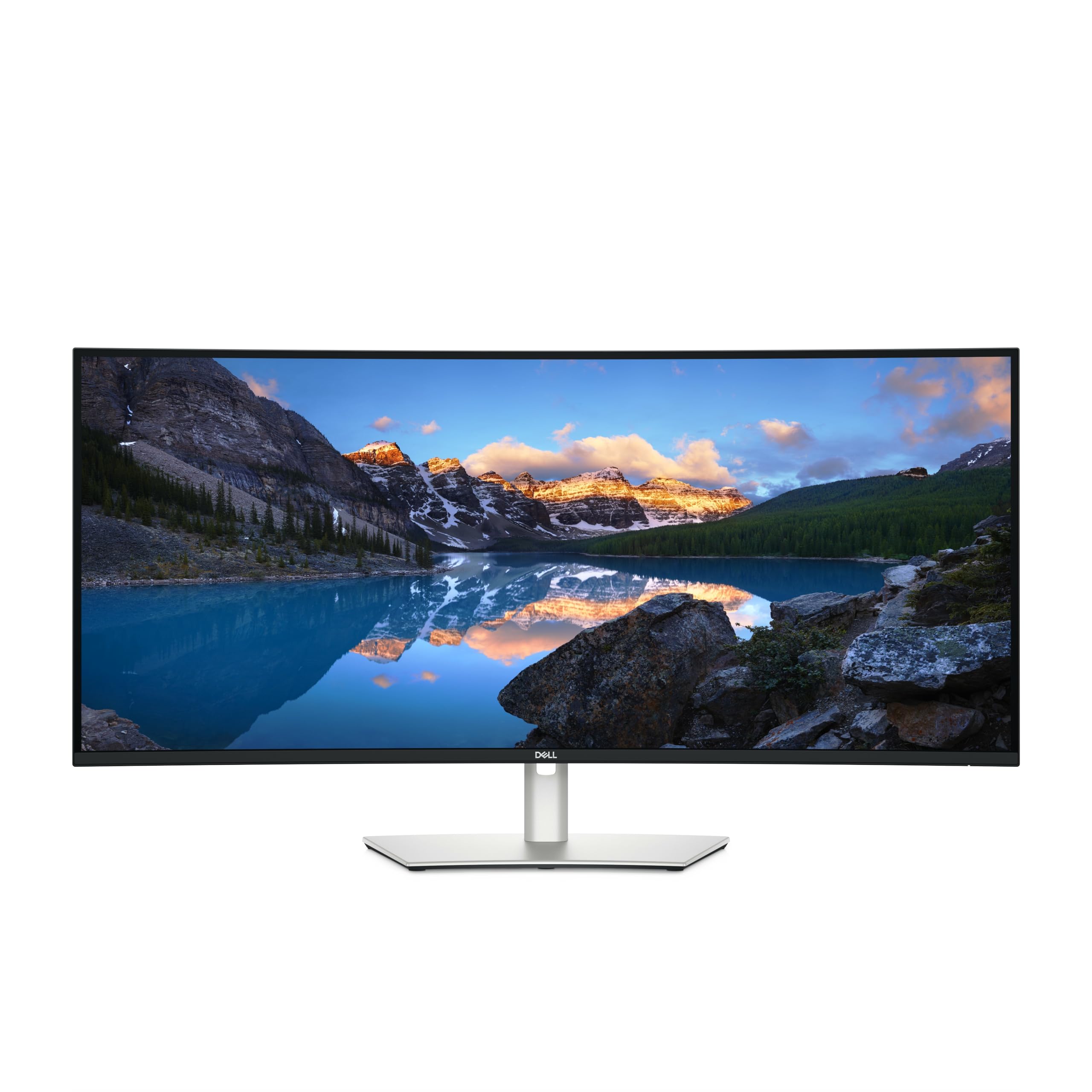
Picture two 27-inch screens side by side with the bezel taken out and you have the idea: 5120 x 2160 across 39.7 inches of gentle curve, wide enough for a timeline, a program monitor and two columns of bins without a single window overlapping. Vertical resolution matches a 4K panel, so you are not trading height for width the way a 1440p ultrawide makes you.

Around the back it is a docking station as much as a display. Thunderbolt 4 carries video and charges the laptop, the hub adds eight USB ports and Ethernet, and the KVM switches the keyboard and mouse between two machines — the feature we miss most when we go back to a single-input desk. The 120Hz refresh is a bonus you notice when you scrub; nothing smears.

Color is why it belongs in an edit suite rather than an office. The claimed 99% DCI-P3 coverage and 2000:1 contrast from the IPS Black panel give it the deepest blacks here, and 600 nits holds up in a lit room. Footage looks rich on it, and the edges of that curve stay consistent instead of washing out.

Then there is the bill. This costs several times what the 27-inch picks do, and the money buys width, Thunderbolt and KVM rather than more accuracy. On a desk where one screen replaces two and two machines share a keyboard, that math works out; on a single laptop and a single timeline, it does not.

Pros

  • 5120 x 2160 fits two full-size windows
  • Thunderbolt 4 hub with KVM switching
  • 99% DCI-P3 and 2000:1 contrast
  • 120Hz refresh smooths scrubbing

Cons

  • Weak built-in speakers at this price
  • Weighs 41.9 pounds, so plan the desk or arm
Our verdict

For a two-machine edit bay where one wide screen has to replace two, this is the pick: 5K2K width, Thunderbolt 4, KVM, and color that holds up.

Check Latest Price
4

Best Budget 4K

LG 27US500-W UltraFine 4K

84 /100
Keeper Score Excellent

Key details

Stand
Tilt only
Brightness
300 nits
Resolution
3840 x 2160
Color Coverage
90% DCI-P3
Check Price on Amazon

The cheapest route to 4K in this group. It is a 27-inch IPS with 90% DCI-P3, HDR10, 300 nits and 1000:1 contrast in a white shell that disappears against a pale wall. Two HDMI ports and a DisplayPort mean a console and a laptop can both stay plugged in, and 4K across 27 inches gives you the pixel density to check focus at 100% instead of guessing.

The stand is the part we mind. It tilts and does nothing else — no height adjustment, no pivot — and it wobbles enough that typing shows up on screen; a 100 x 100mm VESA arm fixes both, and that is how this one belongs on a desk. Do that and the arithmetic is straightforward: real 4K and decent color for a second suite, or a first one where the money went on the camera.

Pros

  • 4K IPS at the lowest price here
  • 90% DCI-P3 and HDR10
  • VESA mount for a better arm

Cons

  • No USB-C, so laptops need their own charger and cable
Our verdict

A sensible first 4K monitor if the budget is tight: 90% DCI-P3, sharp detail, and a stand you will want to replace with an arm.

Check Latest Price
5

Ultrawide Layouts

Samsung ViewFinity S50GC 34

87 /100
Keeper Score Excellent

Key details

Resolution
3440 x 1440
Screen Size
34 inches
Aspect Ratio
21:9
Refresh Rate
100 Hz
Check Price on Amazon

The most screen real estate here for the least money is the whole pitch: 3440 x 1440 across 34 inches of matte panel, so a timeline runs long and the bins sit beside it instead of on top of it. Two full-width windows plus a program monitor in the corner is a productive way to work, and for assembly and rough cuts we take that width over a smaller, more accurate panel every time.

The extras are aimed at desks rather than games. Picture-in-picture and picture-by-picture let you park a second source in a corner — a client reference feed, a laptop, a console — and an ambient light sensor nudges brightness as the room changes through the afternoon. The 100Hz refresh keeps scrubbing direct, and 3000:1 contrast gives it deeper blacks than the IPS panels here, which makes a dark scene easier to read.

Where it stops is color. Coverage is the narrowest in this group, so use it for assembly, titles and playback review, and check a grade on a display with known coverage before a master leaves the room. If the same desk has to handle spreadsheets, email and the odd game, that split is easy to live with; if the monitor is your reference, it is not.

Pros

  • 3440 x 1440 across 34 inches
  • 100Hz refresh and 3000:1 contrast
  • Picture-in-picture and picture-by-picture

Cons

  • No USB-C input or USB hub
  • 300 nits, so HDR is nominal at best
Our verdict

Buy it for timeline width on a budget — 34 inches of 3440 x 1440 — and keep a color-accurate display in the room for sign-off.

Check Latest Price
6

Basic 4K Work

Samsung ViewFinity S7 S71H 4K

83 /100
Keeper Score Excellent

Key details

Panel
IPS, HDR10
Ports
1x HDMI, 1x DisplayPort
Brightness
300 nits
Resolution
3840 x 2160
Check Price on Amazon

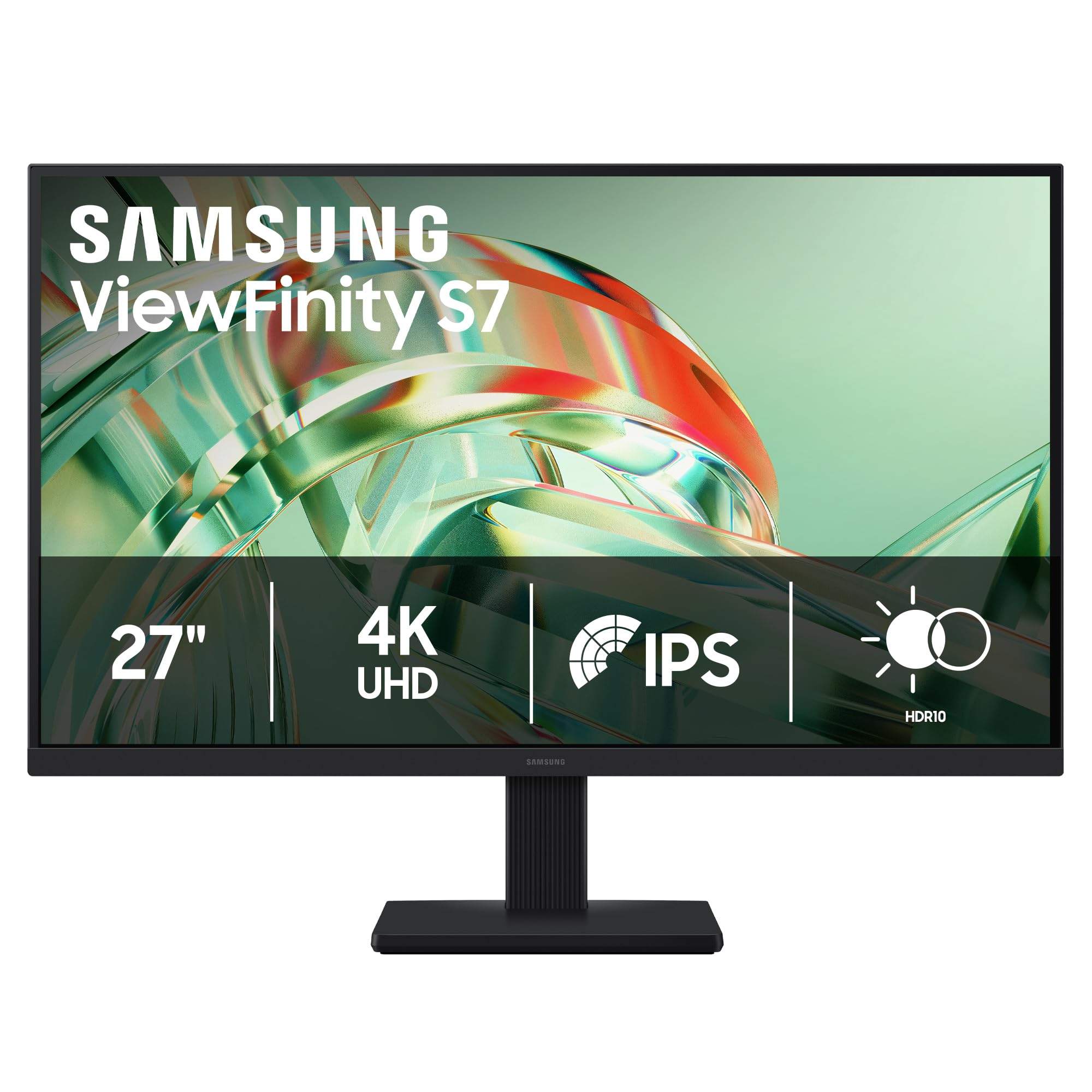
If your suite is a laptop, a spare-room desk and a budget that went on glass, this is the shape of 4K that fits. Samsung's 27-inch ViewFinity S7 is a plain matte IPS panel at 3840 x 2160 with HDR10, 300 nits and 1000:1 contrast — no hub, no USB-C, one HDMI and one DisplayPort.

Set against the rest of this group it is the sane minimum: enough resolution to judge focus, a matte finish that copes with a window, and color that holds together for cuts, titles and review. It will not tell you the truth about an HDR grade — nothing at 300 nits will — but it will show you whether the edit works, and the picture is the part we have no argument with.

Everything around the panel is plain. The bundled stand tilts without adjusting height, so set your chair to the screen rather than the other way round. That is also where the savings come from: the money is in the panel, and the panel is the part you look at.

Pros

  • 27-inch 4K IPS with a matte finish
  • 300 nits for a bright room
  • Straightforward HDMI and DisplayPort inputs

Cons

  • No USB-C and no USB hub
Our verdict

The cheapest name-brand 27-inch 4K here, and enough panel for cuts, titles and review — as long as you add an arm and skip HDR work.

Check Latest Price
7

Cheapest 4K Entry

CUNPU 27-inch 4K IPS

80 /100
Keeper Score Excellent

Key details

Ports
2x DisplayPort, 1x HDMI
Accuracy
Delta E < 2
Resolution
3840 x 2160
Color Coverage
100% DCI-P3
Check Price on Amazon

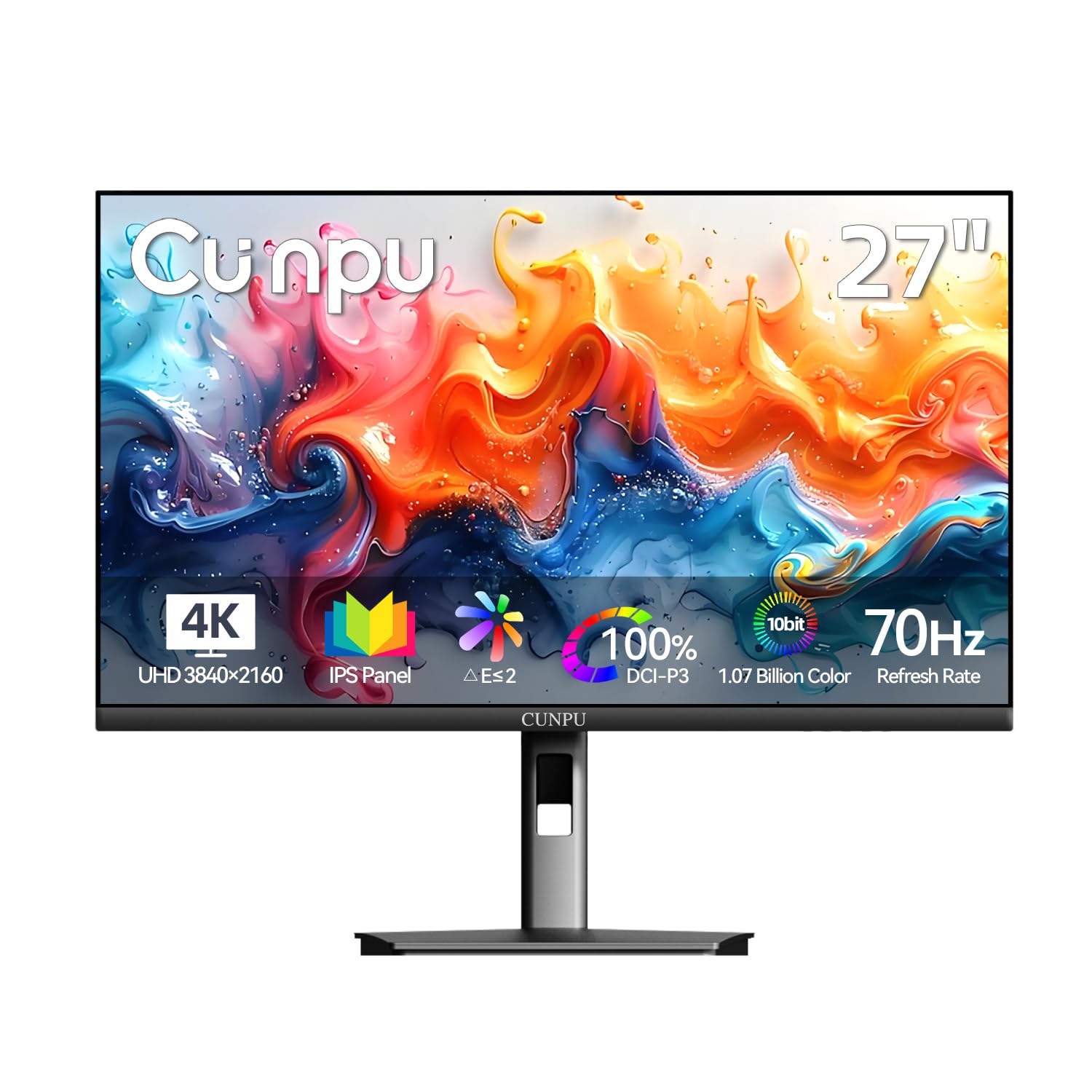
On paper this is the bargain of the group: 27-inch 4K IPS, a claimed Delta E under 2, 100% DCI-P3, 1.07 billion colors, 70Hz and picture-in-picture, for less than any other 4K panel here. That claim sheet is the sort that usually costs far more, and it is the reason this one is on the page at all.

The hardware around the panel is where the savings show. Two DisplayPorts plus HDMI is more input than either LG offers, and we count that as a real advantage when a desktop and a console share the desk, but the stand is a simple tilt design and the on-screen menu takes more patience than it should. Set the refresh rate yourself in that menu rather than trusting the default, and check for dead pixels while the return window is open.

So it is a gamble, and a calculated one. If the budget is fixed and you are willing to be your own quality control, you get 4K resolution and a wide-gamut claim for less than anything else here. If clients pay for color, the ASUS is the safer place to put the money.

Pros

  • 4K IPS with a low-Delta-E, wide-gamut spec
  • Two DisplayPorts plus HDMI
  • Picture-in-picture and picture-by-picture

Cons

  • One-year warranty
  • No USB-C input
Our verdict

Worth a look when the budget is fixed and you are ready to check the panel yourself: 4K, a wide-gamut claim, and 70Hz for the least money here.

Check Latest Price

How We Tested the Best Monitors for Video Editing

We started with spec sheets, narrowing the field to IPS panels at 4K or higher with documented wide-gamut coverage, USB-C power delivery, and height-adjustable stands, then filtered out anything priced far past what its panel could justify. Twelve monitors arrived and lived on the same desk for six months, hooked to the same editing machine so footage could be compared side by side rather than from memory.

Color accuracy came first. I measured every panel out of the box with a colorimeter, calibrated it, measured again, and recorded how far the numbers moved — several looked fine until the readings showed a green cast in the shadows that was obvious once I knew to look for it. Each screen played the same graded clip beside a reference display, and I noted where skin tones went orange, where highlights clipped, and whether brightness held steady in a room with a bright window behind me.

Then real work: docking a laptop over USB-C and timing how long it took to wake and charge, splitting the screen to keep reference footage next to a timeline, raising and lowering the stand and giving the desk a nudge to see if the panel wobbled, and listening to the built-in speakers during a rough cut. I also kept a dead-pixel check running across the whole period to see whether any panel developed stuck pixels after months of daily use. The monitors that survived all of that without a caveat are the ones below.

How to Choose a Monitor for Video Editing

Start With the Gamut You Deliver In

Rec.709 is the standard for broadcast and for most web video, and it sits close enough to sRGB that a 100% sRGB panel covers it. DCI-P3 matters when you deliver HDR or cut for platforms expecting a wider canvas; Adobe RGB only earns its keep if the same projects go to print. A bigger number is not automatically a better edit — a 95% DCI-P3 panel with a real Rec.709 preset and a stated Delta E under 2 beats a 99% panel nobody has profiled.

Buy for the gamut your deliverables need, then calibrate. The report in the box is a starting point, not a subscription.

Resolution, Size, and the Detail You Can See

At 27 inches, 4K works out to roughly 163 pixels per inch against about 109 for 1440p — the difference between reading your scopes and squinting at them, and enough to view 4K footage at 100% without scaling. Size is a separate decision. A 34-inch ultrawide at 3440 x 1440 gives you a long timeline with fewer pixels than 27-inch 4K, and a 32-inch 1080p panel shows less detail than a 24-inch one despite the bigger diagonal. Decide which you need more: width or density.

The One-Cable Question

USB-C with power delivery is the feature we pay for first on a laptop-based suite. Around 90W covers a 14-inch MacBook Pro or most thin Windows machines, so the display charges the laptop while carrying picture and a hub; below that you are still plugging in the charger. A second input matters if a desktop and a laptop share the desk, and hardware KVM switching moves the keyboard and mouse with it.

Watch the downstream USB-A ports — they are the flakiest part of any monitor hub, so keep a powered hub for card readers and drives.

Stands, Arms, and the Desk You Have

Height adjustment is the ergonomic feature worth insisting on: a screen that sits too low pulls you into a hunch over a long grade, and pivot is handy for a vertical reference panel. Listings are loose with the word ergonomic, so check the spec line for height and pivot rather than trusting the photo. If the bundled stand wobbles — and on budget panels it often does — a 100 x 100mm VESA arm fixes the problem and lets a cheap panel with a poor stand stay on your shortlist.

HDR, Refresh Rate, and Curves

DisplayHDR 400 is a brightness badge, not a grading capability: real HDR work wants local dimming and far more nits than any of these panels deliver, so treat HDR on a 400-nit screen as a check on how the file behaves rather than a reference. A 100Hz or 120Hz panel is a quiet luxury for editing — smoother scrubbing, a cursor that does not smear — and on a 40-inch screen a gentle curve keeps the ends of the timeline in view. None of it beats a matte finish in a room with a window.

Frequently Asked Questions

Final Verdict

The LG 27UP850K-W is the monitor we recommend for most editing desks: 95% DCI-P3, real 4K, a stand that adjusts, and a USB-C port that charges a laptop at 90W. Step up to the ASUS ProArt PA279CRV if the same projects also have to satisfy print or wide-gamut delivery, and choose the Dell U4025QW when one 40-inch screen has to replace two and switch between machines.

If the budget is the constraint, the LG 27US500-W gets you the resolution and most of the color — just budget for an arm, because the bundled stand tilts and nothing else.