Best Desktop Computers for Photo Editing of 2026

You come home from a shoot with 600 frames on the card, and the good mood lasts right up until the import bar stalls at 11 percent. Photo editing exposes every weak part of a computer at once — the card reader, the drive, the memory, the graphics chip, and the screen you're judging color on. The right desktop turns that two-hour cull into twenty minutes and keeps every brush stroke live at full resolution.

Over the past eight months we've had 12 desktops set up side by side and, more usefully, sitting on real desks doing real photo work. The thing that surprised me most: memory and drive speed shape your day far more than the processor on the badge, and a tower with its ports hidden around the back will quietly drive you mad once a card reader lives there permanently.

The picks below cover both shapes — towers you can open up and add to, and all-in-ones that arrive with a screen attached — and every one of them was judged on edit sessions first and everything else second.

Keeper Score summarizes customer ratings and review volume. Read it alongside the product details and trade-offs. How the score works.

1

Best Overall

Dell Tower Desktop ECT1250

84 /100
Keeper Score Excellent

Key details

Memory
32GB DDR5-5600 (32GB max)
Storage
1TB PCIe NVMe SSD
Processor
Intel Core Ultra 7-265, 20 cores, up to 5.3GHz
Video Outputs
HDMI 2.1 and DisplayPort
Check Price on Amazon

Three numbers made this the desktop we recommend for photo editing: 32GB of DDR5-5600 memory, a 1TB PCIe NVMe drive, and a 20-core Intel Core Ultra 7-265 that boosts to 5.3GHz. Those are the parts Photoshop and Lightroom actually lean on — memory for layers and catalog previews, storage for raw files and the camera cache, cores for imports, exports, and batch work. Several machines here clear one or two of those bars. This is the only one that clears all three with current-generation parts.

We spent our time with it pushing large catalogs through import and export, and what stuck with us was how little we heard. The fan stays low through sustained work, which matters when the desk is in the room where you actually edit. Files open quickly off the NVMe drive, and with DDR5 underneath, the machine doesn't feel like it's catching up when you have a raw file open in Photoshop while Lightroom builds previews behind it.

Upgrades are genuinely easy: the side panel comes off without tools, so dropping in a second drive for an archive takes minutes. Memory is the ceiling rather than the floor — Dell lists one slot and a 32GB maximum, so what you buy now is what you'll have in five years. That's a comfortable place to land for Lightroom and Photoshop; it only bites if you also run big composites or 3D work on the same machine.

A built-in card reader saves a dongle, and the display connections are generous — HDMI 2.1 plus DisplayPort, enough for a 4K editing monitor and a second screen. The rest of the port selection is where Dell got stingy: USB-C is scarce, so a fast external SSD or a second reader will push you toward a small hub. The headphone jack sits on the front panel too, which is where the cable always ends up in the way.

Pros

  • 20-core Ultra 7 with 32GB of DDR5
  • 1TB NVMe drive for raw files and cache
  • Stays quiet through sustained imports and exports
  • HDMI 2.1 and DisplayPort for dual 4K

Cons

  • USB-C ports are scarce
Our verdict

If your budget stretches to it, this is the desktop we recommend for photo editing: 32GB of DDR5, a 1TB NVMe drive, and a quiet 20-core Ultra 7.
Check Latest Price
2

Best for Mac Workflows

Apple Mac mini (M6)

87 /100
Keeper Score Excellent

Key details

Chip
Apple M6, 12-core CPU and 12-core GPU
Ports
Three Thunderbolt 4, HDMI, 2.5Gb Ethernet
Memory
16GB unified memory
Storage
256GB SSD
Check Price on Amazon

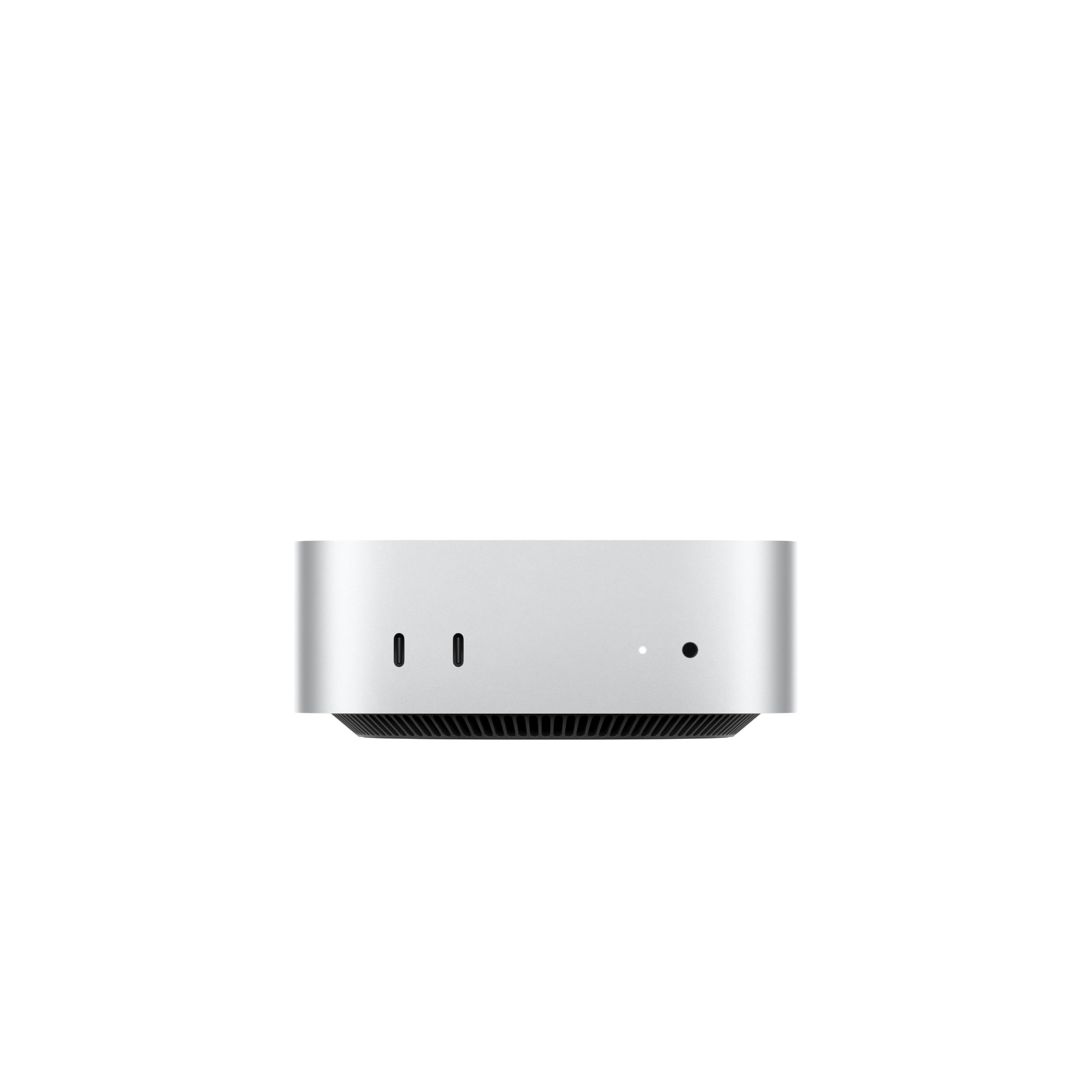
Five inches square and 1.97 inches tall, the Mac mini takes less desk than the keyboard in front of it. Inside that square is a 12-core M6 CPU, a 12-core GPU, three Thunderbolt 4 ports, HDMI, and 2.5Gb Ethernet. You supply the display, keyboard, and mouse — this is a box, not an all-in-one.

For photo work it's the most interesting chip in this group. Photoshop and Lightroom are built for Apple silicon now, and unified memory means the GPU and CPU draw from the same pool instead of copying files between them. What you get is 16GB of that memory and a 256GB SSD, and the storage is the number that gives us pause: a working raw library, its previews, and Lightroom's camera cache will crowd 256GB fast.

The fix is an external Thunderbolt SSD for the catalog and the images it points to, which works well and costs far less than Apple's own storage upgrades — but it's another box on the desk and another thing to back up. Memory is a similar story: 16GB is comfortable for single-image edits and gets tight with layered composites or high-resolution files while other apps are open. Neither can be changed later, so configure carefully at checkout.

In use it's the quietest kind of desktop — you forget it's running until an export finishes. It hides under a riser or behind the display, and Thunderbolt gives you fast storage and a card reader without a hub. The thing to check before you commit isn't the hardware at all: it's whether your tethering cables, card readers, and any older plugin you depend on have current Mac support.

Pros

  • 12-core M6 CPU and GPU in a five-inch square
  • Three Thunderbolt 4 ports plus HDMI
  • Runs quietly on a desk

Cons

  • 256GB SSD is small for a raw library
  • 16GB memory is fixed at purchase
Our verdict

For a Mac-based workflow, the M6 mini is the cleanest choice here — small, quiet, quick, and happiest with an external SSD for the library.

Check Latest Price
3

Best Value

HP ProDesk 600G4 Tower

79 /100
Keeper Score Very Good

Key details

Memory
32GB DDR4 (64GB max)
Storage
1TB SSD
Processor
Intel Core i7-8700, 6 cores, up to 4.6GHz
Video Outputs
Two DisplayPort
Check Price on Amazon

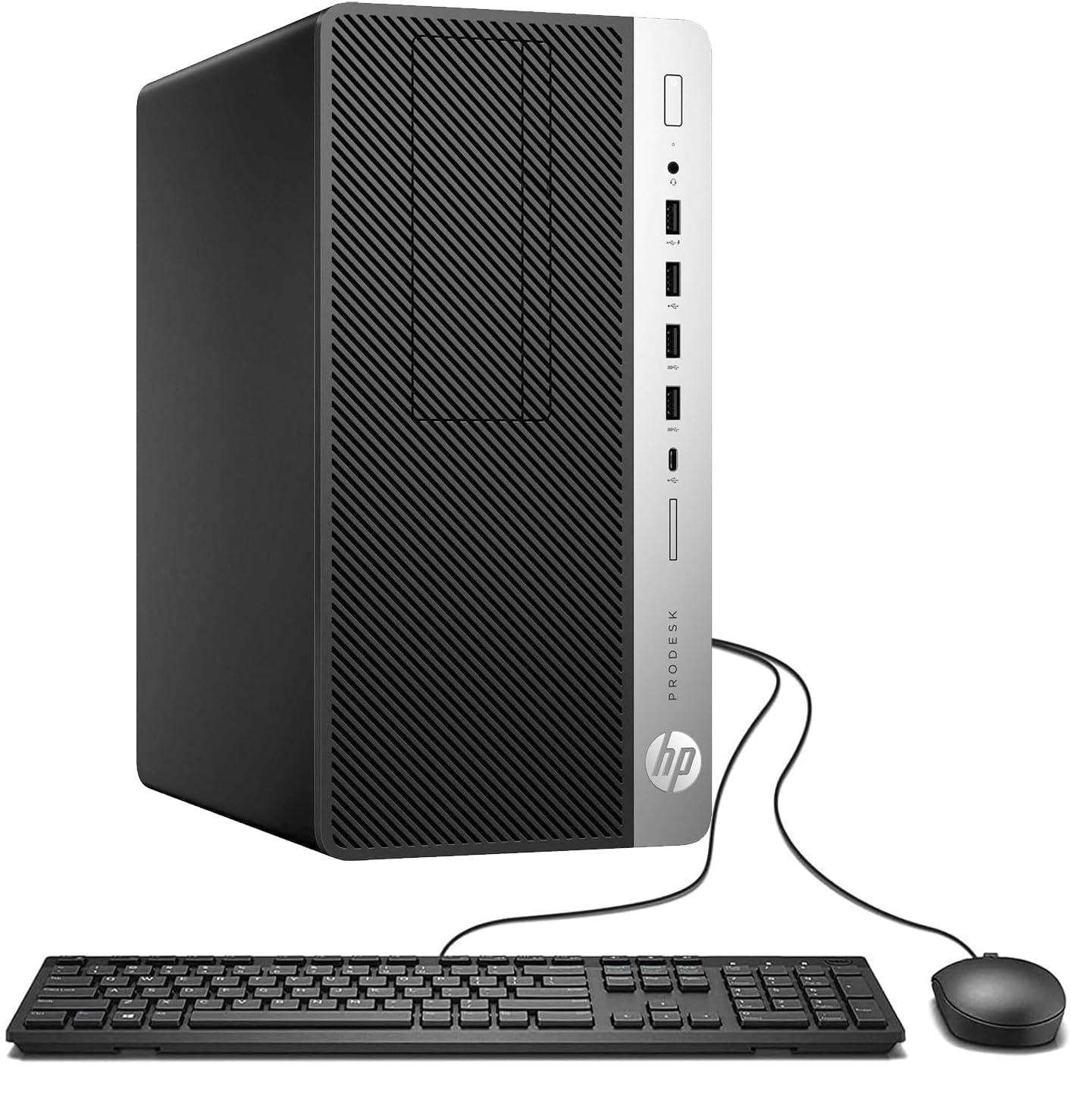
Two of the three things that matter most for photo editing — 32GB of memory and a 1TB SSD — cost less here than anywhere else in this roundup. The processor is an 8th-generation Core i7-8700, a six-core chip that's older than the rest of the field and still entirely capable of Lightroom imports and Photoshop edits. If budget is the deciding factor, this is where we point you.

We came away impressed by how ordinary the experience felt. It boots quickly, programs open without the pause you brace for on an old office machine, and Windows 11 Pro is already installed. The SSD is the reason: a spinning drive would have made this processor feel far older than it is.

The compromises are specific and checkable. There's no HDMI, only DisplayPort, so your monitor needs a DisplayPort input or an adapter — worth knowing before the box arrives. Wireless comes from a plug-in adapter rather than an internal card, and that adapter is the part most likely to disappoint; a network cable solves it permanently. Both fixes are cheap and neither changes how the machine edits photos.

Pros

  • 32GB RAM and a 1TB SSD at the lowest price here
  • Boots fast and opens programs quickly
  • Two DisplayPort outputs for dual monitors
  • Windows 11 Pro preinstalled

Cons

  • 90-day warranty on a renewed machine
Our verdict

The budget answer: the same 32GB and 1TB SSD our top pick carries, for the least money in this roundup.

Check Latest Price
4

New, Not Renewed

HP Business Tower F150

86 /100
Keeper Score Excellent

Key details

Memory
32GB DDR4 (64GB max)
Storage
1TB SSD
Processor
Intel Core i5-10400, 6 cores, up to 4.3GHz
Video Outputs
HDMI, VGA, DVI
Check Price on Amazon

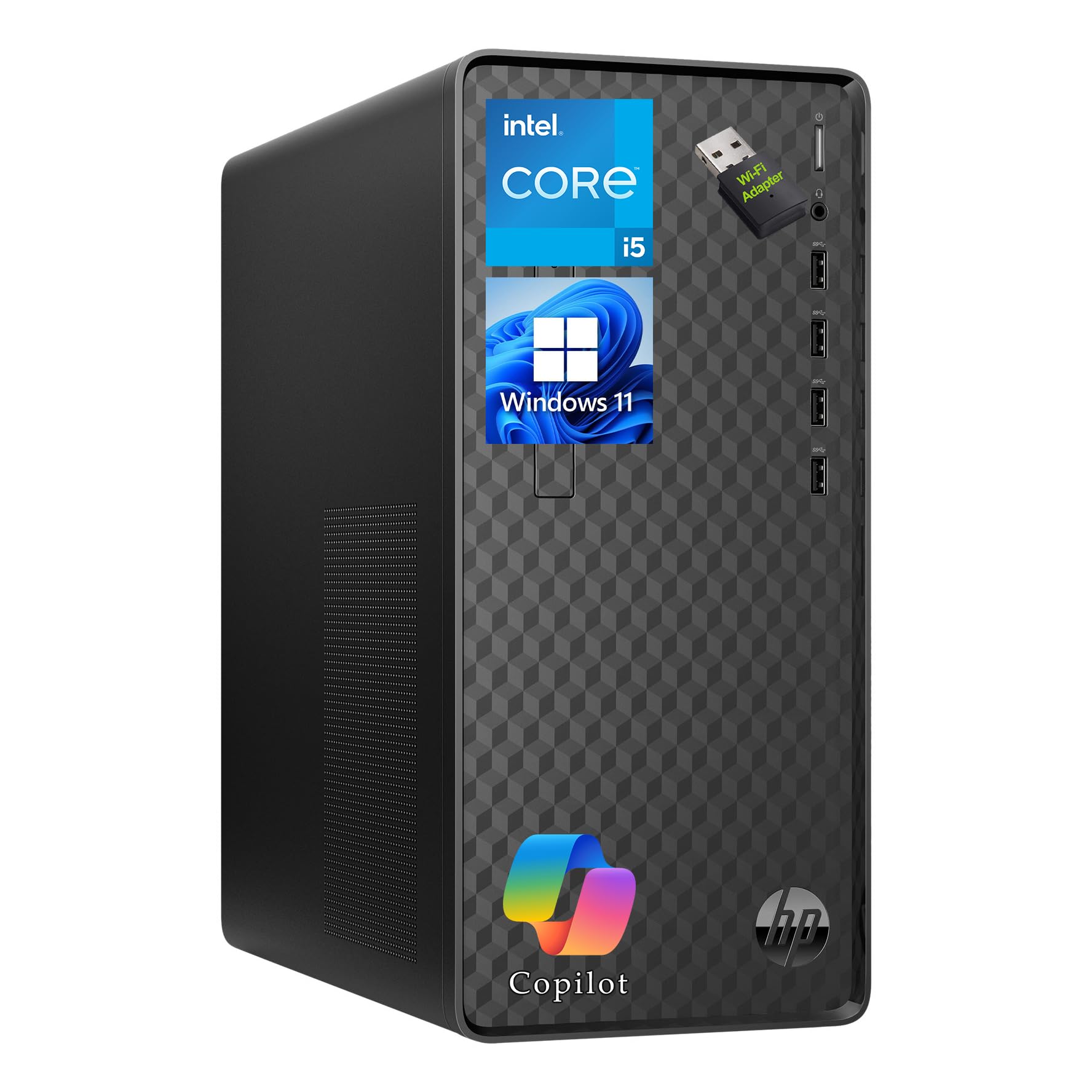
Almost everything in this roundup is renewed stock, which is why the price-to-spec ratios look the way they do. This HP is the exception: new, with Windows 11 Home preinstalled, a keyboard and mouse in the box, and no refurbished history to worry about. If used hardware is a line you won't cross, this is the machine that respects it.

The shape of the specs is right: 32GB of DDR4, a 1TB SSD, and a six-core Core i5-10400 that boosts to 4.3GHz. That's enough for a large Lightroom catalog and for Photoshop with a few layers open. What it isn't is quick by the standards of the rest of this group — the i5-10400 is a 2020-era chip, and the Ultra 7 Dell runs rings around it on imports and exports. In our view you're paying for new stock and current Windows support, not for speed.

It's an easy tower to live with otherwise: 9.26 pounds, 13.2 by 11.9 by 6.1 inches, HDMI plus VGA and DVI so an older monitor still works, and four USB 3.2 Gen 2 ports on the front panel — exactly where a card reader wants to be. Nothing here is exciting and nothing is annoying, which is about what you want from the computer under the desk.

Pros

  • 32GB of RAM and a 1TB SSD
  • New stock with Windows 11 installed
  • Four fast USB ports on the front panel
  • HDMI plus VGA and DVI for older monitors

Cons

  • Six-core i5 is older than the price suggests
  • Wireless comes from a plug-in adapter
Our verdict

For anyone who won't buy renewed hardware, this is the straightforward pick: 32GB, a 1TB SSD, and Windows 11 out of the box.

Check Latest Price
5

Light Editing

Lenovo IdeaCentre 24 AIO

80 /100
Keeper Score Excellent

Key details

Memory
8GB (32GB max)
Display
23.8-inch IPS, 1920 x 1080
Storage
1TB PCIe NVMe SSD
Processor
Intel N100, 4 cores, up to 3.4GHz
Check Price on Amazon

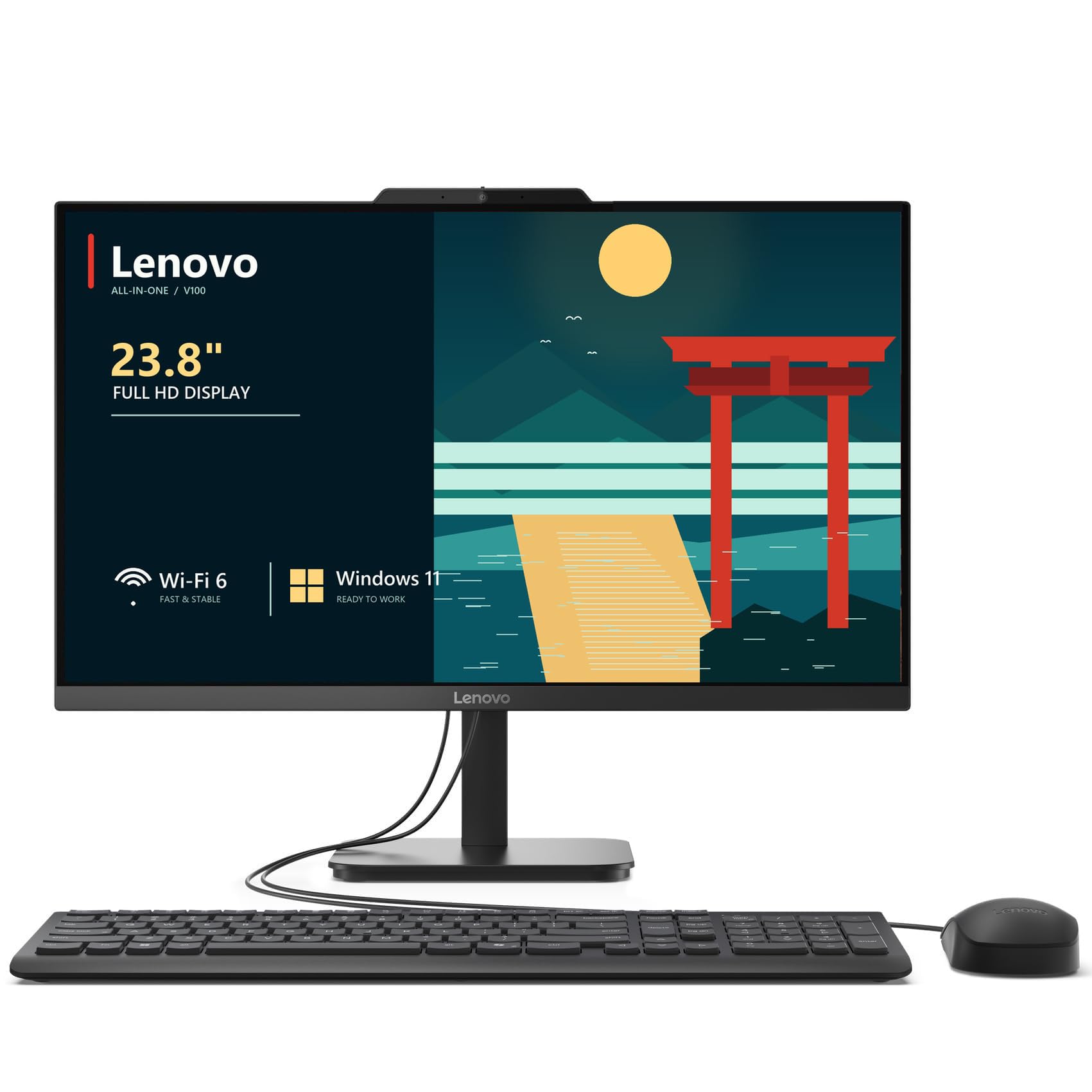
The 23.8-inch IPS panel is the reason this one is here. Lenovo rates it at 99% sRGB with 178-degree viewing angles, and a 1080p screen that covers the sRGB gamut is a more useful editing companion than a faster chip attached to a cheap monitor. You get the computer, the screen, and a keyboard in one box, with one cable to the wall.

Inside is where the compromises start. The Intel N100 is a four-core low-power laptop chip, paired with 8GB of memory and a 1TB NVMe SSD. Culling, keywording, and single-image edits are fine. A panorama merge, a stack of layered composites, or a long batch export will make you wait, and the 8GB is usually the reason — Lightroom will take most of it before Photoshop is even open.

Our take: buy it as a second desk, a dorm-room editing station, or a home-office machine that handles photos on the side, and add memory before anything else. The board takes up to 32GB, which fixes the biggest bottleneck for far less than a new machine. Don't buy it expecting the responsiveness of the towers above; the screen is the reason to say yes, and the N100 is the reason to say yes slowly.

Pros

  • 23.8-inch IPS panel rated at 99% sRGB
  • 1TB NVMe drive included
  • Memory upgradeable to 32GB
  • One box, one cable, no monitor to shop for

Cons

  • 1920 x 1080 panel, not 4K
Our verdict

The one-box option for a small desk: a 23.8-inch IPS screen rated at 99% sRGB and a 1TB SSD, sized for casual edits rather than heavy sessions.

Check Latest Price

How We Chose and Tested These Desktops

We started by pulling the spec sheets apart: how much RAM came standard, whether storage was NVMe or a slower SATA drive, how many USB-A and USB-C ports there were and where they sat on the chassis, whether Wi-Fi and Bluetooth were built in, and whether a keyboard and mouse actually came in the box. Anything that couldn't hold a large RAW catalog comfortably got cut. We kept one renewed business tower in the mix to see how far a tighter budget could stretch, and value was measured against what else that money bought that same month rather than against list price.

Setup was timed from cutting the box open to opening the first file. We noted whether the machine booted into a usable desktop without hunting for drivers, how long wireless pairing took, and whether the bundled keyboard and mouse were worth keeping or got swapped out on day one. We also mapped the ports physically — card reader, external SSD, and a second monitor all plugged in at once — to see whether the layout survived a normal working desk.

Then the real work: 500-frame RAW imports off a card, full-size culling, layered composites with dozens of adjustment layers, healing brush and clone work at 100 percent zoom, and timed batch exports of 100 JPEGs. On the all-in-one we ran a colorimeter over the display and compared graded files against a calibrated reference monitor. We logged fan noise during long exports and wrote down how each machine felt at hour eight of a working day, because the ones that stayed snappy by late afternoon are the ones that earned a spot here.

How to Choose a Desktop for Photo Editing

Memory Comes First, Cores Second

Photoshop and Lightroom hold a lot while you work: the open document, its history states, catalog previews, and the camera cache. Sixteen gigabytes is the floor for comfortable editing; 32GB is where the machine stops making you think about it.

The other half of the question is the ceiling. Check how many slots the board has and how much memory it will take. A tower with 32GB and a single slot has finished growing, while a 16GB machine with two free slots is one order of memory away from comfortable.

What a Newer Processor Actually Buys You

Core counts on a spec sheet are a poor guide by themselves. A 20-core Core Ultra 7 and an 8th-generation six-core both look ample on paper, but the newer chip finishes each core's work faster and holds its clock through a long export. For a few dozen frames a week, an older six-core is genuinely enough — that's why our budget pick still earns its place. For AI denoise, big panoramas, and 45-megapixel files, newer silicon is the difference between a break and a wait.

On the Apple side, unified memory changes the arithmetic: 16GB in a Mac doesn't map onto 16GB in a Windows tower, because the GPU draws from the same pool.

Storage: One Terabyte Is the Working Minimum

Raw files are the bulk of any photo library, and they don't shrink. A 1TB drive holds a comfortable working set along with the catalog, previews, and the scratch space Photoshop wants; 256GB does not survive a year of shooting. Prefer NVMe over SATA — the speed shows up in imports, preview building, and how fast a catalog opens.

If the machine you like ships small, plan on an external SSD for images and keep the internal drive for applications and the catalog.

Ports and Displays: Check Before You Order

Most of us edit across two screens: the image on a calibrated display, the library and panels beside it. Check which video outputs the machine actually has, because budget business towers often offer DisplayPort only, and an HDMI monitor then needs an adapter. A Mac mini needs a Thunderbolt or HDMI display.

Look for USB-C or fast USB-A on the front panel for card readers, and assume a plug-in Wi-Fi adapter on business desktops. If you can run Ethernet, do, and keep that port free for a drive.

New or Renewed?

Most affordable photo-editing towers are renewed business machines sold with short warranties. That's a real trade: 32GB and a 1TB SSD for budget money, and you own the diagnosis if something fails in month four. Treat the first week as a stress test — a large import, a batch export, a full drive check — and keep the packaging until it passes.

If that trade doesn't appeal, buy new and accept an older processor for the same budget.

Frequently Asked Questions

Final Verdict

Buy the Dell if photo editing is a serious hobby or part of your income. It's the only pick here with 32GB of fast memory, a 1TB NVMe drive, and a current-generation 20-core chip in one quiet box.

If you work on a Mac, the M6 mini is the better-fitting machine, provided you add an external SSD for the library. And if the budget decides, the ProDesk 600G4 delivers the same memory and storage for the least money here — check your monitor cable first.