Best 3D Printers of 2026

A 3D printer is a hot glue gun bolted to a frame, melting filament and laying it down a fraction of a millimeter at a time. What nobody tells a first-time buyer is how much can go wrong between those layers — a bed that won't grip, a print lifting off the plate at 2 a.m., a nozzle jam you diagnose by feel. The machines worth owning quietly remove those problems, turning a downloaded file into a repair part instead of a lost weekend.

Eight printers have been running in our homes for seven months, and the split between the ones that just work and the ones that need babysitting shows up in week one. The good ones level themselves and stay dialed in for weeks; the others cost you a Saturday. What decides it rarely appears on the spec sheet — how much filament a multi-color job wastes on purging, whether the app connects on the third try, and whether a cheaper machine is still printing well in month six. Here's what survived.

Keeper Score summarizes customer ratings and review volume. Read it alongside the product details and trade-offs. How the score works.

1

Best Overall

Bambu Lab A1

90 /100
Keeper Score Outstanding

Key details

Noise
≤48 dB
Weight
22 lb
Multi-color
AMS lite
Max Acceleration
10,000 mm/s²
Check Price on Amazon

The first print is the part that sells the A1. Auto calibration maps the bed for you, and active flow rate compensation adjusts extrusion as the layers go down, so a spool of PLA and a pre-sliced file from the model library are enough to get a clean-looking part. The touchscreen walks through setup in plain language, and at 22 pounds the whole machine lifts onto a desk without anyone clearing the room first.

Of the machines here, this is the one we point first-time buyers to. Print quality sits near the top of this set: surfaces come out smooth, layer lines are faint, and a long run holds its consistency to the end. Ease of use is where it separates from the pack — the path from file to finished part is short enough that a supervised kid can manage it, and the machine is forgiving when a spool runs dry or a print gets paused.

Multi-color is an add-on rather than a given. The AMS lite feeds four spools and the printer handles the swaps, which is a reasonable way to buy color later: get a working machine first, then decide once you know what you actually print. The model library is deep, the slicer ships with profiles for the common filaments, and you aren't typing temperatures into a table on day one.

What you can't add later is a chamber. There's no enclosure here, so ABS and ASA — and the fumes they give off — belong to the P1S below. For PLA, PETG, and TPU in a room where people sit, this is the quieter, lighter, more pleasant machine to live with, and at 48 dB it's one we're happy to leave running while we work at the same desk.

Pros

  • Self-calibration and flow compensation from the first print
  • ≤48 dB, quiet enough for a shared room
  • 22 pounds, so one person can move it
  • Short, beginner-friendly path from file to part

Cons

  • Reaching multi-color means adding the AMS lite
Our verdict

If you're buying your first printer and you mostly print PLA and PETG, this is the one we tell people to get: it calibrates itself, runs quietly, and prints well straight out of the box.

Check Latest Price
2

Best for Multicolor

Snapmaker U1

89 /100
Keeper Score Excellent

Key details

Slicer
Snapmaker Orca
Weight
57.9 lb
Max Speed
500 mm/s
Toolheads
4, 5-second swap
Check Price on Amazon

Most color printers make color the expensive part. One nozzle has to unload a filament, load the next, and purge the transition into a waste bin — over a long print that's hours and a pile of scrap plastic. The U1 skips the routine entirely with four independent toolheads parked on the frame: when a color change arrives, it swaps the head in about five seconds and carries on, and very little has to be flushed because nothing shares a nozzle.

The rest of the machine is built around that idea. Smart calibration handles toolhead offsets, vibration compensation, and the first layer, and the on-screen setup is thorough enough that getting started is mostly following directions. At 500 mm/s it's quick without being the fastest thing in this group, and the built-in model library means you have something worth printing before you've sliced anything yourself.

Where it costs you is software. The slicer is Snapmaker's own build of Orca, an open-source package with far more exposed settings than Bambu's ecosystem, and the learning curve is real if this is your first machine. But for figurines, signs, props, or anything with a hard color boundary, this is the pick: the color work is the best in this set and it throws away the least filament producing it, which is why it's here instead of a cheaper purge-based machine.

Pros

  • Four toolheads swap in about five seconds
  • Minimal purge waste between colors
  • Rigid and flexible materials in one print
  • Guided calibration and clear setup instructions

Cons

  • Open-source slicer asks more of a beginner
  • 57.9 pounds and 22.6 inches across
Our verdict

Buy this one if multi-color is the whole point: four toolheads swap in seconds, waste nearly disappears, and the results are the cleanest color prints in this guide.

Check Latest Price
3

Best Enclosed

Bambu Lab P1S Combo

85 /100
Keeper Score Excellent

Key details

Weight
47.5 lb
Enclosure
Fully enclosed
Max Speed
500 mm/s
Multi-color
AMS, up to 16 colors
Check Price on Amazon

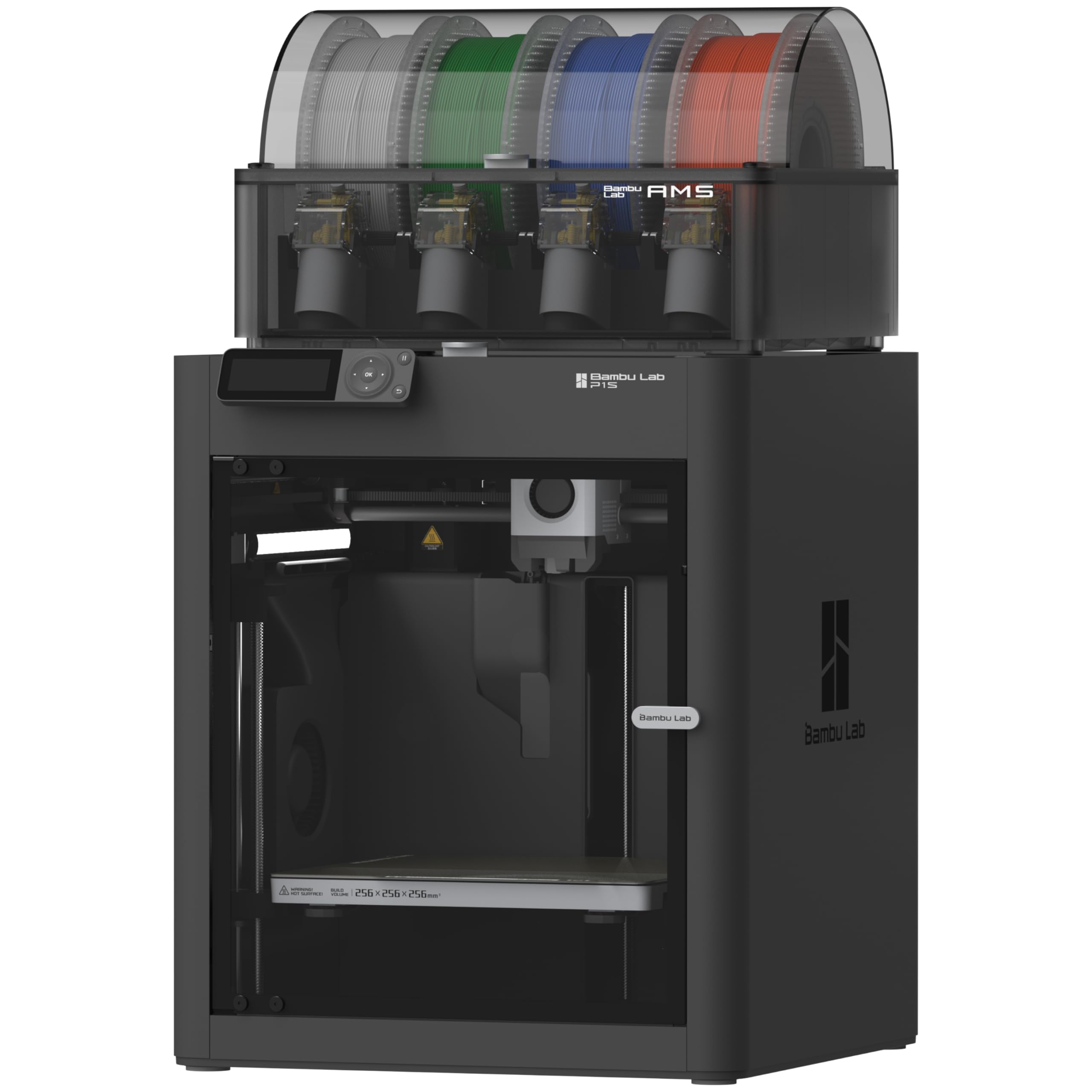
The enclosure is the whole argument. A closed chamber holds heat around the part, which is what ABS and ASA need to avoid splitting between layers, and it keeps the smell and fine particles inside the box instead of in your living room. The filament list puts PLA, PETG, TPU, PVA, PET, ABS, and ASA in the ideal column and PA and PC in the capable one; carbon- and glass-fiber blends are the ones to leave alone.

The AMS sits on top and feeds four spools, and chaining units takes it to 16 colors. What we appreciate most is how little ceremony stands between unboxing and a first print — the machine arrives largely assembled, and the 15-minute setup claim feels close to the real experience.

Speed is the other half of the pitch. 500 mm/s with 20,000 mm/s² acceleration puts it in the fast group here, and print quality holds at that pace: this is among the best in this set for finish, clean enough that sanding brackets and boxes is optional rather than routine. The CoreXY frame keeps that speed from turning into ringing on the walls.

So the P1S is the pick when the material list matters more than the price does, or when the printer lives somewhere fumes would otherwise drift. Next to the A1 it costs substantially more and returns a chamber, a faster frame, and the full AMS instead of the lite version. Next to the Snapmaker U1 it gives up waste-free color changes in exchange for that sealed box — a trade most people printing functional parts make without hesitating.

Pros

  • Enclosed chamber opens up ABS, ASA, PA, and PC
  • Up to 16 colors through the AMS
  • 500 mm/s with 20,000 mm/s² acceleration
  • Close to a 15-minute setup

Cons

  • Plastic front handle is a fragile point
  • Wi-Fi and Bluetooth pairing can take a few tries
Our verdict

For ABS, ASA, or a printer that shares a room with people, the enclosed P1S is the better long-term buy — faster than the A1 and far more material-flexible.

Check Latest Price
4

Best Budget Multicolor

Anycubic Kobra X

84 /100
Keeper Score Excellent

Key details

Noise
45 dB
Colors
4 built in, up to 19
Weight
20.9 lb
Max Speed
600 mm/s
Check Price on Amazon

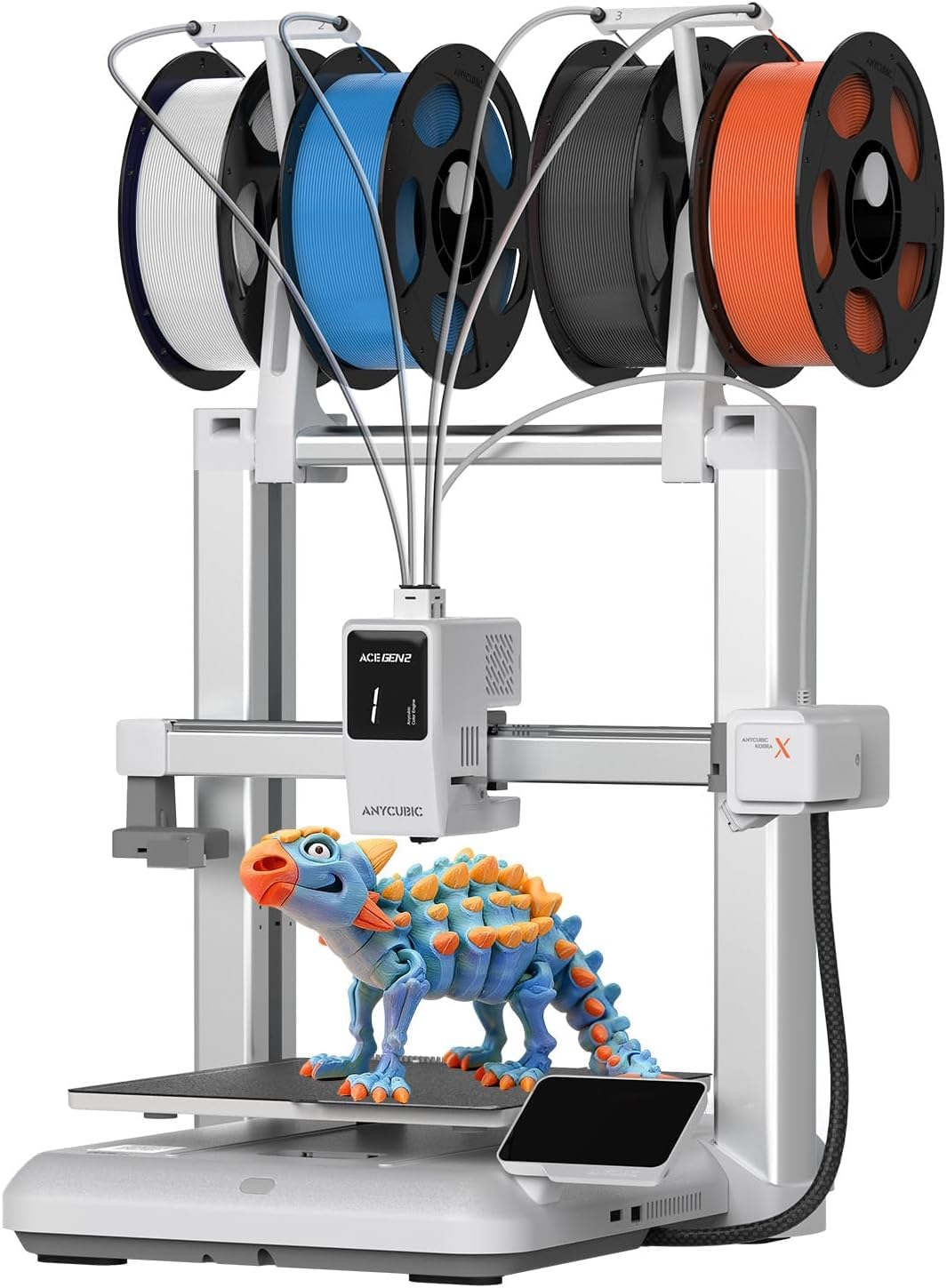
Four colors, built in, for about what our top pick costs before you add any color hardware at all. The Kobra X carries its own four-slot filament system instead of selling you a separate box, and stacking more ACE 2 Pro units takes it to 19 colors. For a household that wants a red-and-black robot on the shelf without paying toolchanger money, that's the entire reason to look here, and it's a good one.

Setup is the other place it earns its keep. A 49-point auto-leveling routine plus vibration compensation put our test prints down flat without shimming anything, and setup feedback is among the strongest showings in this group. It's a 20.9-pound machine with a 45 dB noise figure, a top-mounted spool holder that gives back the desk space under the frame, and an AI camera that catches the spaghetti a failed first layer turns into.

Where it wobbles is after the honeymoon. Reliability splits close to the middle, with jams and clogs turning up after the first handful of prints on some machines — usually filament, heat creep, or a partly seated hotend rather than a dead unit. Our advice is to run one long multi-color print early, while a return is still easy, and to stay with a filament you've already had luck with before you start experimenting.

Pros

  • Four colors built in, no extra unit to buy
  • 600 mm/s with a 45 dB noise figure
  • Quick, well-regarded setup and auto leveling

Cons

  • Reliability splits after the first few prints
  • Going past four colors needs more ACE units
Our verdict

If color is non-negotiable and the budget stops at entry level, the Kobra X is the cheapest good answer here — break it in with a long print early.

Check Latest Price
5

Best Resin

ELEGOO Saturn 4 Ultra 16K

85 /100
Keeper Score Excellent

Key details

LCD
10-inch 16K mono
Build Volume
8.33 x 4.66 x 8.66 in
XY Resolution
14 x 19 μm
Heated Resin Tank
Yes
Check Price on Amazon

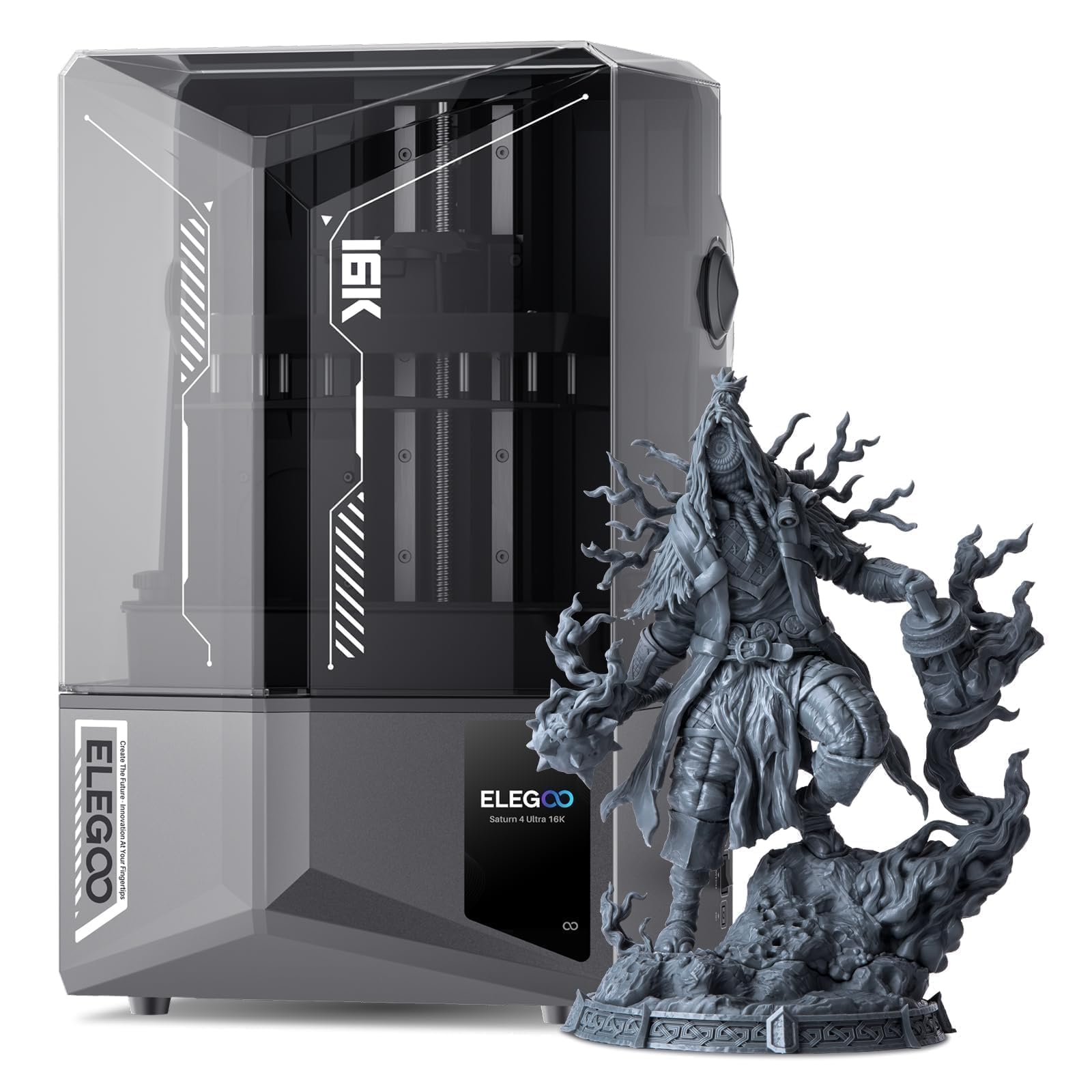
This is a different tool, not a better one. A resin printer cures liquid photopolymer a layer at a time against an LCD mask, which is how it reaches detail FDM can't touch — miniature faces, jewelry patterns, fine text — and why it also brings gloves, IPA, a wash-and-cure routine, and ventilation into your life. If your parts are decorative and small, that trade is worth making.

The 16K panel is the headline. At 15120 x 6230 pixels across a 10-inch screen, each pixel is 14 by 19 microns, so edges hold up when you look at a print from a few inches away. Tilted release and a 25% gain in light energy cut the peel force and the cure time per layer, which is where resin printers usually lose their evenings.

Two features matter more than the resolution number in daily use. The heated tank warms resin to a working temperature — the difference between a reliable winter print and a plate of failed supports — and the mechanical sensor keeps an eye on resin level, plate leveling, and foreign objects in the vat. Add the AI camera and you can start a print, walk away, and catch a problem before it eats a tank of resin.

If you've only used FDM, the slicing software is the steep part: hollowing, supports, and exposure times are a separate education. The machine itself is 35.4 pounds of glass and metal that wants a stable, ventilated spot away from kids and pets. But for miniatures, models, and anything where surface detail carries the value, this is the resin printer we choose from this group.

Pros

  • 16K LCD with 14 x 19 μm pixels
  • Heated tank keeps resin workable in cool rooms
  • Sensors watch resin level, plate level, and debris
  • AI camera for remote monitoring

Cons

  • Washing, curing, and ventilation come with every print
Our verdict

For miniatures and fine detail, the Saturn 4 Ultra's 16K panel and heated tank make it the resin pick here — provided you're ready for washing, curing, and ventilation.

Check Latest Price
6

Large Prints

Creality K2 Plus Combo

85 /100
Keeper Score Excellent

Key details

Weight
70.4 lb
Chamber
Up to 60 °C
Max Speed
600 mm/s
Build Volume
350 x 350 x 350 mm
Check Price on Amazon

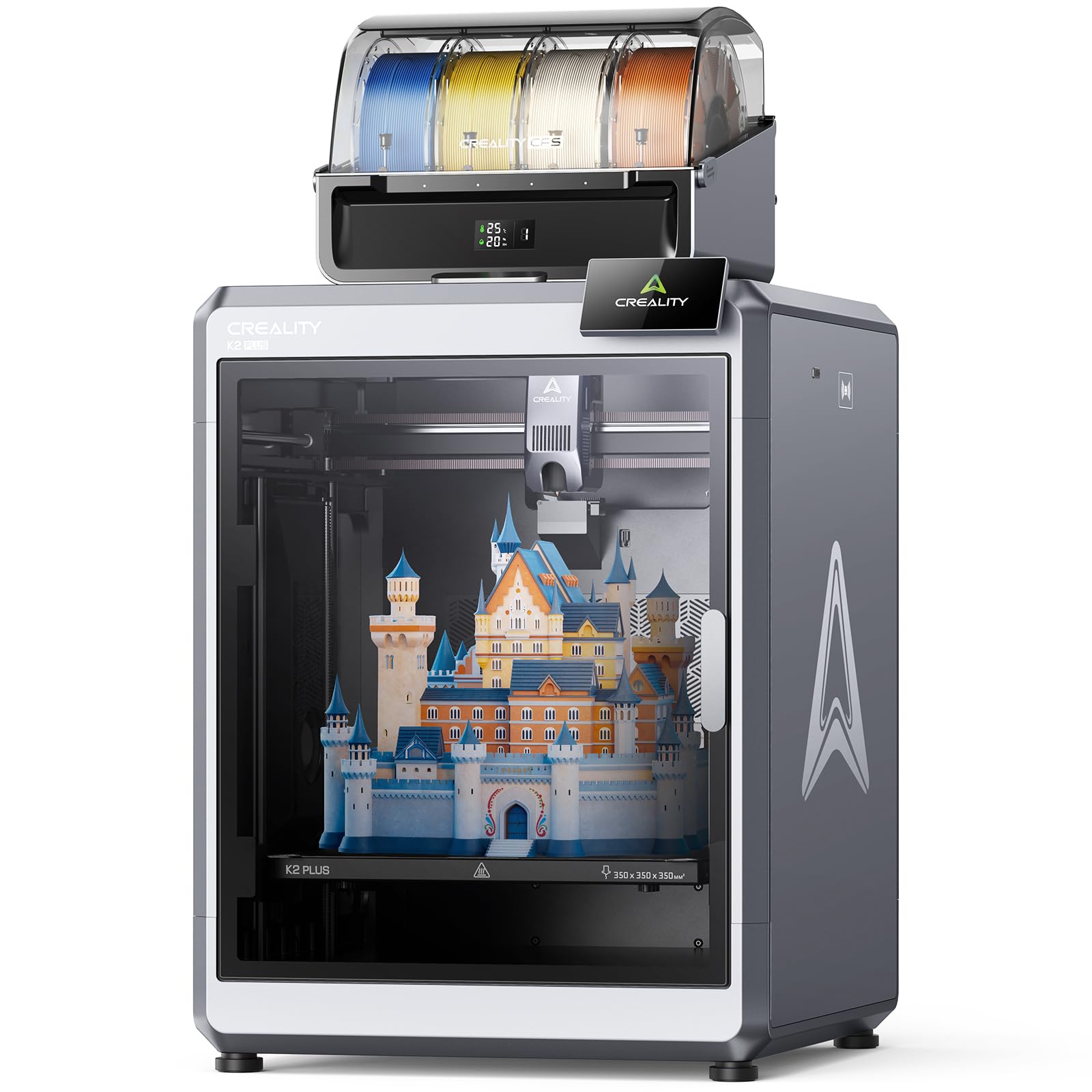
A 350 mm cube is a different class of machine. It's the difference between printing a helmet in four pieces and printing it in one, and between a single bracket and a plate of twelve. The chamber holds up to 60 °C, which is what makes ASA and PPA behave, and four CFS units chain together for 16 colors on top of that. Nothing else here covers large, hot, and multi-color at the same time.

This is the one to choose when size is the constraint and nothing else will do — but set aside a weekend. The printed documentation is the weakest part of the package, with picture-only assembly steps and little troubleshooting guidance, and at 70.4 pounds the initial lift wants a second person and a solid bench. Get it running and the volume is genuinely liberating; get a difficult unit and the first week is a slog.

The rest of the spec sheet is generous: 600 mm/s with a 30,000 mm/s² acceleration figure, dual AI cameras, and 18 sensors watching the chamber. Print quality is good once the machine is dialed in, and the enclosure means the bigger parts don't warp on the way up. Reliability is the split — some of these run for months without complaint, others stop producing a good print early. Run a long ASA print in the first week and you'll know which machine you got.

Pros

  • 350 x 350 x 350 mm build volume
  • 60 °C chamber for ASA and PPA
  • 16 colors and dual AI cameras

Cons

  • Picture-only instructions leave gaps
  • 70.4 pounds needs a solid bench and a helper
Our verdict

When your parts are bigger than 300 mm, the K2 Plus is the only printer in this guide that answers — just plan for a slow, hands-on first week.

Check Latest Price
7

Young Makers

AOSEED X-MAKER JOY AI+

82 /100
Keeper Score Excellent

Key details

Colors
Single color only
Weight
8.82 lb
Enclosure
Fully enclosed
Included Filament
8 PLA spools
Check Price on Amazon

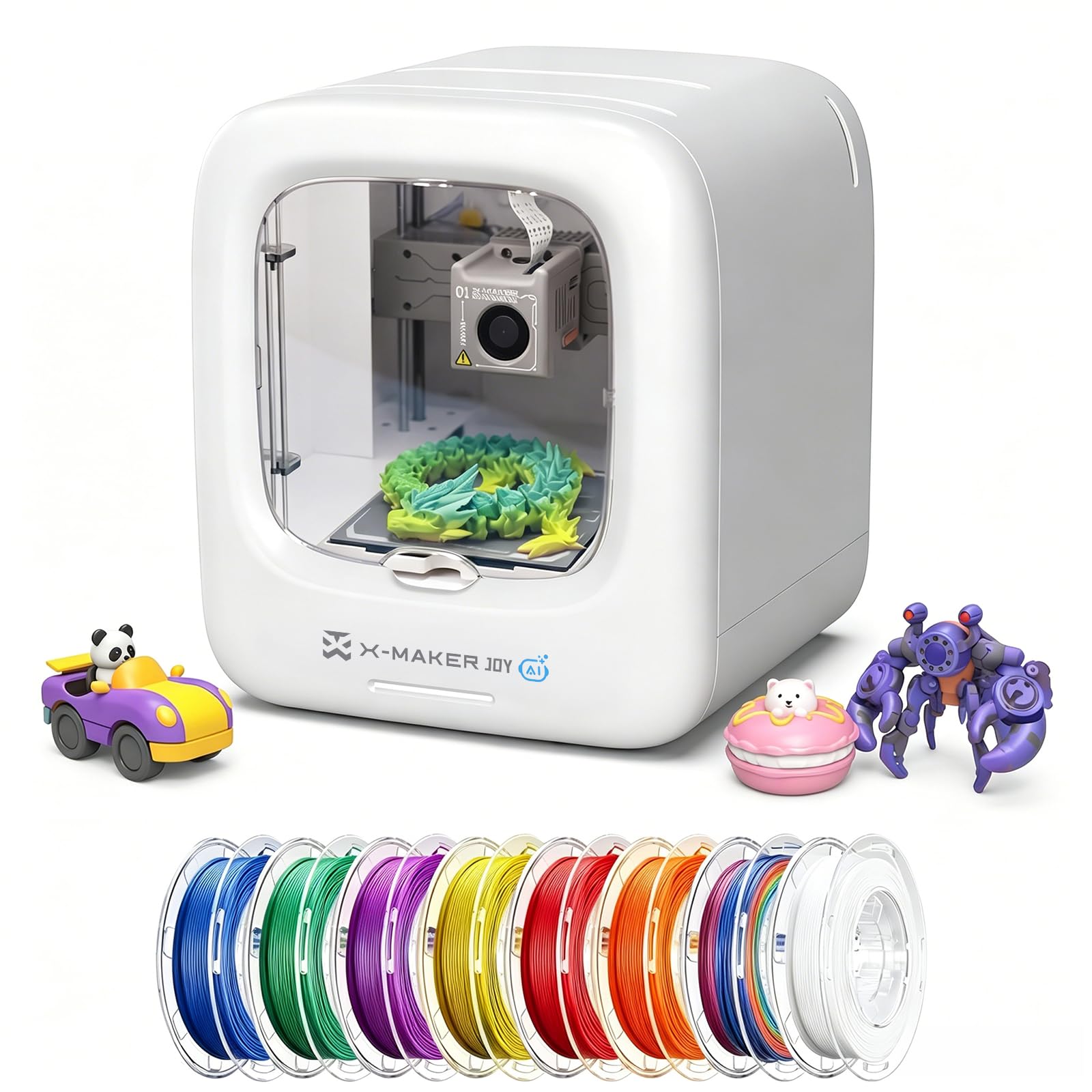
An 8.82-pound box that fits on a kitchen counter is a different proposition from a 47-pound tower in a workshop. The X-MAKER JOY is fully enclosed, so the hot end and the moving gantry sit behind a shell rather than in front of a seven-year-old, and the app does the printing itself. That combination is why it's in this guide at all.

The library is the draw: more than 20,000 models arranged for browsing rather than searching, plus AI Doodle, which turns a voice prompt, a line drawing, or a photo into something printable. Small parts come off at up to 0.05 mm precision, and 220–250 mm/s with peaks at 400 mm/s is brisk for a machine this size. Eight PLA spools are included, so the first month doesn't need a supply run.

It prints one color. Multi-color designs are printed as separate parts and assembled, which for a kid's toy is usually fine and occasionally disappointing when the model you picked assumes four filaments. And at roughly the price of our top pick, this is a toy factory rather than a workshop: small build volume, single material, app-first workflow. For a child who wants to make things, that's a good trade. For anyone who wants to learn 3D printing properly, the A1 is the better teacher.

Pros

  • Fully enclosed, so small hands stay off the hot end
  • 20,000+ model library and one-tap app printing
  • AI Doodle turns voice, text, or a photo into a model
  • 8.82 pounds fits on a counter

Cons

  • Single color only; multi-color models print in parts
  • 220–250 mm/s typical speed trails the fast machines here
Our verdict

For a kid's first printer, the enclosed, app-driven X-MAKER JOY is the safest and simplest route — as long as one color per part is acceptable.

Check Latest Price
8

Small Desks

Entina Tina2C

84 /100
Keeper Score Excellent

Key details

Weight
5.28 lb
Control
Wi-Fi app or TF card
Assembly
Fully assembled
Build Plate
Flexible magnetic
Check Price on Amazon

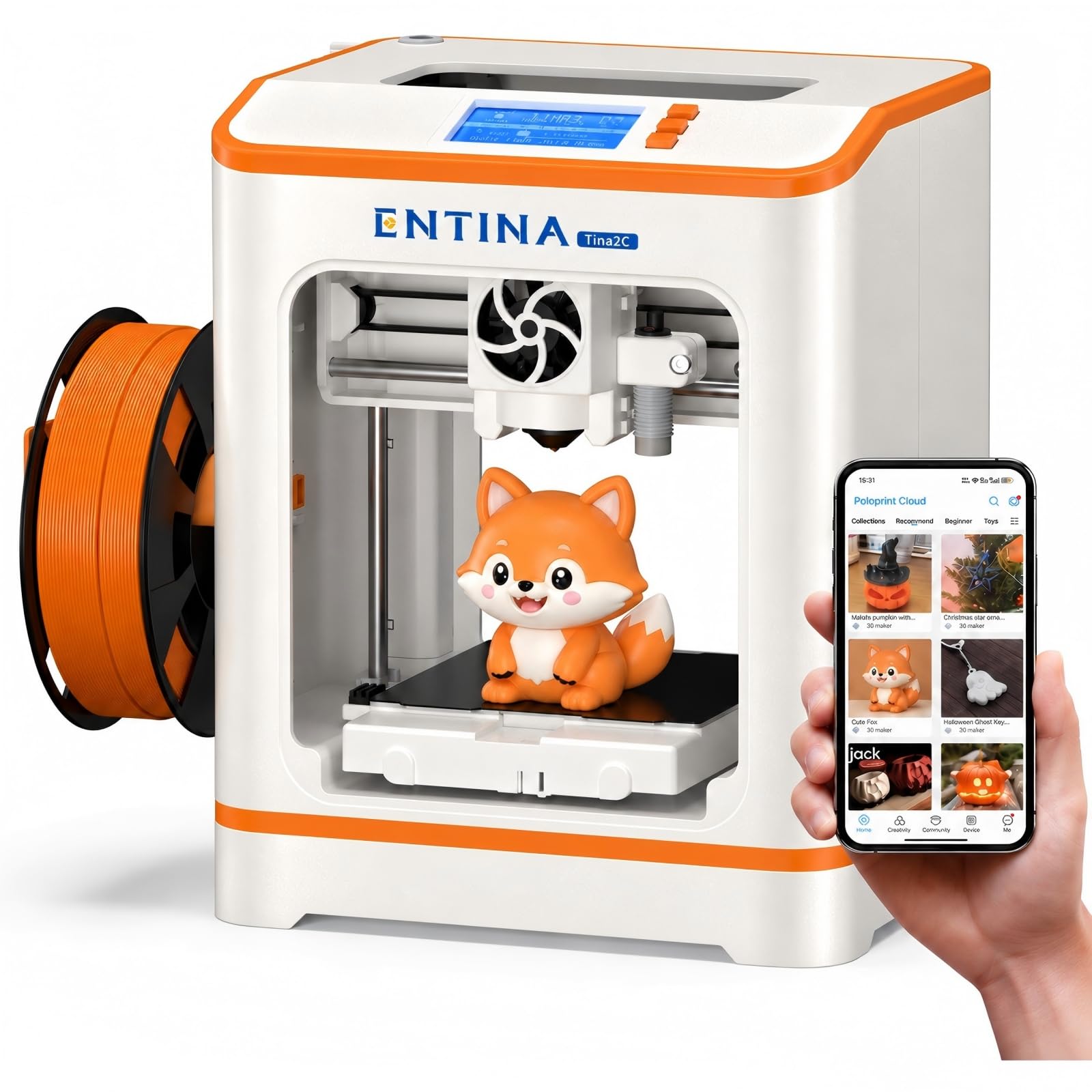
At 5.28 pounds and about 8 inches across, the Tina2C is the smallest machine here and the one that fits where nothing else does — beside a monitor, on a shelf, in a dorm room. It arrives assembled, and the guided setup through the Poloprint app gets you to a first print in roughly eight minutes, which makes it the least intimidating machine in this guide as well as the cheapest.

The trade is capability. The build area is small even for a mini printer, so you're making keychains, fidget toys, and small figures rather than anything structural, and there's no multi-color and no enclosure. What is here is chosen well for that job: auto leveling, a flexible magnetic plate that releases parts with a bend, power-loss recovery for long small prints, and both Wi-Fi and TF-card printing so it works without the app. For a first printer that has to earn its desk space, the size is the feature.

Pros

  • Arrives assembled; guided setup in about 8 minutes
  • 5.28 pounds and roughly 8 inches wide
  • Auto leveling and a flexible magnetic plate
  • Wi-Fi app or TF-card printing

Cons

  • Build area suits trinkets, not large parts
Our verdict

If your only free surface is a shelf, the Tina2C is the printer that fits — tiny, pre-assembled, app-guided, and honest about printing small things.

Check Latest Price

How We Tested 3D Printers, From Unboxing to Month Seven

We started with roughly 40 printers, from open-frame budget kits to enclosed multi-color machines, and narrowed them by build volume, whether multi-color was built in or added on, and whether the manufacturer published an actual setup guide. Eight made the cut. Each was unboxed and assembled by one person with a stopwatch running and only the included instructions — no forum threads, no video walkthroughs — noting every point where the manual and the on-screen prompts disagreed.

Then the printing. Every machine ran the same three jobs first: a flat calibration square, a tall thin tower, and a two-piece assembly that has to fit together. I checked the finished parts with calipers, looked at stringing and layer lines under a desk lamp, and noted whether the first layer stuck on its own or needed glue, tape, or a brim. A two-color print got weighed against the filament it consumed, so we could see how much each machine threw away on purging, and every printer spent a week taking jobs over Wi-Fi and from a phone app while I pulled the router mid-print to see what happened. The lone resin machine got its own routine: gloves, an open window, and a wash-and-cure cycle after every print.

Ease of use was judged by people who had never touched a printer: a 12-year-old, a neighbor, and my sister, each handed a machine cold and told to make something. Reliability and durability were the slow part — seven months of weekend printing with failures logged, then a teardown at the end to check belts, nozzles, and bed surfaces for what had loosened, worn, or warped. We measured noise at ear height during a night print, scored the instructions separately for how fast they got someone unstuck, and only then totaled up value: what the machine cost against how often it actually finished a print without an upgrade.

How to Choose a 3D Printer

Start with the process, not the brand

FDM melts filament and builds parts that are tough, cheap, and good enough for brackets, toys, jigs, and boxes. Resin cures liquid photopolymer against an LCD mask, which is how it produces detail no FDM machine here can match — and why it also brings gloves, IPA, a wash-and-cure station, and a ventilated workspace into your routine.

If the parts need to take a knock, stay with FDM. If you want miniatures, jewelry masters, or surfaces that come off the plate already smooth, price the resin workflow as part of the purchase rather than an accessory.

Size the build volume, then measure the footprint

Build volume decides what prints in one piece; footprint decides whether the machine lives where you'll actually use it. The Creality K2 Plus runs a 350 mm cube and wants a solid bench. The Entina Tina2C is about 8 inches wide and sits on a shelf beside a monitor.

Two measurements get forgotten. Leave depth behind the machine, because a bed that travels fore and aft needs room to move, and check the shelf or cupboard above it. A large printer you have to squeeze past gets used less than a small one within reach.

Open frame or enclosed

An open printer is lighter, cheaper, and easy to watch. An enclosure changes the material list: ABS, ASA, and polycarbonate want warm, still air or they split between layers, and a closed box also keeps fumes and fine particles out of the room. Chamber heat that holds 50 to 60 °C pushes that further, which is what the K2 Plus and the P2S-class machines are doing.

If your list is PLA, PETG, and TPU, an open machine is the better value. The moment you want engineering plastics, or the printer shares a room with people, pay for the box.

Color systems: purge or toolchange

Multi-color comes in two flavors, and they differ in what each print costs you. Purge systems — Bambu's AMS, Creality's CFS, Anycubic's ACE — feed a single nozzle and flush between colors. That's compact, supports a lot of colors, and spends filament and time on every change.

Toolchangers like the Snapmaker U1 swap the whole head in seconds and waste almost nothing, at a higher machine price. Print color occasionally and purge is fine. Print color because that's the point, and the waste and hours add up quickly.

What the speed numbers don't tell you

A 600 mm/s headline is a ceiling, not an average. Acceleration, layer cooling, part geometry, and how much of the plate is filled decide the real time, which is why two machines quoting the same figure can finish the same model hours apart.

The same skepticism applies to auto leveling. It removes the paper-and-feel ritual, not the need for a clean plate and the right first-layer temperature. Run one long print in your first week, while returns and support are still easy to reach.

Frequently Asked Questions

Final Verdict

The Bambu Lab A1 is the printer we recommend to almost everyone. It calibrates itself, prints cleanly out of the box, runs quietly enough for a shared room, and leaves multi-color open as a later decision rather than an upfront one.

Step up to the P1S if you need an enclosure for ABS or ASA, or if the printer lives where fumes matter. And if color is the reason you're buying at all, the Snapmaker U1's four toolheads earn their premium: cleaner color boundaries, almost no purge waste, and a learning curve you'll clear in a weekend.