Best Trackball Mice of 2026

The switch usually happens by accident. Mine came during a week of back-to-back deadlines, when my wrist ached enough that I dug an old trackball out of a drawer — two days later I'd stopped reaching for a regular mouse. A trackball keeps your hand still while your thumb or fingers spin the ball, and that stillness is why cramped wrists tend to stay converted.

The catch is that the ball's position changes everything about how your hand rests, and the wrong trackball just moves the ache to a new joint. I've spent the past six months with 14 of them — thumb balls and finger balls, wired and wireless, angled and flat — and the comfort differences showed up within an hour, not weeks. Buttons and scroll wheels mattered more than I expected, and Bluetooth that drops mid-task will sour an otherwise good mouse.

What follows earned its spot on comfort, accuracy, and value rather than spec sheets. If you're not sure where to begin, decide first whether you want your thumb or your fingers doing the work.

Keeper Score summarizes customer ratings and review volume. Read it alongside the product details and trade-offs. How the score works.

1

Best Overall

Logitech ERGO M575S

90 /100
Keeper Score Outstanding

Key details

Battery
1 AA, up to 18 months
Buttons
5, three customizable
Connection
Bluetooth or Logi Bolt receiver
Ball Control
Thumb
Check Price on Amazon

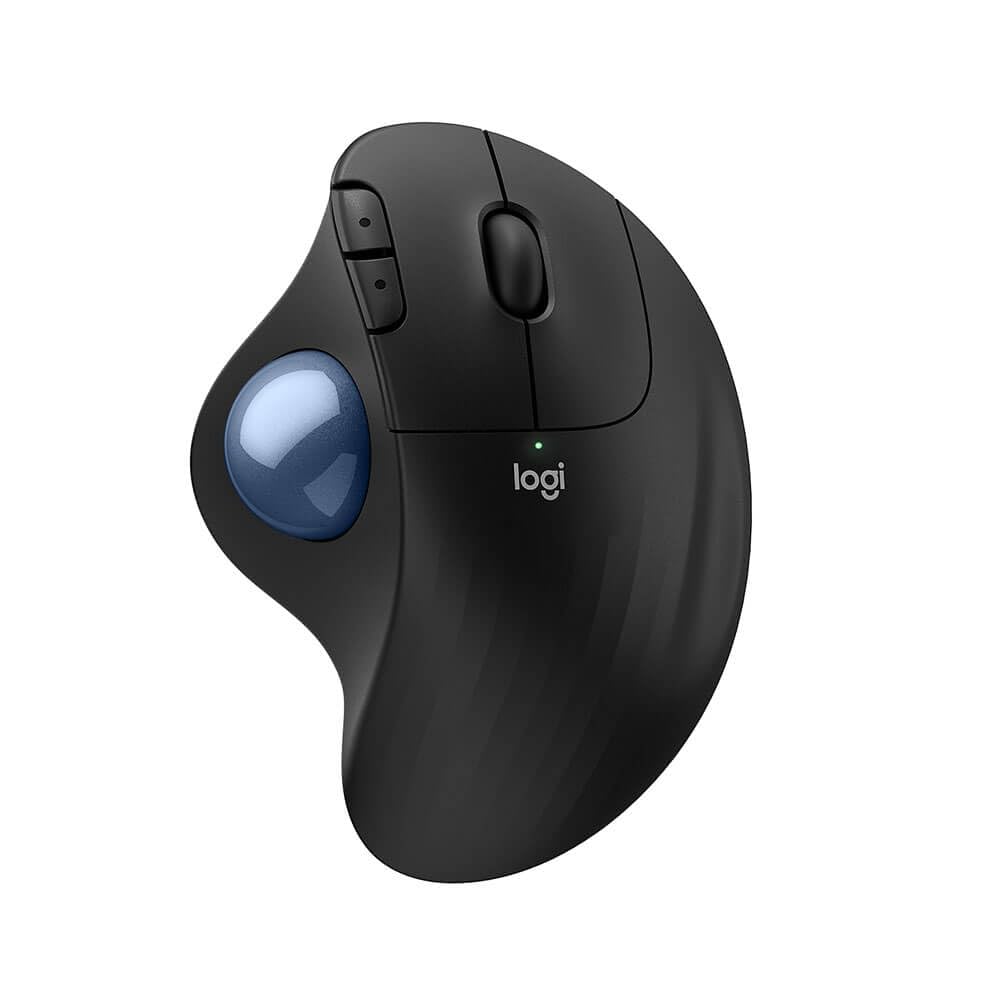
The point of a trackball is that your arm stops moving, and the ERGO M575S does that with nothing to set up. Your thumb rolls the ball, the shell holds your palm in a fixed, slightly rolled position, and the rest of your hand stays put. Logitech shapes it to fit most hand sizes, and the ball tracks on any surface, so a lap or the arm of a sofa works as well as a desk. It's the least dramatic trackball here, and that's exactly why we point most people to it first.

One AA battery is the least fashionable power choice in this group and, for a mouse, the right one. Logitech rates the included cell at up to 18 months, which is longer than most of us keep a mouse, and it means a charging cable never becomes part of your desk. The rechargeable picks here are good; none of them spares you the routine the way this one does.

Connection is Bluetooth or the bundled Logi Bolt receiver, and the five buttons include back and forward, with three programmable in Logi Options+ for shortcuts and app switching. The sensor tops out at 2,000 DPI, which is plenty for a laptop or a pair of monitors, and the ball rolls smoothly while the textured shell gives your palm something to grip.

The one thing it doesn't do is change shape: the angle you get is the angle you keep. If you want to experiment with a steeper roll, the MX Ergo S sits at 20 degrees by design and the ProtoArc EM02 lets you flip between flat and angled. For everyone else, the office worker, the laptop-on-the-kitchen-table user, the person whose wrist aches by four in the afternoon, this is the trackball we set up first and then stop thinking about.

Pros

  • Thumb control keeps the arm still
  • Up to 18 months on one AA
  • Bluetooth or bundled Logi Bolt receiver
  • Five buttons, three programmable

Cons

  • Molded for the right hand only
  • Left-click can stick on some units
Our verdict

Our default recommendation is the ERGO M575S: thumb control, a battery rated for the better part of two years, and a shape that fits most hands without any setup.

Check Latest Price
2

Best Premium

Logitech MX Ergo S

87 /100
Keeper Score Excellent

Key details

Tilt
20 degrees
Battery
Rechargeable, up to 120 days
Connection
Bluetooth or USB dongle
Ball Control
Thumb
Check Price on Amazon

Twenty degrees of tilt is the whole idea here. The MX Ergo S rolls your hand further over than the flatter thumb trackballs in this group, and it's the kind of difference you notice at hour six rather than hour one. Logitech certifies the shape with ergonomists, the grip surfaces are soft rubber, and the clicks are roughly 80% quieter than the previous generation, a small thing that matters a lot in a shared room.

This is the trackball we choose when the desk is the job: long editing sessions, spreadsheets, a full day of writing. The premium buys posture rather than features, and it's the only pick here with USB-C fast charging. Logitech rates a one-minute top-up at 24 hours of use and a full charge at up to 120 days, so a forgotten cable costs you minutes instead of an afternoon.

What it doesn't fix is Bluetooth. The link has a habit of going quiet when the computer sleeps, and it doesn't always come back on its own; pair it with the included dongle on a desktop and the problem mostly disappears. Six of the buttons are programmable in Options+, the tracking button flips between precise and fast cursor speeds, and the price is the highest here, worth it for a full-time desk and harder to justify for a laptop you open twice a day.

Pros

  • Twenty-degree tilt for a better forearm roll
  • Notably quieter clicks than before
  • One-minute charge gives 24 hours
  • Six programmable buttons via Options+

Cons

  • Left button can miss presses
  • Premium price for a one-year warranty
Our verdict

Buy this one if your desk is where you spend the day and you want the most comfortable, quietest trackball here; the premium buys posture and a USB-C top-up, not extra features.

Check Latest Price
3

Best Finger-Operated

Kensington Expert Trackball (Wired)

87 /100
Keeper Score Excellent

Key details

Scroll
Scroll ring
Connection
Wired USB-A
Ball Control
55mm finger ball
Hand Orientation
Ambidextrous
Check Price on Amazon

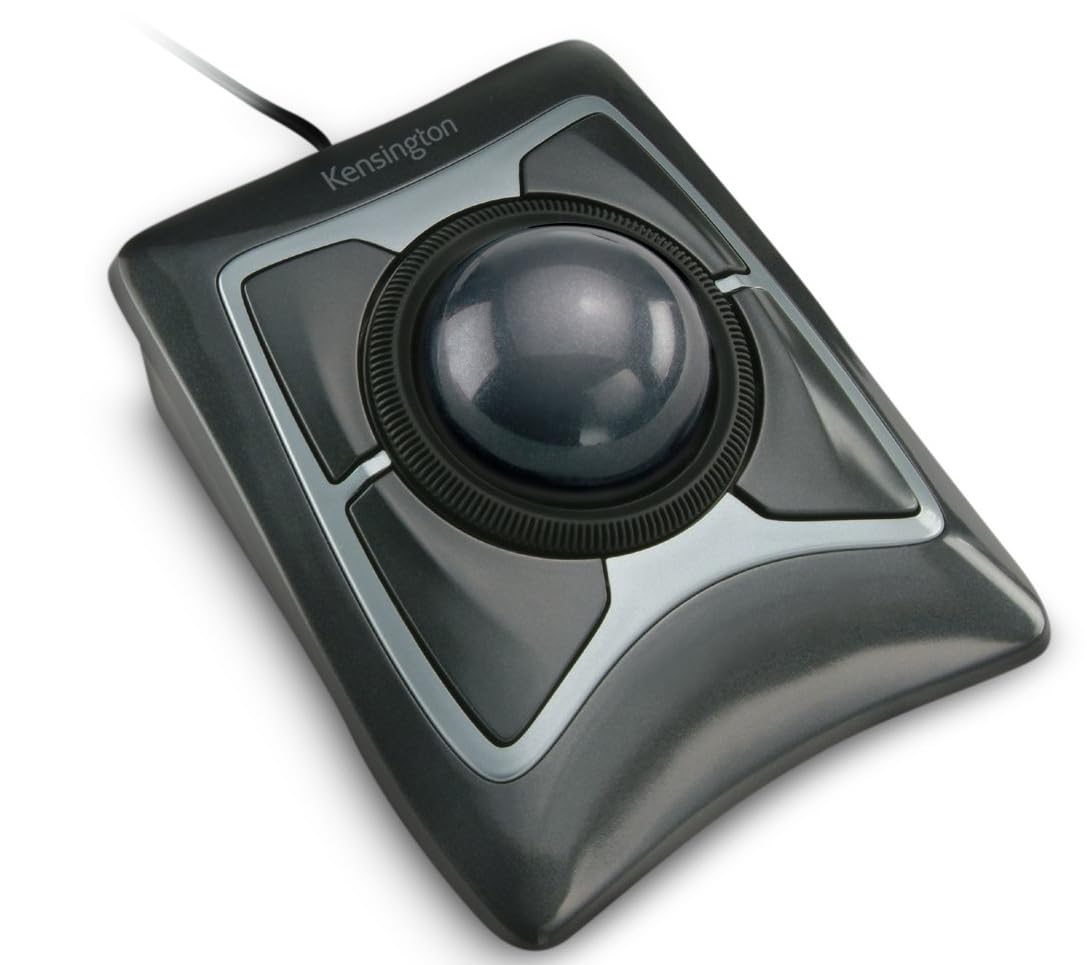
Fifty-five millimeters of ball is a lot, and it changes how the mouse feels: you roll it with two fingers instead of a thumb, your hand stays anchored, and a small cursor move becomes a nudge rather than a shove. We like it for two kinds of buyer: anyone whose thumb aches after a day of thumb-ball work, and anyone sharing a desk, because the Expert is ambidextrous and genuinely usable in either hand.

The scroll ring around the ball is the feature we miss when we go back to a wheel. It wraps the ball, so scrolling never takes your fingers off the pointer, and it spins continuously down long pages. The detachable wrist rest supports the heel of your hand and comes off if you'd rather sit lower. Four buttons are programmable in KensingtonKonnect, the cable means no charging ever, and the warranty runs five years, the longest in this guide.

The ring is also the part that divides people. A smooth one spins freely under a finger; a stiff one drags and makes a noise, and it's the first thing to test while returns are still easy. Budget a serious corner of the desk as well, wrist rest included. What you get for the space is the best finger-control feel here, and a mouse that will still be working when the cheap ones have been replaced twice.

Pros

  • 55mm ball for precise finger control
  • Scroll ring spins continuously
  • Ambidextrous with a detachable wrist rest
  • Five-year warranty

Cons

  • Buttons need a firm press
  • No wireless version of this model
Our verdict

We recommend the wired Expert to anyone whose thumb is the problem and anyone sharing a desk: the big finger ball, scroll ring and five-year warranty make it the safest finger-control buy.

Check Latest Price
4

Best Adjustable Tilt

ProtoArc EM02

85 /100
Keeper Score Excellent

Key details

Tilt
0 or 15 degrees
Battery
USB-C rechargeable, 90-day standby
Connection
Bluetooth or 2.4G, three devices
Ball Control
Thumb
Check Price on Amazon

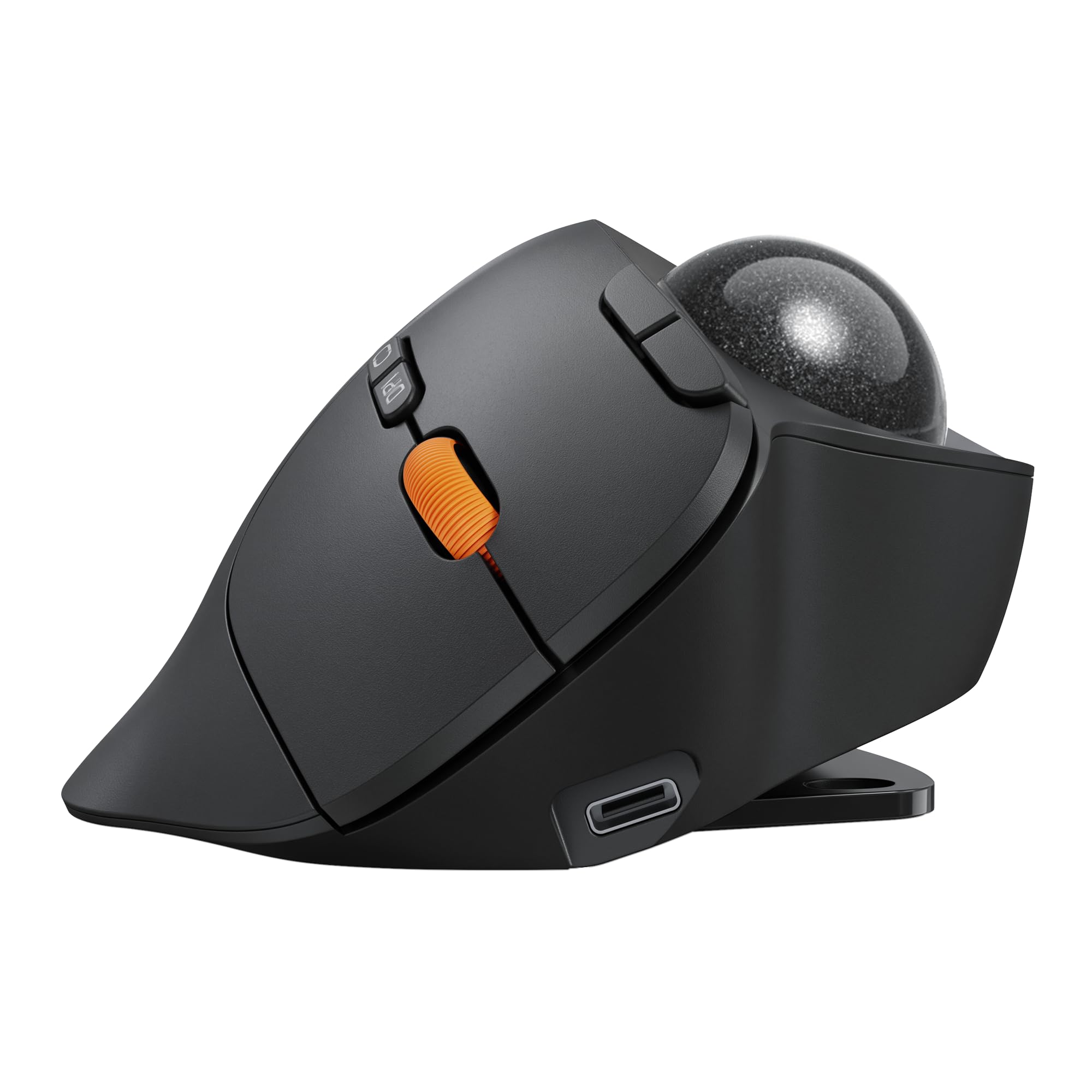
A hinge under the body is what makes the EM02 worth a look. The base flips between flat and a 15-degree tilt, so the same mouse can sit level at a low desk and angled when you raise the chair or move to a standing setup. It's a small mechanical thing, and most trackballs at this price don't offer it at all.

We like it as the value answer to the premium Logitech. You get the adjustable angle, quiet clicks and USB-C charging for a midrange price, and the 90-day standby on a full charge means it isn't asking for a cable every week. Three devices pair over Bluetooth or the 2.4G dongle and switch with a button on top, which suits a laptop-plus-desktop desk, and the two-year warranty is longer than Logitech's.

The 1,600 DPI ceiling is modest next to the 2,000-plus of the Logitech picks and the 4,800 of the SABLUTE, so a pair of large monitors asks for a bigger thumb roll. Otherwise the compromises are minor, and the warranty covers the hinge that the whole design depends on. If you've never used a tilted mouse and don't want to commit to one fixed angle, this is the sensible place to start.

Pros

  • Hinge switches between flat and 15 degrees
  • Switches between three devices
  • Quiet clicks and USB-C charging
  • Two-year warranty

Cons

  • Molded for right hands only
  • Rechargeable only, no AA fallback
Our verdict

The EM02 gives you an adjustable angle, three-device switching and quiet clicks for midrange money, which is why we send tilt-curious buyers here before the premium options.

Check Latest Price
5

Best for Multiple Devices

TECKNET Wireless Trackball

91 /100
Keeper Score Outstanding

Key details

Tilt
16 degrees
Battery
500mAh rechargeable
Connection
Bluetooth x2 + 2.4G, three devices
Ball Control
Thumb
Check Price on Amazon

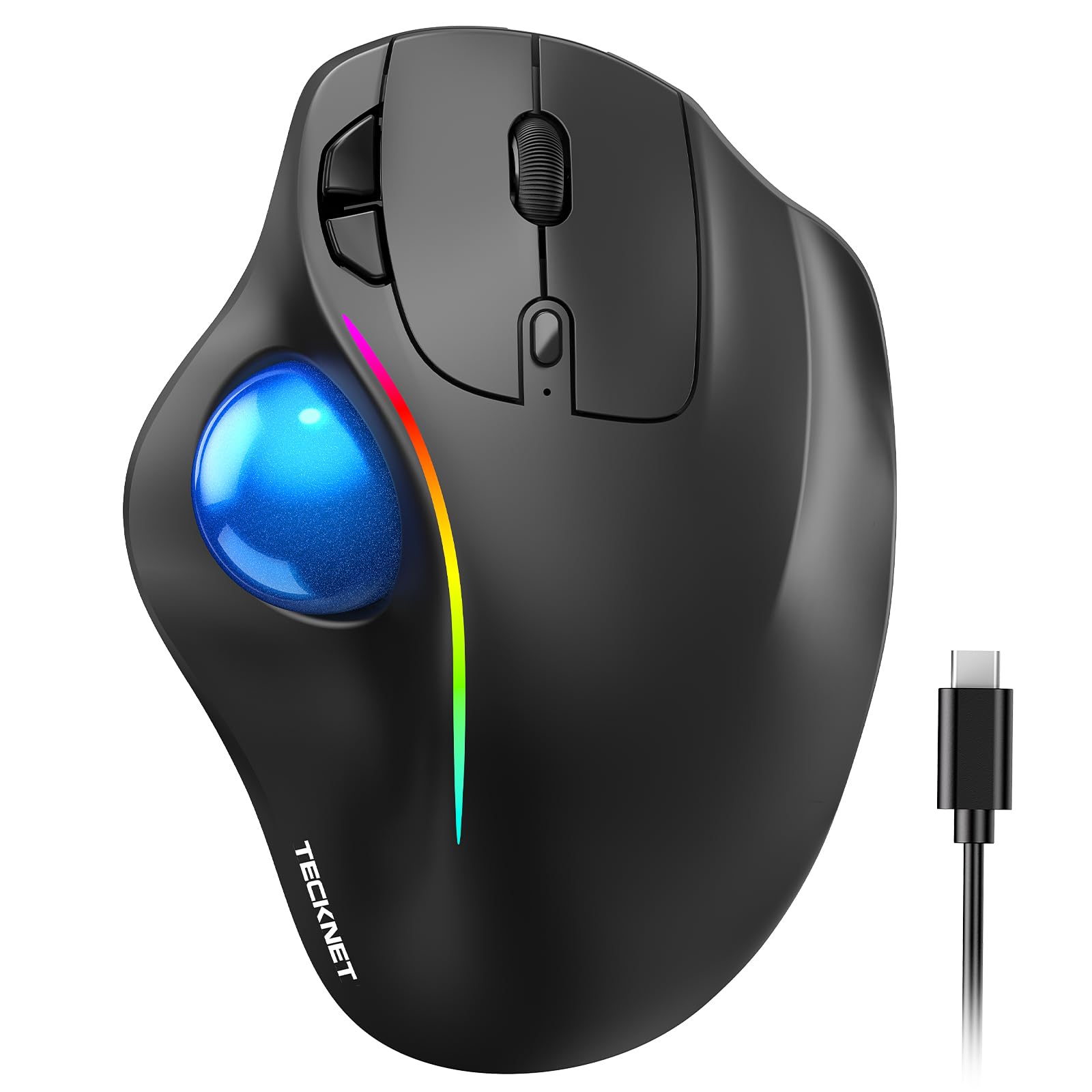
Sixteen degrees of vertical slant doesn't sound like much until you've spent a morning on a flat mouse. The TECKNET leans your hand over toward a handshake position, and the shell is contoured on the thumb side so your palm has somewhere to sit. At around 60 grams it's the lightest thing here, which makes it easy to move between a desk and a bag.

Three devices is the other selling point: two Bluetooth slots plus a 2.4G dongle, switched with a button, so a work laptop, a personal machine and a tablet can share one mouse. That's the setup most home offices actually run, and it's the reason this one stays paired to everything.

The quiet operation is what stands out at this price. Clicks are muted, the scroll is stepped but not clacky, and the five DPI steps start low enough at 100 for fine selection work in a spreadsheet. The top of the range is short of what the SABLUTE offers on a big monitor, but for documents, email and browser tabs it's plenty.

The question is longevity. Side buttons can stop responding, and some units have failed within a few weeks, so buy from a seller with an easy return and keep the packaging for a month. The three-year warranty is the longest of the wireless picks and takes some of the sting out of that.

Pros

  • Sixteen-degree vertical slant eases the wrist
  • Pairs with three devices at once
  • Light at around 60 grams
  • Three-year warranty

Cons

  • Side buttons can stop responding
Our verdict

For a desk juggling three devices, the TECKNET combines a wrist-friendly slant, silent clicks and a long warranty at a price that leaves room to buy a spare.

Check Latest Price
6

Best Budget Wired

PORLEI Wired Trackball

87 /100
Keeper Score Excellent

Key details

Buttons
6
Connection
Wired USB-A or USB-C
Sensitivity
Up to 1200 DPI, five levels
Ball Control
34mm thumb ball
Check Price on Amazon

No battery, no pairing, no dongle to lose. The PORLEI is a cable and a ball, and it works the moment you plug it in, which is exactly what some desks need. It's also the cheapest trackball here, and the one with the fewest things that can go wrong before you're actually using it.

The 34mm thumb ball is smaller than the Logitech's, and the six buttons cover back, forward and a DPI button with five steps up to 1,200. It connects over USB-A or USB-C, so a modern laptop and an older desktop are both covered without hunting for an adapter, and the RGB ring is either a nice touch or exactly what you don't want on a work desk.

The ball and the button layout are the parts we like; the switches are the question mark. The scroll wheel is the component that goes skipping on some units, and at this price that's a low-stakes experiment rather than a disaster. Buy it as a first trackball or a spare for the office, not as the mouse you plan to keep for a decade.

Pros

  • Wired, so no charging or pairing
  • USB-A or USB-C connectivity
  • Six buttons and five DPI steps

Cons

  • Front-left button can be intermittent
  • RGB lighting will not suit every desk
Our verdict

Buy the PORLEI if you want a trackball without batteries or pairing and you accept that the switches are a gamble; it's the cheapest way to try thumb control.

Check Latest Price
7

Wireless Finger Control

Kensington Expert Wireless

86 /100
Keeper Score Excellent

Key details

Power
2 AA batteries
Scroll
Scroll ring
Connection
Bluetooth LE or 2.4GHz dongle
Ball Control
55mm finger ball
Check Price on Amazon

Everything we like about the wired Expert, the 55mm ball, the scroll ring, the detachable wrist rest and the ambidextrous shape, is here without the cable. If your desk has a laptop that moves and a monitor that doesn't, that difference is the whole point.

The heft is the first thing you notice: about 1.4 pounds with the batteries in. For a trackball that's a virtue, because the design depends on staying exactly where you put it while your fingers do the work.

It runs on two AA batteries over Bluetooth LE or the 2.4GHz dongle, sleeps when idle, and carries a three-year warranty. Four buttons are programmable in KensingtonKonnect, and the wrist rest detaches if you want the lower profile.

Here's the honest arithmetic. It costs noticeably more than the wired Expert for the same ball and the same ring, and what you're paying for is one cable's worth of freedom. If a big finger ball without a wire is the requirement, this is the one; if it isn't, the wired version is cheaper, lighter and just as capable.

Pros

  • Same 55mm ball and scroll ring without a cable
  • Ambidextrous with a detachable wrist rest
  • Three-year warranty

Cons

  • Bluetooth can drop after sleep
  • Bulky on a small desk
Our verdict

If you want a finger ball with no cable, the Expert Wireless is the only one here; accept the Bluetooth quirks and pair through the dongle.

Check Latest Price
8

Customization

SABLUTE MAM1 Pro

86 /100
Keeper Score Excellent

Key details

Tilt
0 or 18 degrees
Buttons
8
Sensitivity
Up to 4800 DPI, five levels
Ball Control
Thumb
Check Price on Amazon

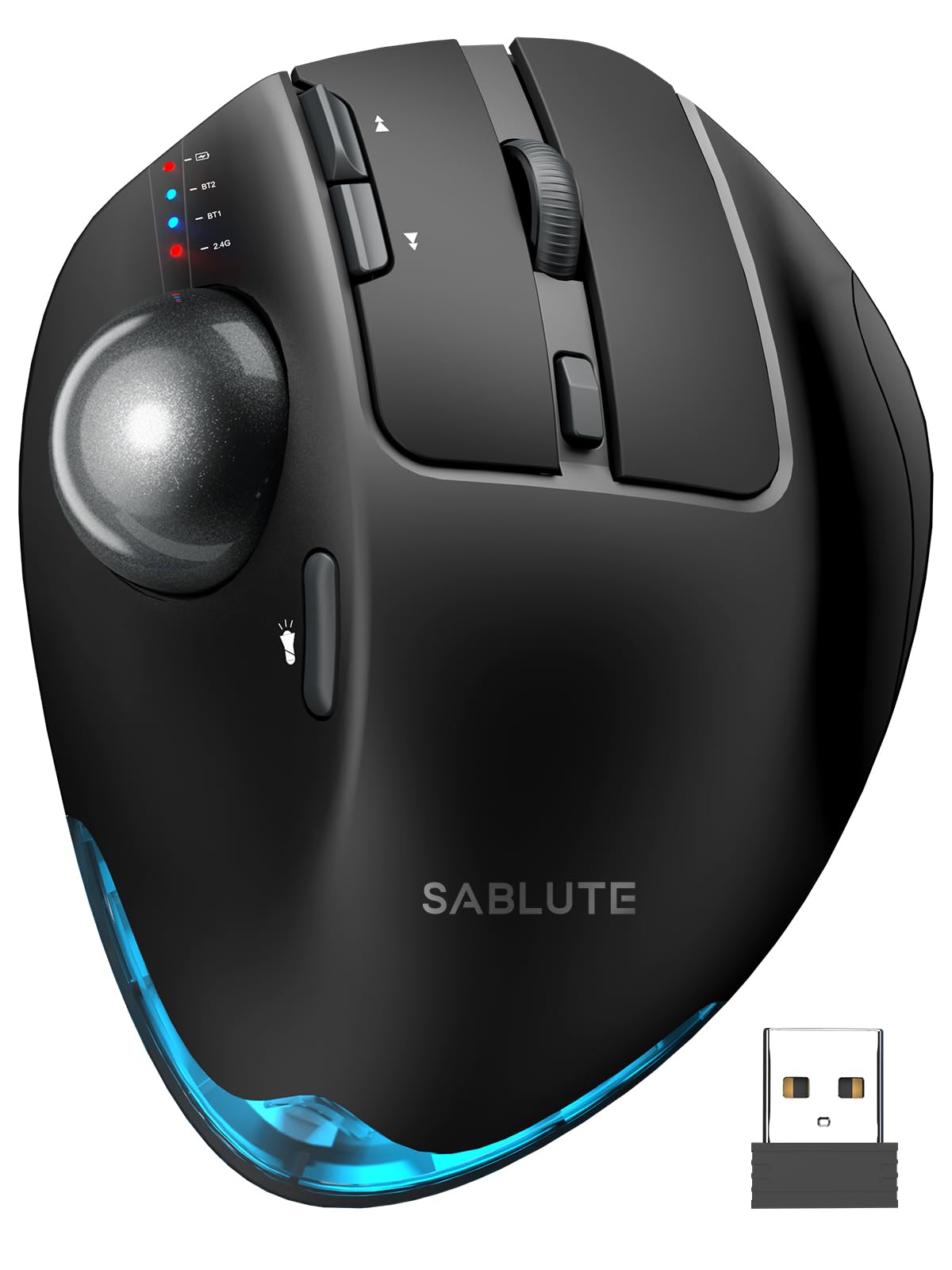
Eight buttons and up to 4,800 DPI make the MAM1 Pro the most configurable mouse here, and the hinge at the back moves between flat and an 18-degree tilt, one of only two picks in this guide whose angle you can change.

It's also the heaviest of the thumb trackballs at around 12.6 ounces, which we count as a plus. It plants on the desk and stays there while you throw the ball across three monitors, and the shell is sized for larger hands, so it doesn't disappear under a big palm.

Quiet clicks, USB-C charging, three devices over Bluetooth or 2.4G, an ambient backlight you can switch off, and a two-year warranty round it out. The muted buttons are the detail we appreciated most in a shared room, and the DPI steps run from 800 to 4,800, which covers everything from photo editing to a wall of windows.

The reservation is battery life. Some units run a couple of weeks between charges; others want plugging in every few days, which undercuts the point of a wireless mouse. Weigh that against what you get, the most buttons and the highest sensitivity ceiling here plus an angle you control, and it's a strong pick for a big multi-monitor desk where you'll actually map every button.

Pros

  • Eight buttons and up to 4,800 DPI
  • Adjustable 0- or 18-degree tilt
  • Quiet clicks and USB-C charging
  • Two-year warranty

Cons

  • Ball can jump or stick on some units
Our verdict

Pick the MAM1 Pro if you want the most buttons, the highest DPI and a hinge you control; just expect to charge it more often than the Logitech.

Check Latest Price

How We Tested 14 Trackballs Over Six Months

We started by pulling every trackball we could find from the major retailers: thumb-driven and finger-driven designs, wired and wireless, ambidextrous slabs and sculpted right-hand shells. From there we narrowed by the things shoppers actually compare — how the hand rests on the body, connection options (Bluetooth, a 2.4GHz dongle, or a cable), battery type, button layout, and price relative to what you get. That left 14 models, which we ran for six months.

Each one got at least a full workweek as my only pointing device: spreadsheets and long documents in the morning, photo editing and a dozen browser tabs in the afternoon, and couch browsing at night with the mouse balanced on a cushion. I noted where my hand ached by 4 p.m., whether my wrist hovered or rested, and whether reaching the ball or the scroll wheel forced me to regrip. For accuracy, I dragged sliders one notch at a time and resized spreadsheet columns by a few pixels, watching for cursor jump, stutter, or overshoot.

Buttons were clicked hundreds of times to check travel, mushiness, and accidental double-fires, and scroll wheels were run through 40-page documents to see whether the line count drifted or skipped. Each wireless model was paired to a desktop, a laptop, and where supported a tablet, then timed on how quickly it reconnected after sleep and how gracefully it recovered when I walked out of range. Rechargeable models were drained to zero repeatedly to see how often charging was needed, and I kept using the standouts well past the testing period to catch anything that loosened, drifted, or started dropping connections.

How to Choose a Trackball Mouse

Thumb or finger control

In a thumb trackball the ball sits on the side under your thumb, and your hand stays planted on a molded shell. In a finger trackball the ball sits on top, 34mm to 55mm across, and you roll it with two fingers while the heel of your hand rests behind it. Thumb models are compact and quick to learn. Finger models leave the thumb free and suit hands that cramp from thumb work, but they claim more desk. If your thumb is the part that aches at the end of the day, start with the Kensington Expert; if the mouse has to live beside a laptop, a thumb ball is the easier fit.

Wired, dongle, or Bluetooth

Wired is the lowest-fuss option: no charging, no pairing, no sleep-and-reconnect. It's also the cheapest way into a good ball, which is why the PORLEI and the Kensington Expert are wired. Wireless buys a clean desk, and the choice inside it matters. A 2.4G dongle is the steadier link on a desktop; Bluetooth is what you want for a tablet or a laptop with one free port. Reconnection after the computer sleeps is the recurring annoyance across wireless trackballs, and a dongle is the usual fix.

Angle and hand size

Every trackball holds your hand at a particular roll, and a fixed shell is a guess about your desk height, chair and arm length. A hinge that moves between flat and 15 or 18 degrees, as on the ProtoArc EM02 and the SABLUTE MAM1 Pro, lets you find the angle instead of accepting one. Hand size decides as much: a compact body disappears under a large palm, so big-handed buyers do better with the wide Kensington Expert or the larger SABLUTE shell, while a smaller hand is happier on a compact thumb ball.

Scroll rings, wheels and buttons

Scrolling is where trackballs differ most day to day. A ring around the ball, as on both Kensington Experts, keeps your fingers on the pointer and spins continuously; a wheel beside the ball is more familiar and more clicky. Button count only matters if you'll map it, and six to eight programmable buttons can replace a lot of keyboard reaches. Check the software supports your system before counting on remapping: KensingtonKonnect doesn't cover Windows on ARM, and ChromeOS gets basic functions only.

Durability and warranty

The switches wear out first. Left-click failures and scroll components that go intermittent are the two complaints that follow this category around, and they usually arrive long after the honeymoon. That makes the warranty a real specification: five years on the wired Kensington Expert, three on the TECKNET and the Expert Wireless, two on the ProtoArc and the SABLUTE, one on the MX Ergo S. If you're paying premium money, buy where returns are easy and register the product the day it lands.

Frequently Asked Questions

Final Verdict

Start with the Logitech ERGO M575S. It's the trackball we recommend to most people because the shape works, one AA lasts the better part of two years, and it connects by Bluetooth or dongle without drama.

If your desk sessions run long and you want a steeper, quieter mouse, the MX Ergo S is worth the premium. If you'd rather set your own angle, the ProtoArc EM02 gets you there for less. And if your thumb is the part that hurts, the Kensington Expert's 55mm finger ball is the fix.