Best KVM Switches of 2026

A KVM switch does one plainly useful thing: it lets a single keyboard, mouse, and monitor setup drive two or more computers, so you stop shuffling cables and peripherals between a work laptop and a personal desktop. The trouble is that a mediocre one makes the situation worse, not better — you switch machines and your windows scramble, your webcam doesn't wake up, or the display drops out mid-meeting. The gap between a switch you forget about and one you curse comes down to a few details most listings bury.

My team and I spent the past six months living with 12 of them at real desks: spreadsheets and video calls on one input, a gaming rig on another, a shared printer and external drives hanging off the hub. What separated good from maddening was unglamorous — whether switching was instant or came with a black-screen pause, whether the windows you left on monitor two were still there when you came back, and whether the box included the cables you actually needed. Dual-monitor support and high-refresh monitor compatibility tripped up more units than anything else. The picks below are the ones that earned a permanent spot.

Keeper Score summarizes customer ratings and review volume. Read it alongside the product details and trade-offs. How the score works.

1

Best Overall

Hearvo S7232H

90 /100
Keeper Score Outstanding

Key details

Switching
Button + wired remote
USB Ports
4× USB 3.0 (3 USB-A, 1 USB-C)
Max Resolution
4K@60Hz
Computers Supported
2 computers, 1 monitor
Check Price on Amazon

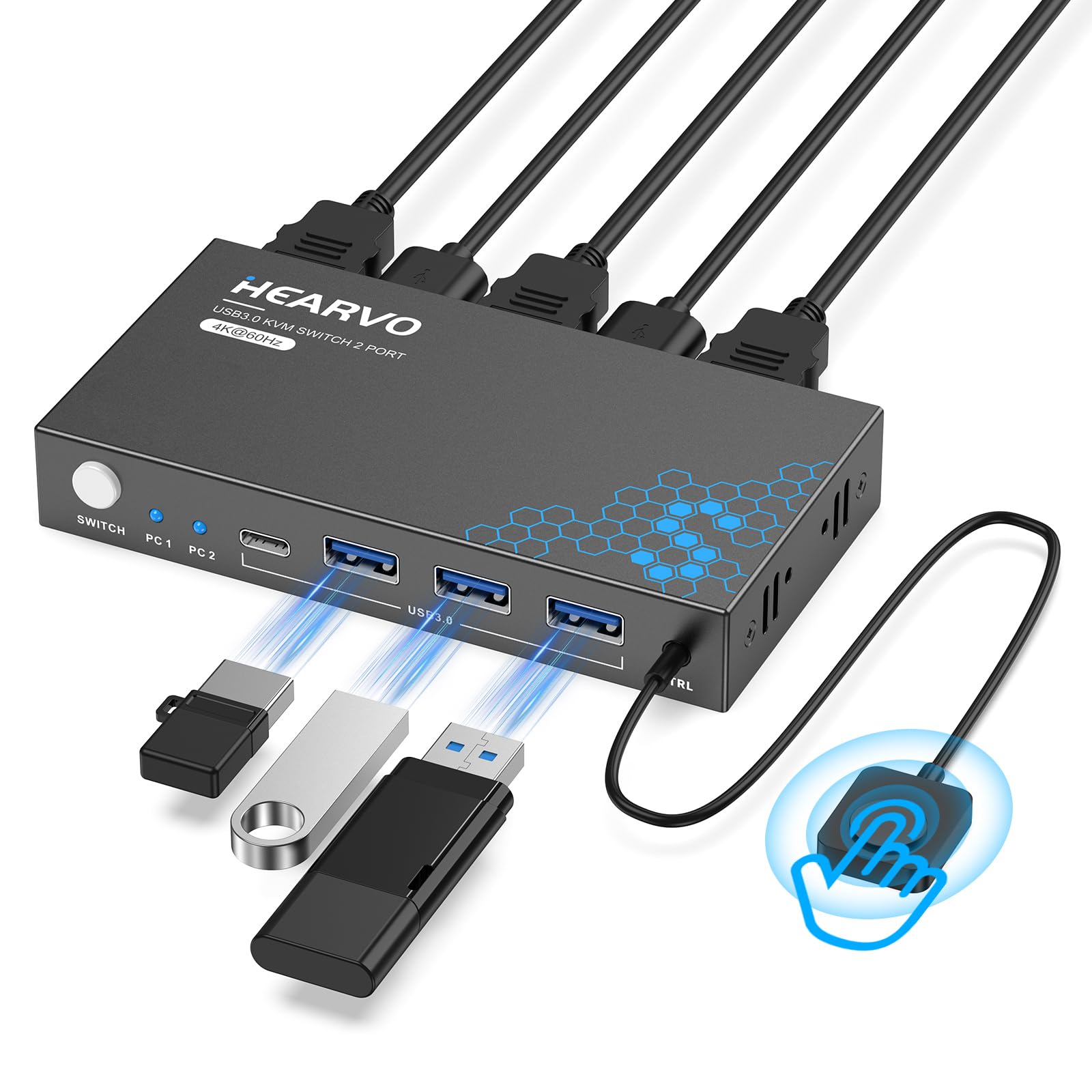
Two computers, one monitor, one keyboard and mouse — the S7232H does that job with a port count we did not expect at this price. Four USB 3.0 ports, three USB-A and one USB-C, run at 5Gbps, so the keyboard receiver, a webcam and an external drive can all stay plugged into the switch instead of being swapped by hand every morning. Adaptive EDID is the quieter win: the switch holds the display handshake while it moves between machines, which is the difference between coming back to the desktop as you left it and coming back to a screen where every window has jumped.

The wired controller is the detail we keep coming back to. The box measures 5 by 2.4 by 0.8 inches, small enough to vanish behind a monitor or under a riser, and the remote puts a physical button where your hand already rests. Switching is quick, the keyboard and mouse pick up on the other machine without being re-plugged, and the aluminum case sits still when the cables pull on it rather than skating across the desk.

Two practical notes before you order. The box comes with the USB cables and the controller, so have a pair of HDMI cables ready; and if either computer is a laptop with only USB-C outputs, budget for adapters, because every video input here is HDMI. Nothing about the setup had us reaching for the manual twice, which is close to the highest compliment we can pay a switch.

Pros

  • Four USB 3.0 ports at 5Gbps
  • Adaptive EDID keeps the display handshake stable
  • Wired remote plus a button on the unit
  • Small aluminum body that stays put

Cons

  • Capped at 4K@60Hz
Our verdict

Buy it when one monitor, one keyboard and one mouse need to serve two computers: four USB 3.0 ports, adaptive EDID and a remote you can reach are why we recommend it first.
Check Latest Price
2

Best for Four Computers

PVBCTCSID HKXKSW240

88 /100
Keeper Score Excellent

Key details

Switching
Remote + panel button
USB Ports
4× USB 3.0
Max Resolution
4K@60Hz
Computers Supported
4 computers, 1 monitor
Check Price on Amazon

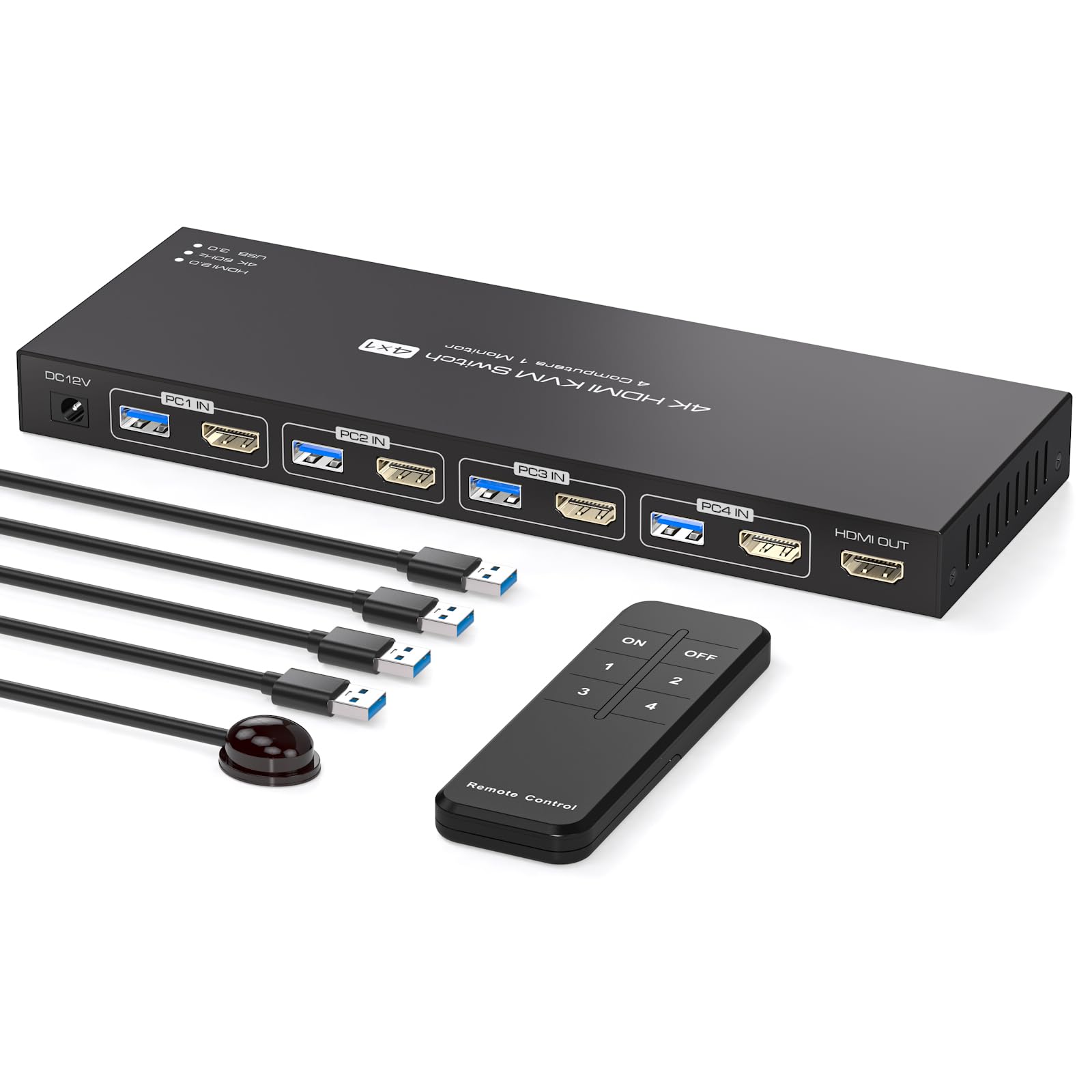
Four computers on one screen sounds like a niche, and it is, but the desks that need it — a home lab, a workshop bench, a rack of small-form-factor machines — are exactly the desks where cabling falls apart. Every computer needs its own HDMI run plus a USB cable back to the box, so four machines means eight cables converging on something 9.3 inches wide. Plan that before you plan the switch.

What you get for the trouble is the strongest four-computer value here: four USB 3.0 ports at 5Gbps so the keyboard, mouse and two other devices follow whichever machine is selected, a power adapter and four USB A-to-A cables in the box, and an aluminum case with some substance to it. Setup is plug-and-play with no drivers, and there is a panel button for when the remote is not in your hand.

The remote is the quirk. It is an infrared handset with an extension receiver rather than the wired button most of the others use, so the receiver needs a clear line of sight from where you sit — worth thinking about if the switch is going under a desk or inside a cabinet. Everything else about this one is straightforward, and for a bench with four machines and a single good display, we have not found a reason to look further.

Pros

  • Four computers into one 4K@60Hz display
  • Four USB 3.0 shared ports at 5Gbps
  • Power adapter and four USB cables included
  • Aluminum housing, plug-and-play setup

Cons

  • One display only across four computers
Our verdict

The four-computer switch we point to for home labs and small offices: USB 3.0 on the shared ports, the power adapter in the box, and one display handled properly.

Check Latest Price
3

Best for Dual Monitors

UGREEN AK500

80 /100
Keeper Score Excellent

Key details

USB Ports
4× USB 3.0 (3 USB-A, 1 USB-C)
In The Box
4 HDMI cables, 2 USB cables, power adapter
Max Resolution
4K@60Hz
Computers Supported
2 computers, 2 monitors
Check Price on Amazon

Two computers, two monitors, one keyboard and mouse — that promise is the whole reason to buy a dual-monitor switch, and this UGREEN box is the least expensive way into it in this group. It is also the pick with the most conditions attached, and they all cluster around the dual-display handoff.

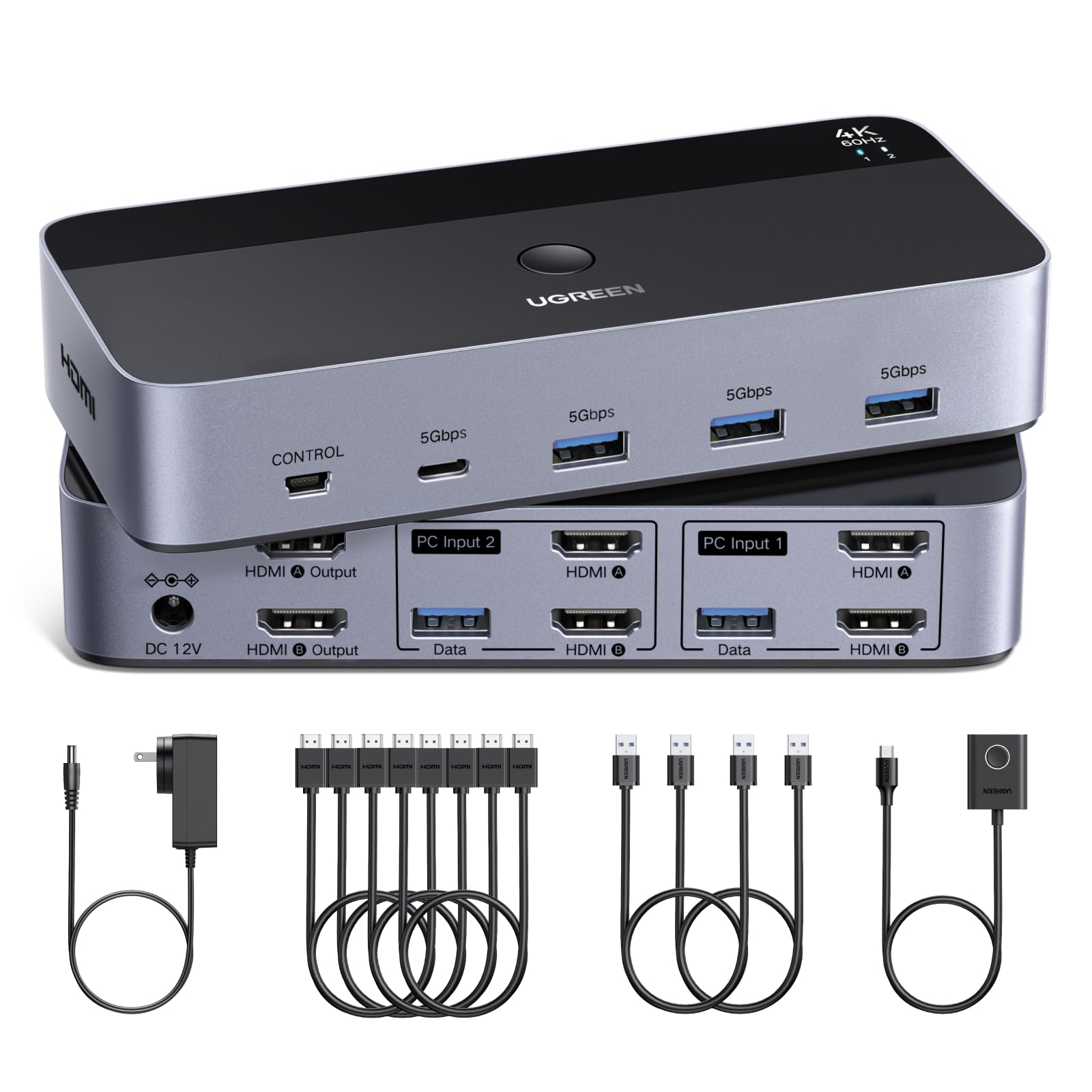
The kit is unusually complete: four HDMI cables, two USB cables, the power adapter and a desktop controller all arrive together, so you are not buying a switch and then discovering you need four more cables. Four USB 3.0 ports, three USB-A and one USB-C, sit alongside the video, and the controller means the box itself can live behind the monitors where it belongs.

Here is our honest read. Two desktops with native HDMI outputs, a matched pair of monitors and well-seated cables is the setup where this switch behaves. A laptop with one HDMI port, or a mix of USB-C and DisplayPort machines, is where it does not, and the failure mode is consistent: an output swaps sides after a switch, or one display drops and reconnects until the cable is reseated. Since the dual-monitor function is the entire reason to pay for this over a single-screen box, that is worth saying plainly.

So it earns its place on the two-desktop desk with twin screens, and it is the wrong purchase for a laptop user chasing the same thing. That desk belongs on a dock-style switch with a USB-C input, which is a different product at a different budget.

Pros

  • Two monitors shared between two computers
  • Four USB 3.0 ports including USB-C
  • Every cable and the power adapter in the box
  • Desktop controller for switching

Cons

  • Video inputs are HDMI only
  • Switching takes a beat
Our verdict

For two HDMI desktops and a pair of matching monitors, this is the least expensive way we found to share both screens; laptops and mixed outputs are the wrong fit.

Check Latest Price
4

Best Premium

AV Access iDock B10

84 /100
Keeper Score Excellent

Key details

Network
1GbE on both computers
Max Resolution
Dual 8K@60Hz or dual 4K@165Hz
Laptop Connection
One USB-C cable, 100W PD
Computers Supported
2 (laptop + desktop)
Check Price on Amazon

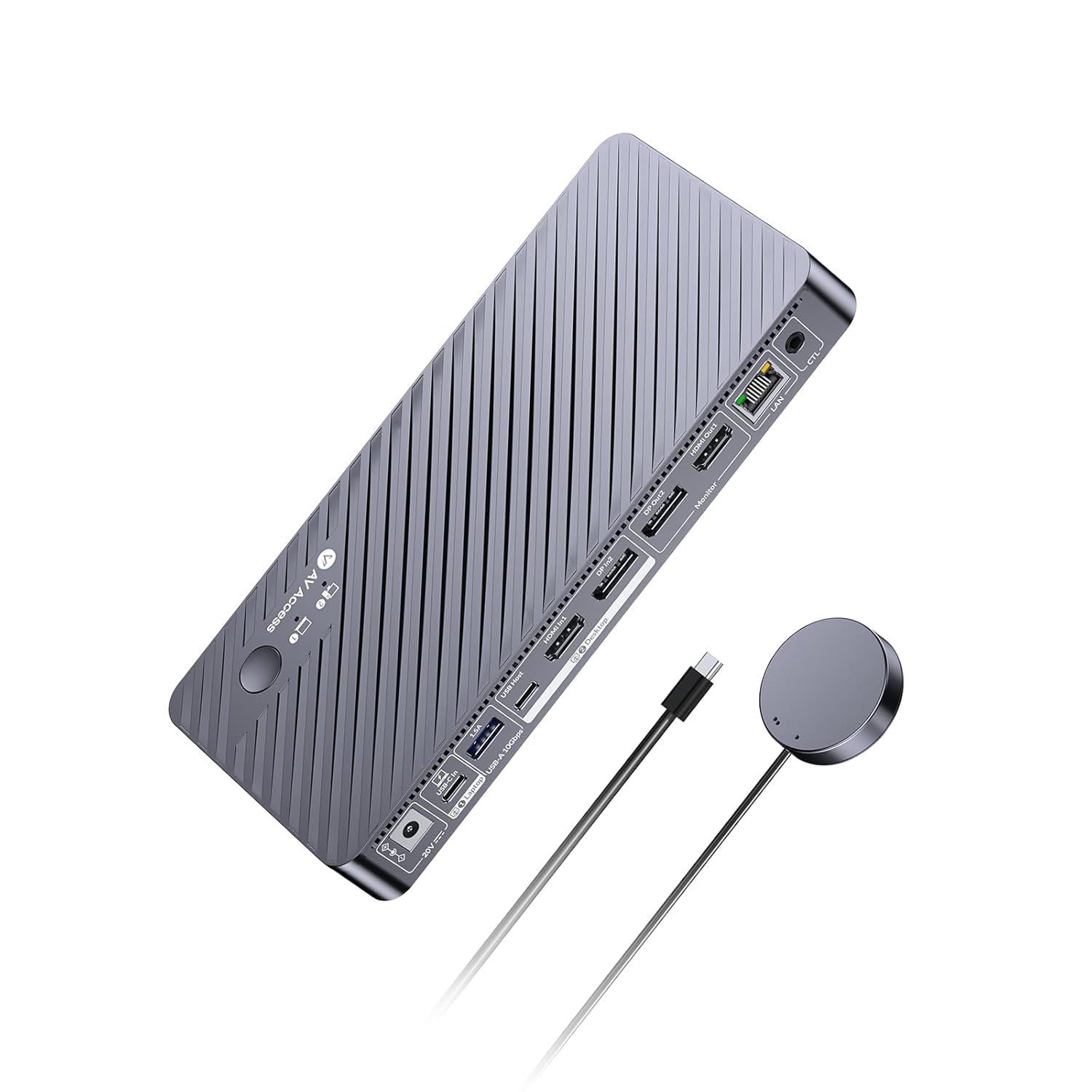
If your desk is a work laptop and a desktop PC driving the same two monitors, this is the box that finally makes that arrangement sensible. One USB-C cable into the laptop carries dual displays, 10Gbps of data and up to 100W of charging, and a button hands the whole setup — screens, keyboard, mouse, audio — to the desktop. Nothing else here folds a full docking station into the switch the way this does, and that is what the premium buys.

The feature we did not expect to care about is the Ethernet. Both computers stay on the gigabit line at the same time, including the one that is not selected, so a download or a backup keeps running while you work on the other machine. On the desktop side it will drive dual 8K at 60Hz or dual 4K at 165Hz, which is more headroom than any office needs and exactly what a high-refresh gaming monitor wants.

The one thing we noticed in use is the USB handoff. Peripherals re-enumerate on switching, which shows up as a brief disconnect for a drive or a webcam — a second of the device vanishing and coming back. Nothing breaks, but if you are mid-transfer, finish it before you switch rather than after.

Pros

  • One USB-C cable for video, data and 100W charging
  • Dual 8K@60Hz or 4K@165Hz on the desktop side
  • Gigabit Ethernet stays live on both computers
  • EDID emulation holds the window layout

Cons

  • Laptop needs a full-featured USB-C port
Our verdict

We think it is worth the premium if your laptop has a real USB-C port: one cable delivers two displays, 100W charging, Ethernet and a keyboard and mouse that follow you to the desktop.

Check Latest Price
5

Best for Three Monitors

AV Access iDock B23

82 /100
Keeper Score Excellent

Key details

Displays
Up to 3 monitors
Max Resolution
8K@60Hz / 4K@165Hz (desktop)
Laptop Charging
100W over USB-C
Computers Supported
2 (laptop + desktop)
Check Price on Amazon

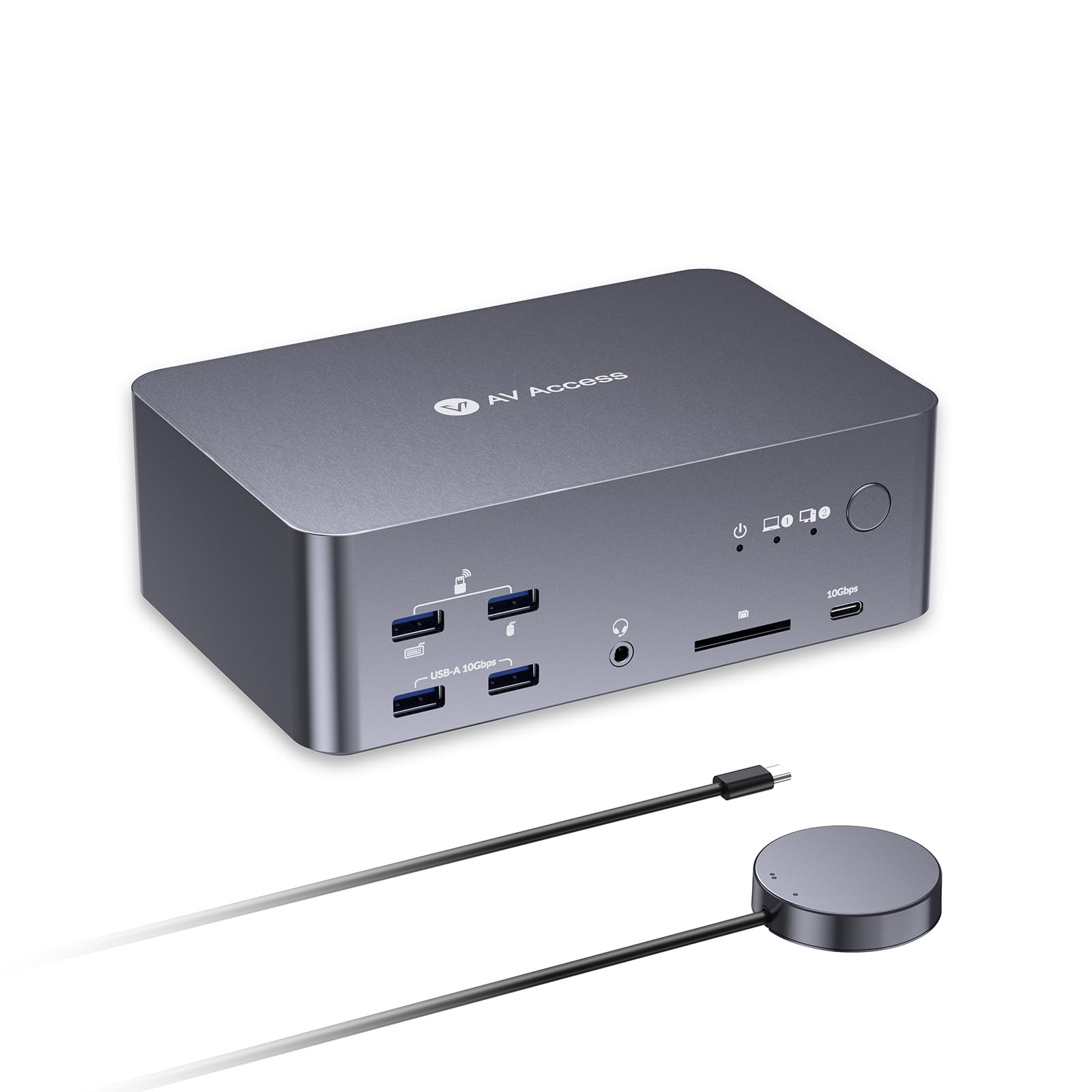
Three monitors is a serious ask, and it narrows the field fast. The B23 takes a USB-C laptop and a desktop PC and gives them three shared displays along with the keyboard, mouse and audio, with the desktop side capable of 8K at 60Hz or 4K at 165Hz. If your work runs three windows wide — editing, trading, CAD, a control room in miniature — this is the only switch in this group built for it.

The dock half is where the money goes. A single USB-C cable into the laptop carries video, data and 100W of charging, and the shared gigabit Ethernet stays up on both machines whichever one is selected, so the laptop can be pulling a file while you work on the desktop. Switching is quick once everything is connected, though the third display can take a moment longer to find its signal than the other two.

The laptop is the condition. It needs a full-featured USB-C port with DisplayPort output, and the compatibility list is narrower than a plain HDMI switch's — some Dell Latitudes and Macs have not worked, so check the laptop's specification sheet rather than assuming.

At the top of this group's price range it is a specialist purchase, and it earns the money where three displays are the difference between one job and two. Nothing else here switches a triple-monitor setup, and the alternative is a separate dock, a second power brick and a lot more cable.

Pros

  • Three monitors shared between laptop and desktop
  • 100W charging over one USB-C cable
  • Gigabit Ethernet live on both computers
  • 8K@60Hz or 4K@165Hz on the desktop side

Cons

  • Runs warm with three displays and charging
Our verdict

The one we point to for a three-display desk fed by a laptop and a desktop, provided the laptop's USB-C port carries DisplayPort video.

Check Latest Price
6

Four-Computer Benches

UGREEN 85115

89 /100
Keeper Score Excellent

Key details

EDID
Emulation, enabled by long press
USB Ports
6 (4× USB 3.0, 2× USB 2.0)
Max Resolution
4K@60Hz
Computers Supported
4 computers, 1 monitor
Check Price on Amazon

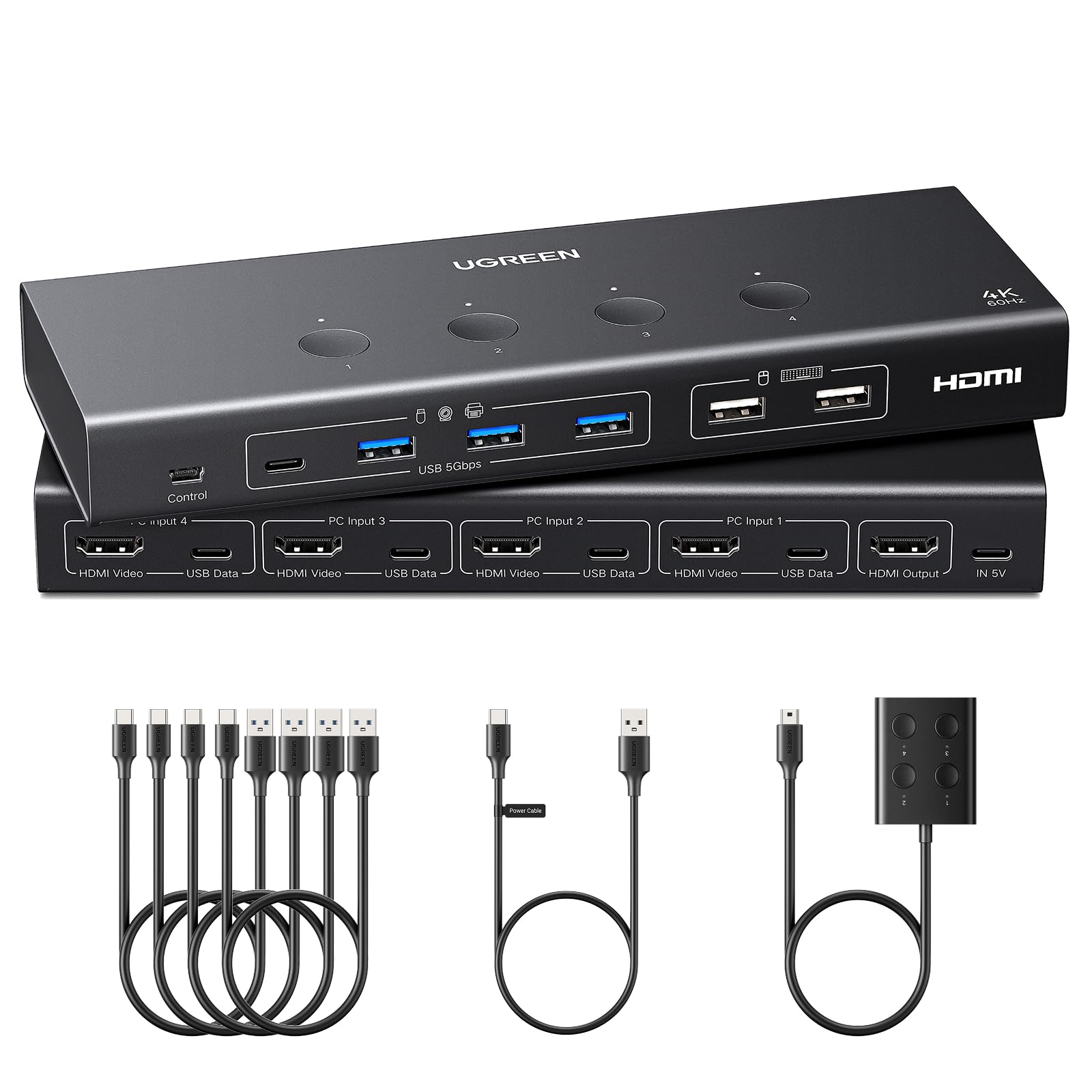
Every computer needs two cables to this box — HDMI for the picture, USB-A to USB-C for the keyboard, mouse and whatever else you share — and that is the part first-time buyers underestimate. Four machines means eight cables running into something 8.5 inches wide, so plan the desk before you plan the switch.

What you get for the trouble is the tidiest four-port unit here: six shared USB ports, four at USB 3.0 and two at USB 2.0, EDID emulation and a small desktop controller that saves reaching behind the desk. One detail is easy to miss, because the emulation is not on out of the box: hold the first switch button for about five seconds until every indicator flashes three times. That is worth doing on day one, since it is what stops the display treating each switch as a brand-new connection and reshuffling your windows.

The ceiling is the single display: four computers, one screen, 4K at 60Hz. If you want two monitors shared between two machines this is the wrong shape of product, and if you want a 144Hz gaming panel it is the wrong specification. For a bench of four machines and one big display, though, it never asked us to think about it again after setup.

Pros

  • Six shared USB ports on a four-port switch
  • EDID emulation holds the desktop layout
  • Desktop controller included
  • Compact for a four-computer unit

Cons

  • HDMI cables are not included
Our verdict

For four computers on one screen, we take the six shared USB ports and EDID emulation here; just count the HDMI cables you will need to buy.

Check Latest Price
7

Tight Budgets

CMSTEDCD 2-Port KVM

82 /100
Keeper Score Excellent

Key details

Switching
Panel button + wired remote
USB Ports
2× USB 2.0
Max Resolution
4K@60Hz
Computers Supported
2 computers, 1 monitor
Check Price on Amazon

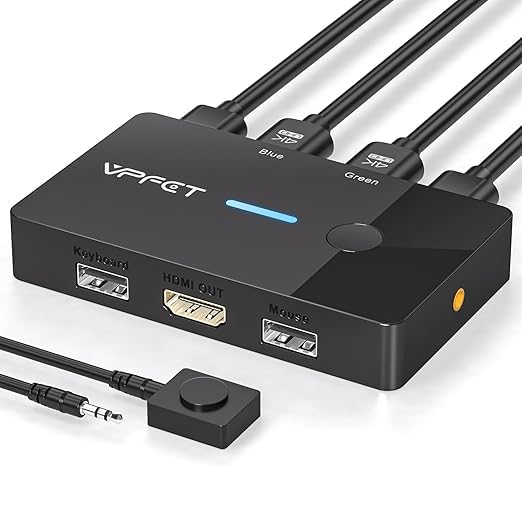
The cheapest switch here is also the one that asks the most of you, and the trade is clearest in the hub: two USB 2.0 ports at 480Mbps. A wired keyboard, a mouse and a printer do not care. A portable SSD, a card reader or a 4K webcam will, and if any of those live on your desk, this is the wrong box.

What it does do is hide. The case is under four inches across and made of metal, there is a button on the body plus a wired remote for the corner you cannot reach, and setup is genuinely plug-and-play with no driver to install. A two-year warranty is stated too, which is generous for something this inexpensive.

The 4K claim is where we hesitate. At 1080p and 1440p the switching is unremarkable in the best way; at 4K, a display can blank when you switch to it, and the fix is usually a shorter or better cable rather than a return. For a pair of office monitors and a basic keyboard and mouse, none of that bites, and you are into shared peripherals for the least money in this group.

Pros

  • Least expensive route to shared peripherals here
  • Small metal case with a wired remote
  • Two-year warranty stated
  • Plug-and-play, no drivers

Cons

  • No EDID emulation to hold the layout
Our verdict

We point budget buyers here for two 1080p or 1440p computers and a wired keyboard and mouse; the USB 2.0 hub is the reason to spend more if you share drives.

Check Latest Price

How We Tested the Best KVM Switches

I built the shortlist from spec sheets first, crossing off anything that couldn't drive the number of monitors it advertised at a refresh rate people actually use. That left port count, resolution ceiling, whether cables were in the box, and whether there was a physical switch on the desk instead of a hotkey you have to memorize. We then bought 12 switches and used them for six months.

Setup was timed solo with a stopwatch, from opening the box to the first successful switch. Then each unit went onto the same working desk: a work laptop and a personal desktop, one or two monitors, a keyboard, mouse, webcam, headset, external SSD, and the household printer. I noted whether each switch remembered the USB devices after a switch or needed a re-plug, and whether a laptop undocked at lunch and reconnected at four came back without a fuss.

Switching speed got measured the way you'd actually notice it — I hit the button and counted how long the screen stayed black, and during video calls I watched whether the webcam dropped with the hotkey. For monitor compatibility I ran the same three displays against every unit, an older 1080p panel, a 4K 60Hz screen, and a high-refresh ultrawide, and recorded which combinations threw a no-signal or quietly fell back to a lower refresh. EDID behavior was tracked separately: open three windows on the second monitor, switch away, switch back, see if they held their place. On value, we weighed what shipped in the box against what the switch cost, since one that arrives without cables isn't the bargain it looks like.

How to Choose a Kvm Switch

Count Computers and Displays Separately

Two computers and one monitor is the simple case, and almost anything here handles it. Two computers and two monitors is a different product with a different requirement: a dual-monitor KVM accepts two video signals from each computer and passes both through, so every machine needs two working video outputs. A laptop with a single HDMI port cannot feed one without a dock or an adapter tucked behind it. Before you buy, list the video outputs on each computer rather than the ports on the switch.

Resolution, Refresh Rate and EDID

4K at 60Hz is the sensible baseline for office work. The premium docks climb to 8K at 60Hz or 4K at 165Hz for gaming displays, and you pay for that headroom whether or not you use it.

The specification that does more for daily sanity is EDID emulation. Without it, a computer sees the monitor vanish every time you switch away and comes back to a rearranged desktop with windows on the wrong screen. With it, the switch keeps the display's identity alive between machines. If you routinely work with more than a couple of windows open, treat EDID emulation as a requirement rather than a bonus.

Look Hard at the USB Hub

Video gets the attention; the hub is where cheap switches cut corners. USB 2.0 at 480Mbps is plenty for a keyboard, a mouse and a printer, and nowhere near enough for an external drive, a card reader or a good webcam. USB 3.0 runs at 5Gbps. Check the number of shared ports and their generation together: four USB 3.0 ports suits a two-computer desk, while a four-computer bench needs more sockets and benefits from the faster ones, because that is where files move between machines.

Switching: Buttons, Remotes and Hotkeys

Where the button lives matters more than it sounds. A box tucked behind a monitor is a nuisance to reach, which is why most of these ship with a wired desktop controller; one uses an infrared remote that needs a clear line of sight. Do not assume keyboard hotkeys; check the listing if switching from the keyboard is how you want to work. Expect a pause of a second or two on every switch while the display re-syncs, and expect a keyboard and mouse on the far side to reconnect rather than resume instantly.

When a Dock-Style KVM Earns Its Price

If one of the computers is a laptop, the dock-style units make a different kind of sense. A single USB-C cable carries video, data and charging, and the switch adds gigabit Ethernet that stays live on both machines, so it replaces a dock more than it adds to one. The catch is the laptop port: it has to be full-featured USB-C with DisplayPort output, which rules out older and cheaper machines, and Mac support varies by model. Check the laptop's specification sheet for DisplayPort alt mode before spending dock money.

Frequently Asked Questions

Final Verdict

The Hearvo S7232H is the switch we recommend first, because most desks are two computers and one monitor, and it does that job with USB 3.0 rather than USB 2.0, a remote you can actually reach and adaptive EDID to keep the desktop where you left it. Those are the details that decide whether a switch disappears into your routine or irritates you every morning.

Spend more only when the requirement changes. Two displays puts you on the UGREEN AK500, and only if both computers are HDMI desktops. A laptop plus a desktop with charging and Ethernet belongs on the AV Access iDock B10, and a third screen is worth paying for only if you genuinely work three windows wide.