Best USB Hubs of 2026

A USB hub makes one small promise: one port in, several out. Plenty of them keep it for a week, then start dropping your display to half its refresh rate, disconnecting a drive mid-transfer, or refusing to charge the laptop while everything else is plugged in. I've lost enough unsaved work to a flaky one to be picky, and after six months with 14 of them, the hubs worth keeping are the ones that stay boring.

Power delivery is the spec that trips people up. A hub advertising a big passthrough number isn't charging your laptop at that wattage — the hub keeps a cut, so a port rated at 100W generally feeds the laptop closer to 85W. Bandwidth is the other shared budget, which is why a 4K monitor, a card reader, and two drives behave nothing like a single flash drive on an otherwise empty hub. The list below runs from pocket-sized splitters to a powered unit with a switch for every port, so start with where your gear actually lives.

Keeper Score summarizes customer ratings and review volume. Read it alongside the product details and trade-offs. How the score works.

1

Best Overall

Anker 7-in-1 USB-C Hub

91 /100
Keeper Score Outstanding

Key details

Data Ports
2 USB-A + 1 USB-C, 5Gbps
Total Ports
7
Video Output
4K@60Hz HDMI
Power Delivery
85W max pass-through
Check Price on Amazon

The figure that decides this hub is 60. Plenty of USB-C hubs this size cap their HDMI output at 4K@30Hz, which is fine for a slide deck and frustrating for anything with movement in it. Anker rates this one at 4K@60Hz, and that single number is why it tops our list for the widest range of laptops: one cable carries a monitor, a couple of drives and a camera card, and the desktop still feels like the laptop's own display.

The seven ports are spread the way a laptop actually needs them: two USB-A 3.0 at 5Gbps, a USB-C data port at the same speed, SD and microSD slots, the HDMI, and a USB-C PD input rated for 85W of pass-through. In practice that is a mouse dongle, an external SSD, a card off a camera and a monitor, all from a machine with two USB-C ports and nothing else. We were also impressed by how little it weighs, 67 g in a metal shell just over five inches long, which disappears into a laptop sleeve.

Where these setups go wrong is usually the laptop rather than the hub. The HDMI output only works if the USB-C port you plug into carries DisplayPort Alt Mode, which recent MacBooks, XPS machines and most business laptops do and plenty of budget laptops do not. Check that line in the spec sheet before buying anything with a video port on it.

Charging is pass-through, so the laptop sees your charger's wattage minus a little overhead rather than anything extra. That is comfortable with a 65W brick and a 13-inch machine, and tight with a 16-inch one. Warm after an hour of video is normal for a metal body; hot enough that you move it off your leg is the moment to unplug it and find out what is drawing power.

Pros

  • 4K@60Hz HDMI instead of the usual 30Hz
  • Three 5Gbps data ports plus SD and microSD
  • Metal body at 67 g travels easily
  • 85W pass-through keeps the laptop charged

Cons

  • Charger for pass-through power not included
Our verdict

The hub we recommend for most USB-C laptops: 4K@60Hz video, three fast data ports and card slots from one cable, as long as you already own a charger.

Check Latest Price
2

Best Budget USB-A Hub

UGREEN 4-Port USB-A Hub

95 /100
Keeper Score Outstanding

Key details

Weight
1.16 oz
Port Type
4 USB-A 3.0
Data Speed
5Gbps
Cable Length
0.5 ft
Check Price on Amazon

Half a foot of cable is the whole idea here. The body is 3.1 inches long and 0.4 inches thick, so it hangs off a laptop's edge like a stub rather than dangling behind it, and it turns one USB-A port into four at 5Gbps. No driver, no software, no power brick: it works on Windows, macOS, Linux and Chrome OS, and it is as happy on a PS5 or an Xbox as it is on a desktop.

This is the cheapest hub in this guide and the one we hand to someone without a second thought. Four ports that simply work is the entire promise, and it is the pick here we worry about least when a hub has to keep a keyboard, a mouse and a flash drive alive through a year of daily use. For the money, the only real question is whether you need anything other than USB-A.

If the ports you want to reach are on the back of a tower under the desk, the half-foot cable will not get there, and this is a laptop-side hub rather than a desktop one; the Acer below with two feet of cable covers that case. Everything else about it is refreshingly unremarkable, which is what you want from a part you never think about again.

Pros

  • Four 5Gbps USB-A ports, no driver needed
  • Tiny and light enough to leave plugged in
  • Works with Windows, macOS, Linux and consoles

Cons

  • No video output or laptop charging
Our verdict

Buy this one if you simply need four more USB-A ports: the cheapest hub here, the highest rated, and the one with the least to worry about.

Check Latest Price
3

Best for Cable Reach

Acer 4-Port USB-A Hub

93 /100
Keeper Score Outstanding

Key details

Port Type
4 USB-A 3.0
Data Speed
5Gbps
Power Input
USB-C power port
Cable Length
2 ft
Check Price on Amazon

Two feet of cable is the reason this one is here. Most budget splitters give you a stub, which is fine until the USB ports live on the back of a tower under the desk or on the far side of a laptop stand. This Acer reaches, and it is the hub we leave on a desktop where the ports need to come to the front.

The rest of the specification is ordinary in a good way: four USB-A 3.0 ports at 5Gbps, a GL3510 controller, a 1.6-ounce ABS body and a small light to show it has power. There is also a USB-C port on the end that takes an optional 5V adapter rather than carrying data. We treat that as insurance: if a portable drive starts dropping out on bus power, adding a 5V supply is the obvious next step, and most people will never need one.

It is a bus-powered hub, so everything attached shares whatever the laptop port supplies. A keyboard, a mouse and a flash drive are nothing, and one portable SSD is usually fine; add a second drive that draws real power, or try to fast-charge a phone, and a hub with its own adapter such as the Sabrent below is the better tool.

Pros

  • Two-foot cable reaches behind a tower
  • Four 5Gbps ports with a status light
  • USB-C power input for a hungry drive

Cons

  • Individual ports can fail with heavy use
  • 5V adapter for the power port sold separately
Our verdict

The desktop answer: two feet of cable brings four 5Gbps ports to where your hands are, and an optional power input covers a hungry drive.

Check Latest Price
4

Best Value USB-C Hub

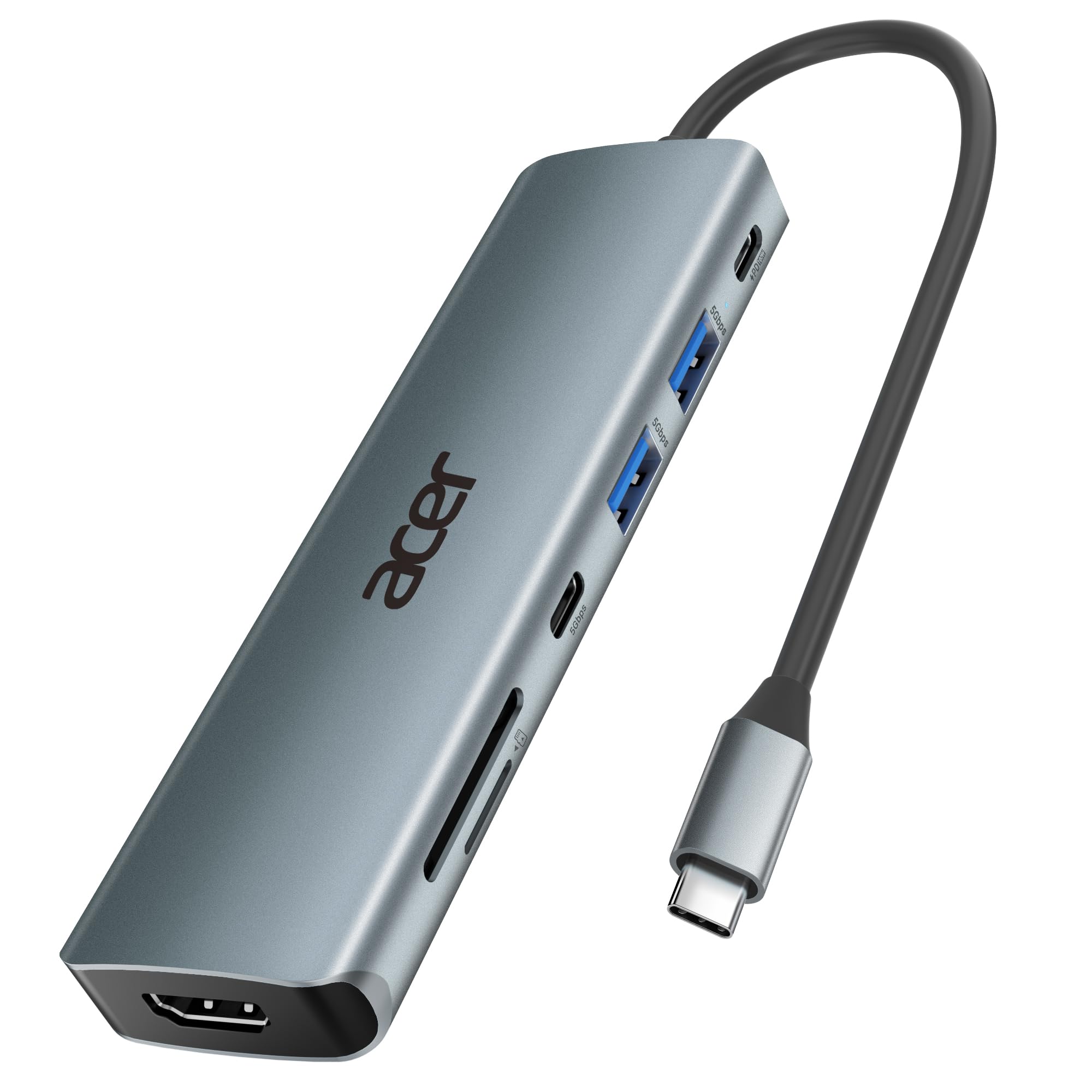
Acer 7-in-1 USB-C Hub

91 /100
Keeper Score Outstanding

Key details

Data Ports
2 USB-A + 1 USB-C, 5Gbps
Card Reader
SD and microSD
Video Output
4K@30Hz HDMI
Power Delivery
100W PD port
Check Price on Amazon

Thirty is the number to notice on this hub, and it is the compromise it asks for: HDMI at 4K@30Hz rather than 60. On a 1080p or 1440p monitor that hardly registers. On a 4K panel, dragging a window across the screen has a lag you feel before you can name it, and anyone editing video will want to look elsewhere.

Everything around that one figure is generous: an aluminum shell at 68 g, two USB-A 3.1 ports and a USB-C data port all at 5Gbps, a PD port that passes up to 100W of charger power through, and both SD and microSD slots on the end. For anyone who pulls a card out of a camera, having the slot on the hub rather than in a drawer is the difference between this and a plain splitter.

We pick this one over the Anker when the monitor is 1080p or 1440p and money is tight: you give up 60Hz video and a little polish, and you keep the card slots and the aluminum body. We pick the Anker when the display is 4K and you sit in front of it all day. Neither is the wrong call; they are different desks.

Pros

  • Aluminum shell with 100W pass-through charging
  • SD and microSD slots built in
  • Three 5Gbps data ports

Cons

  • Card reader is slow for large offloads
Our verdict

Our choice when the monitor is 1080p or 1440p: card slots, an aluminum shell and 100W power for less than the Anker, at the cost of 60Hz video.

Check Latest Price
5

Best for Crowded Desks

Sabrent 10-Port Powered Hub

90 /100
Keeper Score Outstanding

Key details

Port Type
10 USB-A 3.0
Data Speed
5Gbps
Power Supply
60W adapter included
Port Switches
One per port
Check Price on Amazon

Sixty watts arrives in the box: a 12V/5A adapter that plugs into the wall and feeds the hub instead of leaning on your laptop's port. That is the difference between a splitter and a small power station, and it is what lets ten USB-A 3.0 ports at 5Gbps run drives rather than just mice and keyboards.

The switches are what we appreciate most. Each of the ten ports has its own button and blue LED, so a printer you use twice a month, or a drive you want left plugged in but idle, can be switched off without crawling under the desk. The lights also make it obvious at a glance which ports are live, which matters more than it sounds when six of the ten are in use.

This is the most expensive hub here by a wide margin, and the money buys capacity and permanence rather than cleverness. Ten ports and a wall adapter give a drawer of drives, a card reader, a printer and a charging cable a permanent home; they give you nothing portable, and the brick means this one stays where it is plugged in. For a single SSD and a mouse, you are paying for ports you will not fill.

Pros

  • Ten 5Gbps ports with a switch on each
  • 60W adapter powers drives, not just peripherals
  • LEDs show which ports are live

Cons

  • Needs a wall outlet to work
  • No USB-C port or video output
Our verdict

Buy it for a permanent desk: its own 60W adapter and ten switched ports make it the only hub here that powers drives rather than borrowing from the laptop.

Check Latest Price
6

Tight Budgets

UGREEN 5-in-1 USB-C Hub

93 /100
Keeper Score Outstanding

Key details

Data Ports
1 at 5Gbps, 2 at 480Mbps
Total Ports
5
Video Output
4K HDMI
Power Delivery
100W PD
Check Price on Amazon

Look past the port count and you find the catch: of the three USB-A ports on this hub, exactly one runs at 5Gbps. The other two are 480Mbps, USB 2.0 speed, which is fine for a mouse, a keyboard or a printer and painfully slow for a flash drive or an SSD. That is the sort of line shoppers skim past and then wonder why a file copy crawls.

For the money, though, this is a clean way to add video and charging to a laptop with one free USB-C port: HDMI out, a 100W PD input that passes your charger's power through, an aluminum shell and a two-year warranty. It is the cheapest route here to a USB-C hub with a monitor output, and the aluminum body is a pleasant surprise at this price.

The caveat is longevity. Hubs this cheap fail at the connector, and of the models here this is the one we least expect to still be working in two years. Treat it as the spare that lives in a bag, not the hub your desk depends on.

Pros

  • Cheapest USB-C hub here with HDMI
  • 100W pass-through charging
  • Aluminum shell and 24-month warranty

Cons

  • Two of three USB-A ports run at USB 2.0 speed
  • USB-C port is charging only, no data
Our verdict

The cheapest way to add HDMI and 100W charging to a USB-C laptop, provided you accept two slow USB-A ports and treat it as a spare.

Check Latest Price

How We Tested the Best USB Hubs

We started with roughly 60 hubs and cut the list by reading spec sheets closely: the port mix, whether the HDMI output was rated for 4K at 60Hz or only 30Hz, how much power the passthrough genuinely delivers, and whether the USB-C port carries data or only current. Listings whose reviews mentioned dropped connections came off. Fourteen made it through.

Those 14 spent six months in rotation. The desk test was the same for each: a laptop driving a 4K monitor over HDMI with a keyboard, mouse, external SSD, and a charging phone all running off the same hub for a full workday. We timed a 20GB folder transfer, checked the monitor's refresh rate in the display settings rather than trusting the box, and wrote down every reconnect tone, stutter, and unexplained disconnect. The small hubs got packed into a laptop bag twice a week and unplugged and replugged several times a day.

Power had its own round. We plugged each hub into a laptop running a video call and an external monitor and noted whether the battery percentage held, climbed, or slid, then felt each shell after an hour under load to see which ran warm. Durability came down to repetition: plugging and unplugging daily for months, checking how firmly each connector still gripped, and watching the strain relief for fraying.

We also moved every hub between a Mac, a Windows laptop, a tablet, and a game console to see which needed a driver, a restart, or nothing at all. Very few survived six months without a single unexplained dropout, and those are the ones below.

How to Choose a Usb Hub

Start from the port you are short of

Two buyers, two answers. If your laptop still has a free USB-A port and you only need room for a mouse, a drive and a cable, a four-port USB-A splitter does the job for the least money, and the UGREEN 4-port here is that hub. If your machine is USB-C only, or you want to add a monitor, you need a USB-C hub with video support, and the port mix becomes the decision: how many USB-A, whether you want a card slot, whether HDMI is worth paying for. Our Anker pick is the flexible answer to that second question.

Not every port runs at the same speed

Two hubs can both claim five ports and behave nothing alike. Look at the speed of each port rather than the total: 5Gbps ports, labelled USB 3.0, 3.1 or 3.2 Gen 1 (the same thing in practice), move files quickly, while 480Mbps ports are USB 2.0 speed and really only suit a keyboard, mouse or printer. Budget hubs mix the two freely, and the UGREEN 5-in-1 here has three USB-A ports with just one of them fast. Count the fast ports you need before you compare anything else.

Video depends on your laptop too

A hub's HDMI port is only half the equation: it needs a laptop USB-C port that carries DisplayPort Alt Mode. Recent MacBooks, XPS machines and most business laptops have it, plenty of budget laptops do not, and a USB-A port never does. Check that line in the laptop's specification before buying a hub for video. Then check the refresh rate: 4K@60Hz on the Anker, 4K@30Hz on the Acer 7-in-1. Thirty is fine for documents and video playback, and noticeably draggy for a cursor on a 4K panel.

Power: pass-through or its own adapter

Pass-through charging borrows your laptop charger's wattage and hands most of it back: 85W on the Anker, 100W on the Acer 7-in-1 and the UGREEN 5-in-1, always a little less than the charger delivers because the hub uses some. It adds nothing, and the pass-through hubs here do not include a charger, so budget for a USB-C PD brick if you do not already own one. A hub with its own adapter, like the Sabrent, is a different animal: it powers the ports, which is what external drives want, and it stays on the desk.

Cable length and where it lives

The cable decides where the hub can sit, so measure before you choose. Half a foot, as on the UGREEN 4-port, keeps the hub flush against a laptop and out of the way in a bag; two feet, as on the Acer USB-A hub, brings ports from the back of a tower to the top of a desk; the Sabrent's bundled cable and power brick suit a setup that never moves. Body material matters less than you might expect, though the aluminum hubs here (the Anker and Acer 7-in-1s and the UGREEN 5-in-1) handle bag life better than the plastic ones.

Frequently Asked Questions

Final Verdict

The Anker 7-in-1 is the hub we point most people to, because one cable gives a USB-C laptop a 60Hz monitor, three fast data ports and a card reader in a shell that survives a bag. If your laptop still has a free USB-A port and you only need more of them, the UGREEN 4-port is cheaper and simpler.

Buy the Acer with the two-foot cable when the hub has to reach behind a desktop, the Acer 7-in-1 when the monitor is 1080p and the budget is tight, and the Sabrent when the desk has grown into a pile of drives that want their own power.