Best Internal Hard Drives of 2026

A hard drive is the one part of a PC that can take every file you own with it when it fails. That fear sits in the back of my mind, and it's why the real question isn't which drive is fastest but which is worth trusting with a few terabytes of photos, game installs, and the backup you keep meaning to make. It's also the cheapest bulk storage you can add to a machine.

I've had 10 internal drives running over the past six months, from a small refurbished unit to a 14TB enterprise drive, and the differences showed up in places I didn't expect. Cache size and spindle speed got a lot of my attention and mattered less than how each drive would be used; noise, heat, and plain compatibility with the bay it went into decided more.

One thing nobody tells you until you've filled a few drives: the cheapest capacity per terabyte usually comes from renewed enterprise stock — fine for archives, a gamble for anything you can't re-download. Below, each pick is matched to the job it does best.

Keeper Score summarizes customer ratings and review volume. Read it alongside the product details and trade-offs. How the score works.

1

Best Overall

WD Blue 8TB

93 /100
Keeper Score Outstanding

Key details

Cache
256 MB
Capacity
8 TB
Form Factor
3.5 inches
Rotational Speed
5,640 RPM
Check Price on Amazon

The 8TB WD Blue is the drive we reach for when a desktop needs a large, quiet storage vault rather than a boot disk. It uses the standard 3.5-inch SATA 6Gb/s fit, so it drops into a bay and connects with the same two cables as any other desktop drive. Western Digital includes Acronis True Image WD Edition, which is genuinely useful if you plan to clone an old drive rather than reinstall Windows.

What we noticed first is how little it calls attention to itself in daily use. The 256MB cache keeps small transfers and backups moving, and the lower-spin design is a better match for a machine that lives in a bedroom or office than a 7,200 RPM drive. We use it for photo libraries, game archives, and bulk project files; it is not the drive we choose for editing video directly off the platter or for a Windows boot drive.

The 8TB capacity is the part that makes the most sense for a family photo and video archive: one drive, one cable, no external enclosure taking up desk space. That is the job it does best.

Pros

  • 8TB capacity for large archives
  • Quiet 5,640 RPM operation
  • Easy SATA install and cloning software
  • Strong value for bulk storage

Cons

  • 5,640 RPM trails 7,200 RPM drives
  • Two-year limited warranty
Our verdict

For most desktop builds, this is the internal hard drive we recommend first: 8TB of quiet SATA storage, simple cloning, and sensible value for bulk files.

Check Latest Price
2

Best Budget

Seagate BarraCuda 2TB

95 /100
Keeper Score Outstanding

Key details

Cache
256 MB
Capacity
2 TB
Form Factor
3.5 inches
Rotational Speed
7,200 RPM
Check Price on Amazon

The BarraCuda 2TB is the drive we point to when the budget is the first constraint but the machine still needs to feel responsive. It spins at 7,200 RPM and carries 256MB of cache, so it is closer to a performance drive than its price suggests. In a desktop, that makes it a good place to keep a Steam library, a media collection, or a working folder that does not fit on the SSD.

The standard 3.5-inch SATA connection makes installation about as simple as PC upgrades get, and Seagate's DiscWizard software is there if you need to clone an old drive. We treat it as a secondary drive: keep Windows on an SSD and use the BarraCuda for storage you can re-download or replace. It is not the drive for a RAID array or the only copy of a photo archive.

The 2TB capacity is the right size for a budget build today, though a large game library can eat through it faster than expected. That is the trade for the low cost: you get speed and capacity at the entry point, not acres of space. For a first storage upgrade, it is an easy call.

Pros

  • 7,200 RPM and 256MB cache
  • Budget-friendly capacity
  • Simple SATA installation
  • Good for game libraries

Cons

  • Audible under heavy writes
  • Two-year limited warranty
Our verdict

If you need a fast, affordable 2TB drive for a desktop or game library, the BarraCuda is the budget pick we recommend.

Check Latest Price
3

Best for NAS

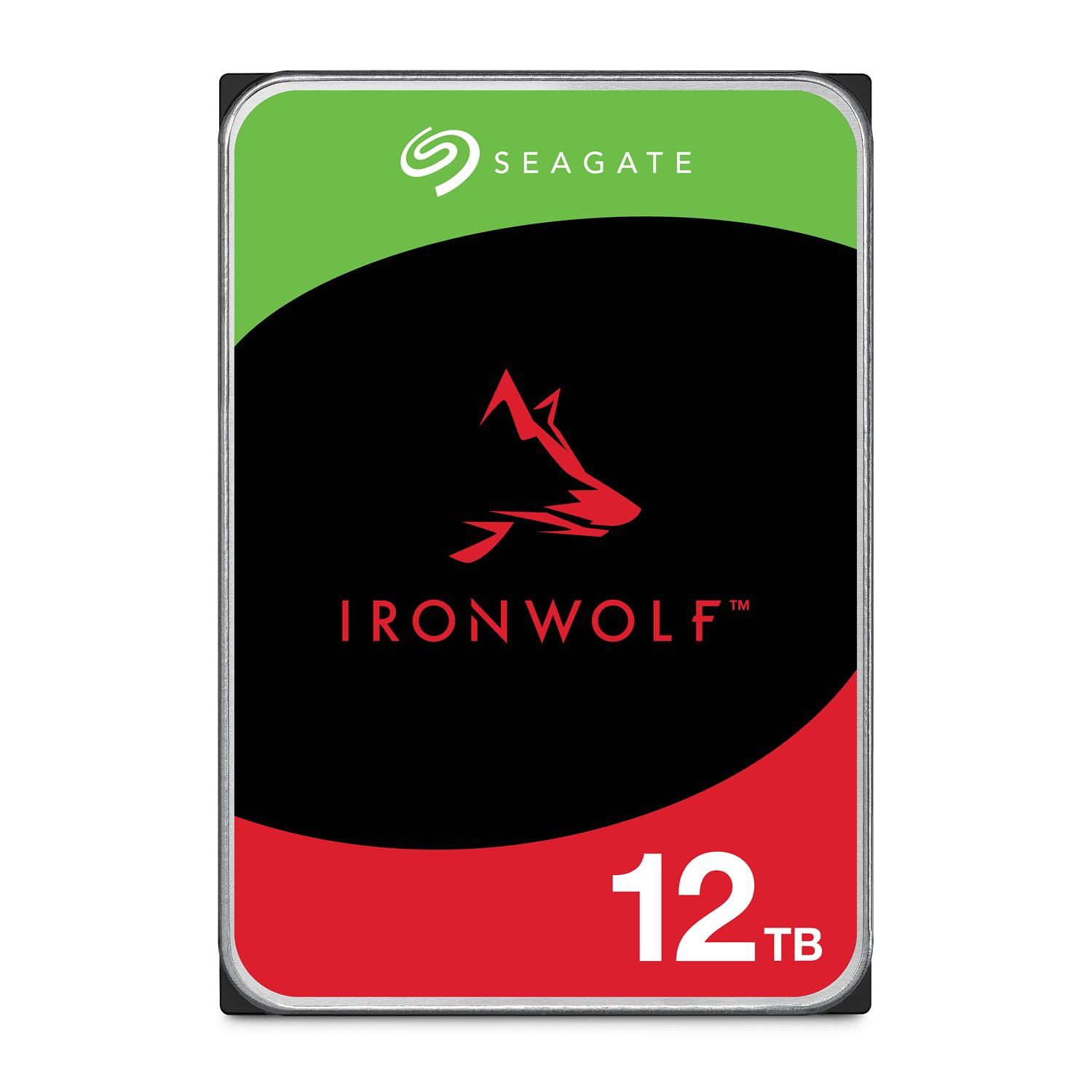
Seagate IronWolf 12TB

91 /100
Keeper Score Outstanding

Key details

Capacity
12 TB
Form Factor
3.5 inches
Workload Rating
180 TB/year
Rotational Speed
7,200 RPM
Check Price on Amazon

The IronWolf 12TB is built for the job a desktop drive only tolerates: sitting in a multi-bay NAS, running around the clock, and sharing files between several users. Seagate rates it for up to 180TB per year and up to eight bays, with rotational-vibration sensors and AgileArray firmware to keep RAID arrays stable. The 3.5-inch SATA fit is standard, but the workload rating is what separates it from a desktop drive.

That workload rating is what makes it the NAS pick we trust in this group. It also spins at 7,200 RPM and carries 256MB of cache, so large transfers and rebuilds do not feel sluggish. IronWolf Health Management is a useful extra if your NAS supports it; it gives you a health readout instead of waiting for a failure notice. For a Synology or similar multi-bay box, this is the capacity and speed balance we like.

The three-year warranty plus three-year Rescue Data Recovery Services is a better safety net than the two-year coverage on most desktop drives here. Buy it for a NAS, not for a desktop that needs one big quiet drive; the 7,200 RPM mechanism is built for sustained shared work, and that is where it earns its keep.

Pros

  • 12TB capacity for multi-bay NAS
  • 7,200 RPM and 256MB cache
  • 180TB/year workload rating
  • Three-year warranty plus rescue service

Cons

  • Audible during boot and rebuilds
  • Runs warm in tight enclosures
Our verdict

For a multi-bay NAS, the IronWolf 12TB is the drive we recommend: 7,200 RPM performance, NAS firmware, and a three-year warranty with rescue service.

Check Latest Price
4

Best for Gaming

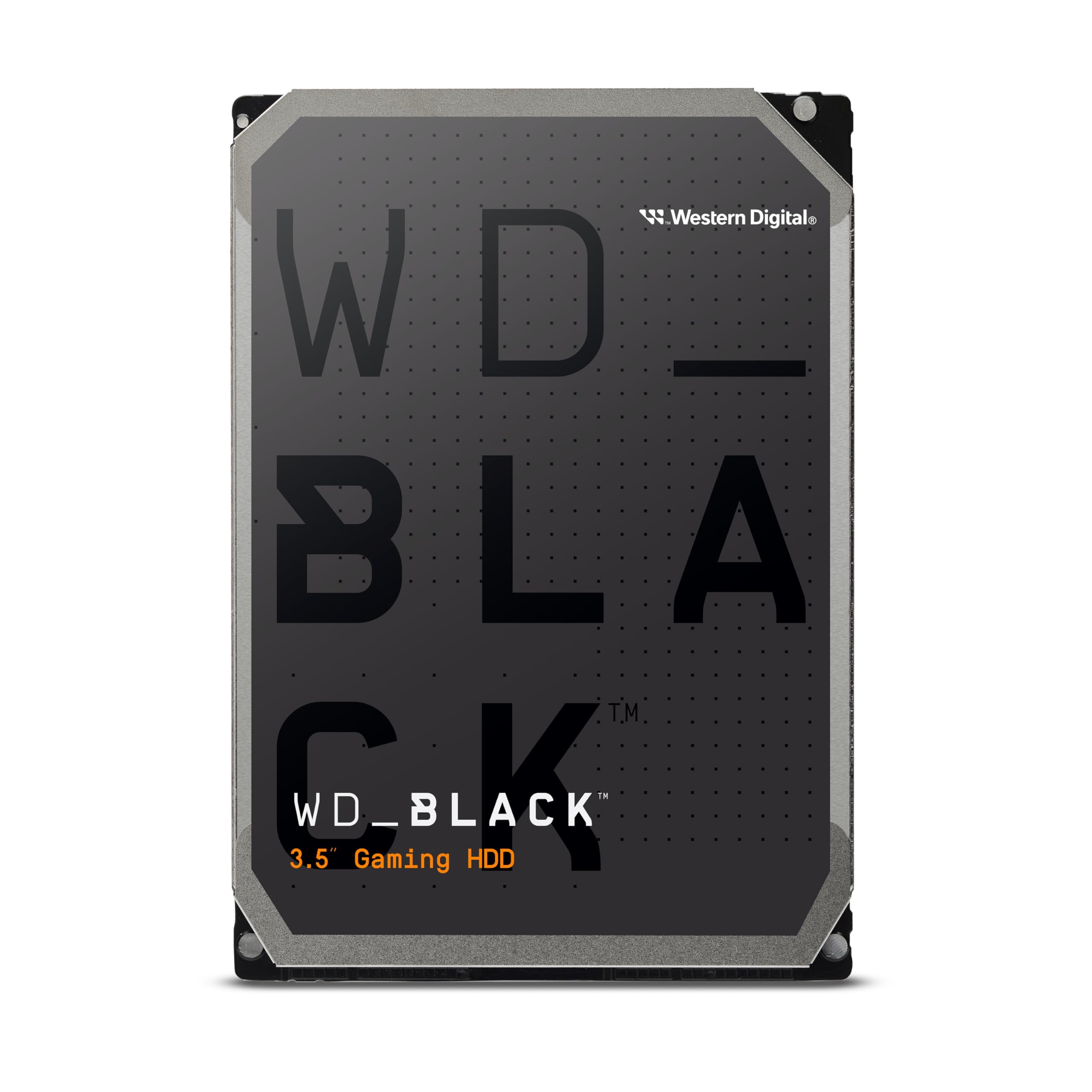
WD Black 10TB

89 /100
Keeper Score Excellent

Key details

Cache
512 MB
Capacity
10 TB
Form Factor
3.5 inches
Rotational Speed
7,200 RPM
Check Price on Amazon

The WD Black 10TB is the drive for a gaming rig or workstation that still wants a big platter for projects and game libraries. It spins at 7,200 RPM, carries a 512MB cache, and uses Western Digital's StableTrac and Dynamic Cache technology to keep sustained transfers steady. The 3.5-inch SATA design is familiar, but the hardware underneath is tuned for heavier use than a basic desktop drive.

The five-year warranty is the detail that makes it the performance pick we recommend here. That is the longest coverage in this group, and it matches the way a gaming drive gets used: lots of writes, long sessions, and a machine that stays on. The 10TB capacity also means you can keep a large Steam library and still have room for captures.

It is the drive for a gaming rig with a solid-state boot drive, not for a quiet media PC. If you want the fastest platter here for loading games and moving large files, this is the one; if silence matters more than load times, the WD Blue 8TB is the better fit. That is the decision in one sentence.

Pros

  • 10TB capacity for game libraries
  • 7,200 RPM and 512MB cache
  • Five-year limited warranty
  • StableTrac and Dynamic Cache

Cons

  • Audible under heavy load
  • Premium cost per terabyte
Our verdict

For a gaming rig or a workstation that needs a fast, roomy platter, the WD Black 10TB is the performance drive we recommend.

Check Latest Price
5

Bulk Archives

Toshiba 14TB Enterprise

77 /100
Keeper Score Very Good

Key details

Capacity
14 TB
Warranty
90 days
Form Factor
3.5 inches
Rotational Speed
7,200 RPM
Check Price on Amazon

The Toshiba 14TB is the high-capacity value play in this group, but it comes with an asterisk: it is a renewed enterprise drive, not a new retail unit. The 7,200 RPM, helium-sealed design packs 14TB into a standard 3.5-inch SATA drive, and the 256MB cache keeps large transfers moving. The 26.1mm height is worth checking if your bay is tight.

That enterprise background is the appeal. These drives are built for dense storage arrays, and the helium fill helps with power and heat compared with older air-filled designs. If you need a big target for backups, media, or a home lab, the capacity per dollar is hard to match. It is not a quiet desktop drive, and it is not the one to buy for a laptop or a small-form-factor build.

We recommend it for a budget bulk-storage box, not for the only copy of anything. Run SMART and a full surface test before you trust it, and keep a backup of anything you cannot lose. The capacity is the reason to take the renewed risk; the savings are the reason to accept the trade.

Pros

  • 14TB capacity
  • 7,200 RPM enterprise performance
  • Helium-sealed design
  • Low cost per terabyte for the capacity

Cons

  • Only 90-day warranty
  • Renewed condition varies
Our verdict

If you need the most capacity for the least money and can live with a renewed drive, the Toshiba 14TB is the value play here.

Check Latest Price
6

Legacy Repairs

MDD 500GB

82 /100
Keeper Score Excellent

Key details

Cache
8 MB
Capacity
500 GB
Interface
SATA 3 Gb/s
Form Factor
3.5 inches
Check Price on Amazon

The MDD 500GB is not the drive you buy to upgrade a modern PC; it is the drive you buy to get an old desktop or DVR working again. It is a 3.5-inch SATA 3Gb/s drive with a 5,900 RPM spindle and an 8MB cache, which is enough for basic files, music, and light backup duty. The standard mounting holes and SATA connections make it a drop-in replacement for many aging systems.

It is happiest in an older desktop or a DVR where the workload is light and the motherboard does not need the latest interface. The 500GB capacity is small by modern standards, but it is enough for a Windows install and a handful of documents or recordings. This is a repair part, not a storage upgrade.

It earns its place when the budget is tiny and the job is modest. It is certified refurbished, so check the drive's health before you rely on it, and keep a backup of anything important. Do not expect it to handle a modern game library or a busy NAS; that is not what it is for.

Pros

  • Low-cost way to revive an old system
  • Standard 3.5-inch SATA fit
  • Quiet 5,900 RPM operation

Cons

  • Tiny 8MB cache and SATA 3Gb/s
Our verdict

For reviving an old desktop or DVR on a tiny budget, this 500GB refurbished drive does the job without fuss.

Check Latest Price

How We Chose and Tested These Drives

Every drive here started as a line on a spreadsheet: form factor, capacity, cache size, spindle speed, warranty length, and price per terabyte, pulled from spec sheets before anything was bought. We cut anything that couldn't mount in a standard 3.5-inch bay or cost more per terabyte than the drives around it, then bought the 10 finalists. Two are renewed enterprise units, because that's where a lot of shoppers end up and we wanted to see what the risk looks like.

Testing ran across six months. Each drive went into a desktop tower first — power cable, data cable, then the moment of truth: whether the BIOS saw it on the first boot and how long a full format took. From there they cycled through a multi-bay enclosure, a USB dock, and two machines running different operating systems, since compatibility complaints usually come down to the board rather than the drive.

The measurable part was mostly repetition. We copied the same 200GB folder of photos and video onto each drive and timed it, then filled the rest of the disk and did it again to see whether throughput sagged as the platters filled. Temperatures were logged during overnight writes, and I sat two feet away during a full-drive copy to note which ones clicked audibly. On the renewed drives we read the power-on hours and reallocated-sector counts before trusting them with anything.

Reliability can't be proven in six months, so we tracked the early-warning signals instead: pending sectors, temperature creep, and whether a drive dropped out of a multi-bay array under load. Value was scored as cost per terabyte against how well a drive held up to sustained work, and installation counted for more than it sounds like — the best drive is the one the machine recognizes, mounts, and starts copying from in ten minutes.

How to Choose an Internal Hard Drive

Match the drive to the bay and the job

Most desktop and NAS enclosures take a 3.5-inch SATA drive, while most laptops take a 2.5-inch drive. A 3.5-inch model will not fit a laptop bay without an adapter, and a 2.5-inch drive can leave a desktop bay half empty. Check the bay and the free SATA port before you shop.

Then match the drive to the workload. A desktop drive like the WD Blue is happiest with everyday files and backups, while a NAS drive like the IronWolf adds vibration sensors and a workload rating for multi-bay use. The wrong pick will still mount, but it may be louder, hotter, or shorter-lived in that role.

Pick capacity you can actually back up

Capacity is cheap until you need a second drive to protect it. A 2TB BarraCuda is plenty for a budget desktop and a game library, while an 8TB WD Blue or 14TB Toshiba makes sense for photo and video archives, home-lab backups, or a media server.

The trap is buying one huge drive and treating it as a backup. A single drive is a single point of failure. If your data matters, budget for a second drive or an off-site copy before you spend extra on capacity.

Balance speed, cache, and noise

A 7,200 RPM drive with a large cache feels quicker when you install games, move large project files, or rebuild a RAID array. A 5,400 or 5,640 RPM drive gives up some sequential speed but is usually quieter and cooler, which matters in a bedroom PC or a desk-side NAS.

Cache helps with bursts, but it does not turn a slow spindle into an SSD. If the drive is within arm's reach, prioritize noise; if you are loading games from it, a 7,200 RPM model like the WD Black is the better fit.

Read the workload rating and warranty

Workload ratings tell you how much data a drive is designed to move per year, and they separate desktop drives from NAS and surveillance models. A 180TB/year rating and a three-year warranty with rescue service, as on the IronWolf, are worth paying for in a busy multi-bay NAS.

A two-year warranty is normal for a desktop drive, while a renewed drive may carry only 90 days. Match the coverage to the criticality of the data: the more you would hate to lose it, the less sense a short warranty makes.

Treat reliability as a practice

No hard drive is a guarantee. Mechanical drives can arrive dead, develop bad sectors, or fail after a few years. Run a SMART check and a full surface test before you copy anything important, keep the drive cool and firmly mounted, and maintain a backup that is not on the same machine.

RAID protects against a drive failure, not against deletion, malware, or a power surge. The best drive is the one you can replace without losing the data.

Frequently Asked Questions

Final Verdict

The WD Blue 8TB is the drive we recommend for most desktop builds: it gives you room for a real archive without the noise of a 7,200 RPM performance drive. If you are building a NAS, the IronWolf 12TB is the better buy; for a tight budget, the BarraCuda 2TB gets a desktop running with less spent.