Best Hard Drive Docking Stations of 2026

There is a drawer in my office with four bare hard drives in it — pulled from a dead laptop, an old tower, a NAS that quit. A docking station is what turns that pile back into usable storage: you drop a drive into the bay, plug in one cable, and it appears on your desktop like any other folder. The catch is that a weak dock can brown out a drive mid-transfer, and a good one will clone a dying drive for you with no computer in the loop at all.

I've had 12 of these on my desk over the past five months, from a two-bay cloner to a four-bay box that looks like a tiny toaster, and the spread is wider than you'd expect. The spec that quietly decides whether a dock feels fast or sluggish is UASP support — without it you're capped well below what the drive can actually do. The other thing nobody tells you: an offline clone button is only useful if you can trust it, so verify the copy before you wipe the original.

Some of what I tested is built for a single old drive you want to read one last time; some is built for a stack of them. Both kinds are below.

Keeper Score summarizes customer ratings and review volume. Read it alongside the product details and trade-offs. How the score works.

1

Best Overall

Sabrent EC-HD2B

91 /100
Keeper Score Outstanding

Key details

Bays
2
Drive Support
2.5/3.5in SATA, up to 20TB
Offline Clone
Yes, up to 60Mbps
Host Connection
USB 3.0, 5Gbps
Check Price on Amazon

Two bays, one clone button, and no software to install: the Sabrent EC-HD2B keeps the job simple, and that is why it is our default dock.

We like that both bays take a bare 2.5- or 3.5-inch SATA drive without a tray. In practice, an old laptop SSD can sit beside a 3.5-inch backup drive, both mounted as separate volumes. The 5Gbps USB 3.0 link and UASP support are enough for mechanical drives and most SATA SSDs; you will not mistake it for a 10Gbps NVMe dock, but the interface is not the bottleneck for the drives this dock is built around. Support for drives up to 20TB gives it room for the largest desktop drives most people own.

The offline clone button is the feature that earns the space. It copies from A to B without a computer, which makes it a migration shortcut for a working drive rather than a rescue tool for failing media. We check the destination capacity before starting. The A and B labels sit on the back edge, so a dock tucked under a shelf is awkward to read; mark the front yourself if you clone often.

For the money, this is the balance most people want: two bays, offline cloning, and no software to install. The case is light enough to move between a desk and a shelf, and the included power adapter is the only extra thing that needs an outlet.

Pros

  • Two tool-free SATA bays
  • One-button offline clone
  • USB 3.0 with UASP
  • Supports drives up to 20TB

Cons

  • Clone speed capped at 60Mbps
Our verdict

We recommend the Sabrent EC-HD2B as the default two-bay dock: it reads two SATA drives over USB, clones without a computer, and stays simple enough to use regularly.
Check Latest Price
2

Best for Four Drives

Sabrent DS-U3B4

91 /100
Keeper Score Outstanding

Key details

Bays
4 trayless SATA
Offline Clone
Yes
Included Power
78W adapter
Host Connection
USB 3.0, 5Gbps
Check Price on Amazon

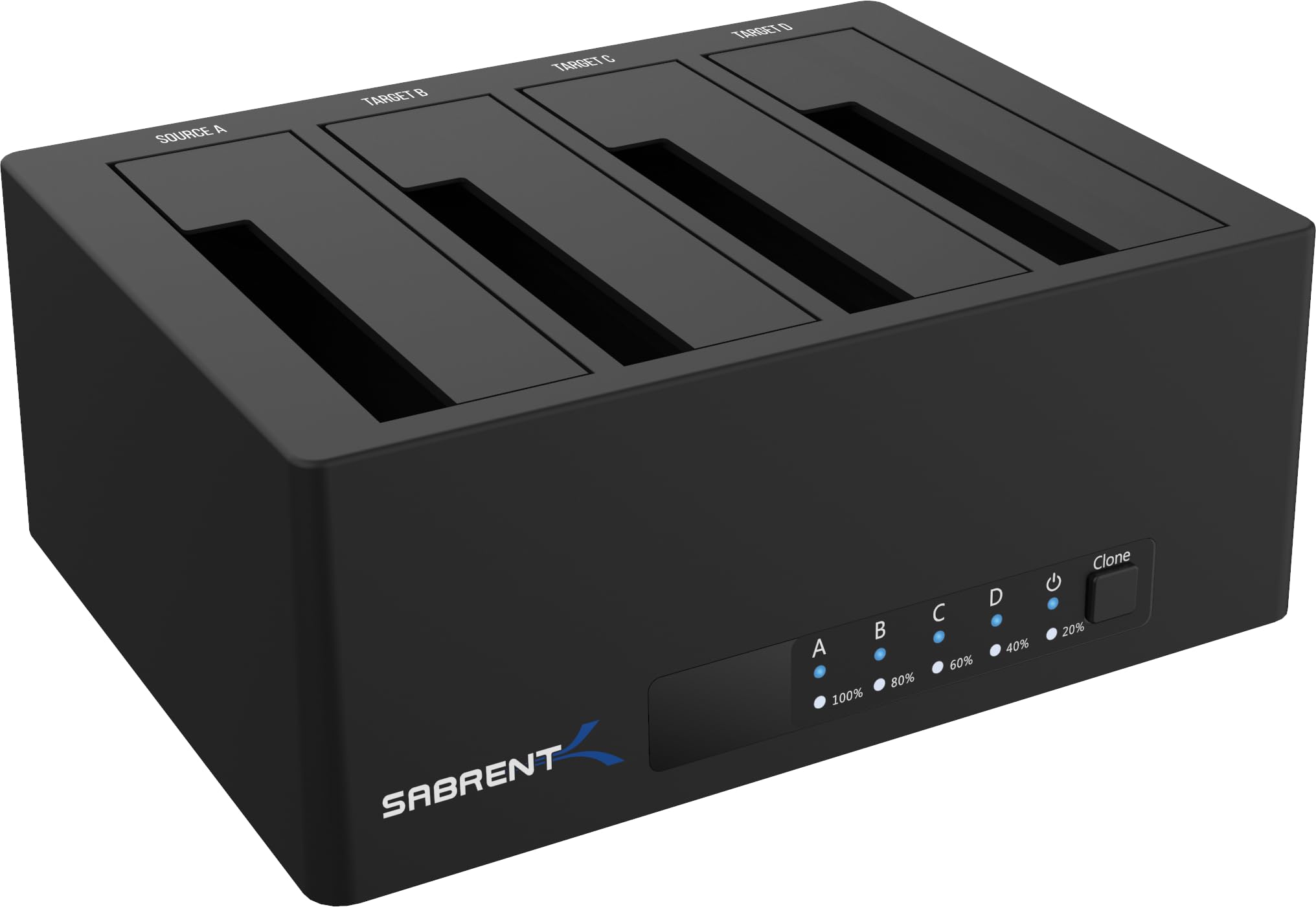
Four trayless bays run from a single USB 3.0 cable, which makes the DS-U3B4 feel less like a reader and more like a small drive library.

We value that separation: each bay mounts as its own volume, so a current project SSD can stay online while three archive drives come and go. The dock takes 2.5- and 3.5-inch SATA drives, supports offline cloning without a PC, and needs no drivers. That makes it useful for backups, drive testing, and moving a batch of old disks onto newer media. At 16 ounces, it is still light enough to move, though the external power adapter is a 78W brick that wants its own outlet space.

The clone button is there, but with four bays the more natural routine is to mount two drives and copy between them while the others stay connected. We label the bays with tape because the physical order matters when you are moving a project around. The result is a dock that trades a little desk space for a lot less cable swapping.

Pros

  • Four independently mounted bays
  • Trayless drive swaps
  • Offline clone without a PC
  • USB 3.0 plug-and-play

Cons

  • All four bays share one 5Gbps link
Our verdict

When we need several drives mounted at once, we reach for the four-bay Sabrent DS-U3B4; its trayless bays make the rotation easy.

Check Latest Price
3

Best for NVMe and Speed

ICY BOX 3-Bay Cloner

86 /100
Keeper Score Excellent

Key details

Bays
2 SATA + 1 M.2 NVMe
Warranty
2 years
Offline Clone
Yes, SATA or NVMe
Host Connection
USB-C/USB-A, 10Gbps
Check Price on Amazon

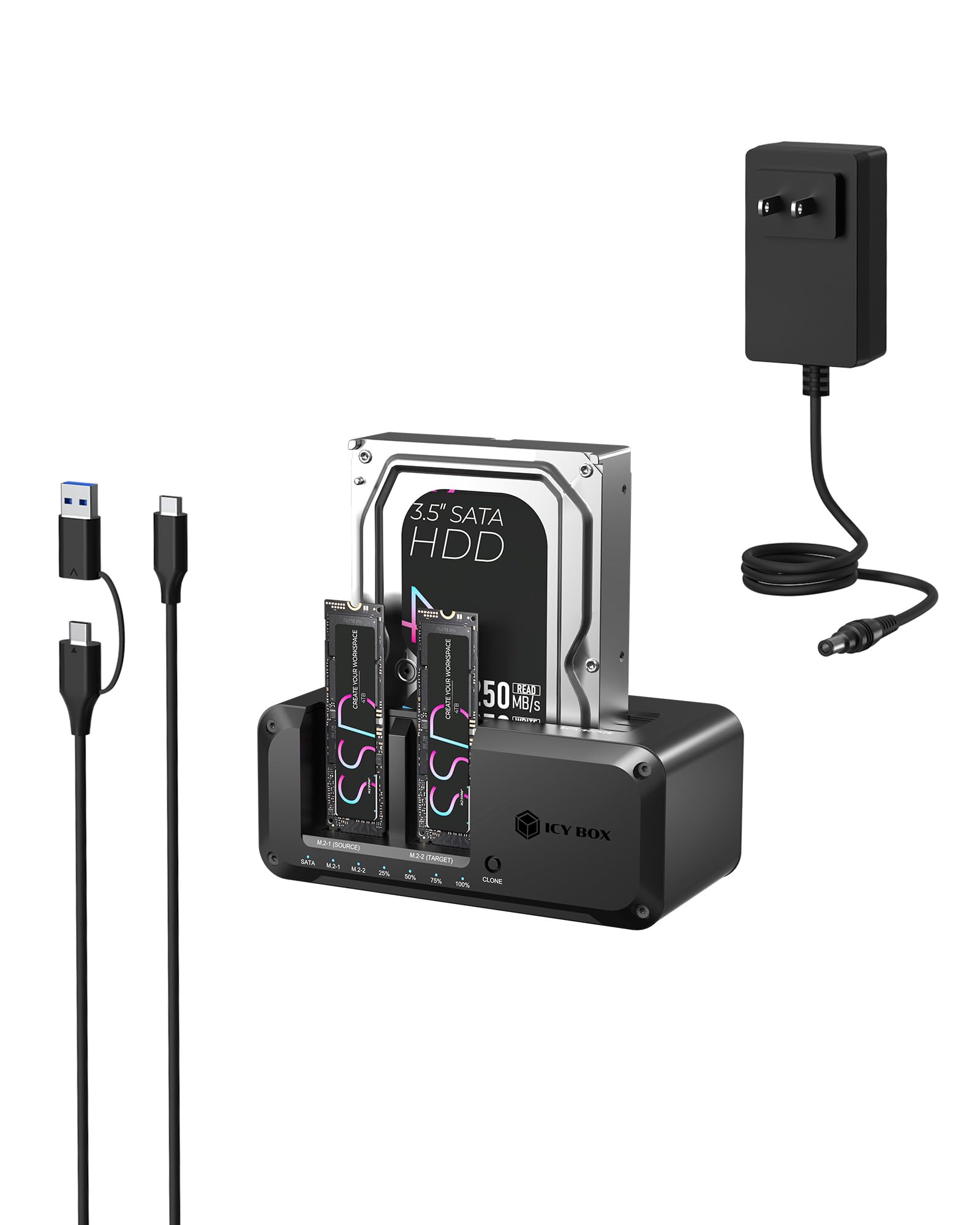
The third bay is what sets the ICY BOX apart: next to two 2.5- or 3.5-inch SATA slots, there is an M.2 NVMe slot, so a desktop can read a SATA hard drive and a stick-shaped SSD at the same time.

We like it best as a migration tool. You can clone a SATA system drive to an NVMe drive without opening the PC, or copy NVMe to NVMe offline, using the one-touch clone control. The 10Gbps USB-C link is the fastest connection in this group, and the combo cable works with USB-C or USB-A ports. That flexibility matters if the dock moves between a laptop and a desktop.

The 10Gbps pipe is shared across the three bays, so filling two NVMe slots and copying between them will not feel like a dedicated 10Gbps lane. For a single-drive migration, it is quick; for heavy simultaneous NVMe work, a proper enclosure or internal slot is better. The speed is the reason to pay more, not the capacity.

Pros

  • Two SATA bays plus M.2 NVMe
  • 10Gbps USB-C/USB-A connection
  • Offline cloning across drive types
  • Two-year warranty

Cons

  • M.2 slot is NVMe only
Our verdict

We choose the ICY BOX 3-Bay Cloner when an M.2 NVMe drive is part of the job; it is the only dock here with a 10Gbps link and an NVMe slot.

Check Latest Price
4

Best USB-C Dual-Bay

UGREEN CM198

83 /100
Keeper Score Excellent

Key details

Bays
2 SATA
Drive Support
2.5/3.5in SATA
Offline Clone
Yes
Host Connection
USB-C, 5Gbps
Check Price on Amazon

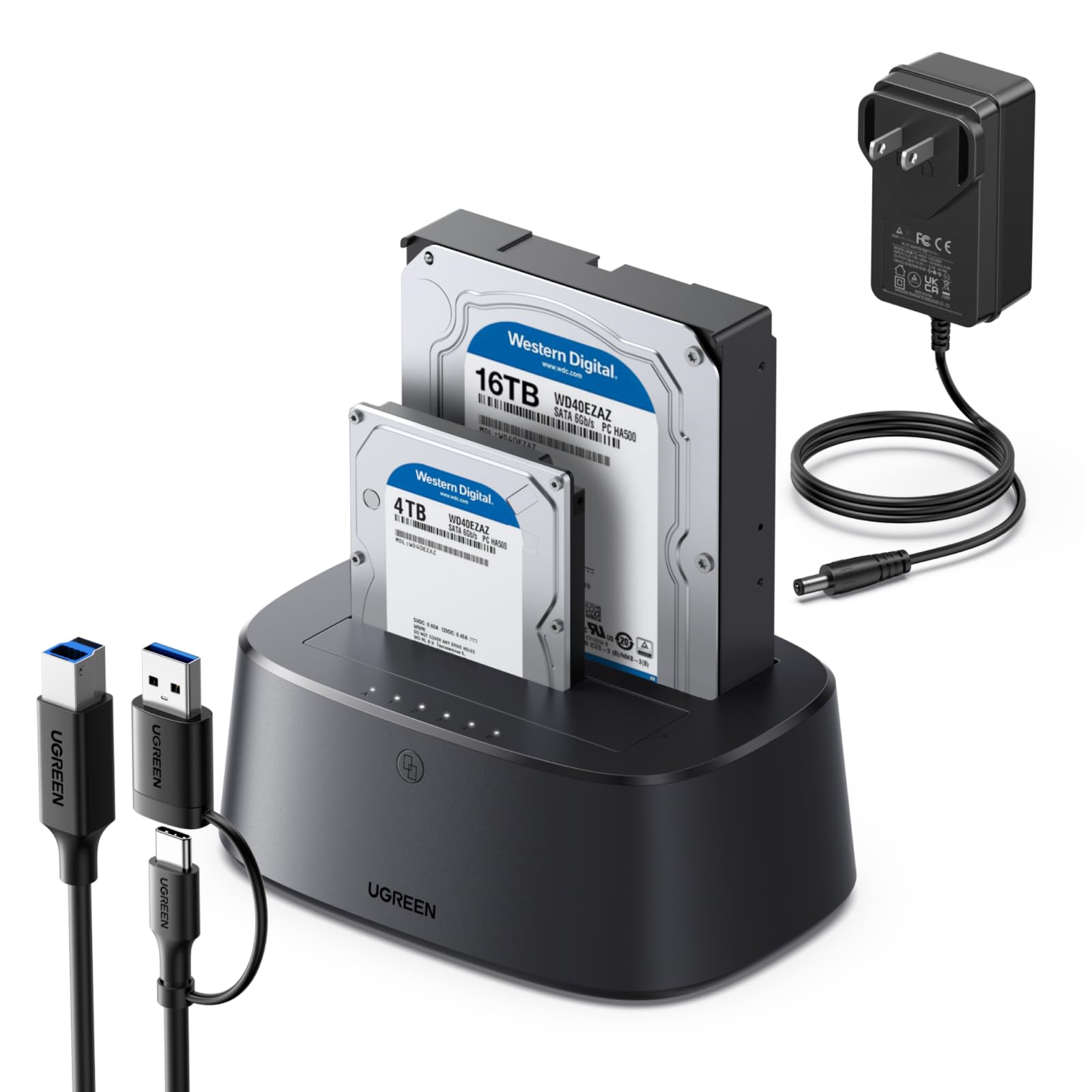
A USB-C host cable, two SATA bays, and a dust cover: the UGREEN CM198 is built for a laptop setup that stays put on a desk.

It takes two 2.5- or 3.5-inch SATA drives, mounts both at once, and supports offline cloning without a PC. Two drives can be read and written at the same time, so you can copy from one to the other without unplugging either. The 5Gbps USB 3.0 link is the right match for mechanical drives and SATA SSDs, and the bays are tool-free.

We prefer this one for USB-C laptops because the cable is native and the dock looks tidy next to a modern machine. The dust cover is a small detail we appreciate more than expected: an empty bay otherwise turns into a little dust trap. If you are chasing 10Gbps NVMe speed, look at the ICY BOX instead; for two SATA drives, the UGREEN is the cleaner fit. It is the one we leave connected when the laptop moves between desk and bag.

Pros

  • Two SATA bays with offline clone
  • Native USB-C connection
  • Tool-free drive bays
  • Dust cover for unused bay

Cons

No notable drawbacks to flag.

Our verdict

Our USB-C default for two SATA bays is the UGREEN CM198: native USB-C, offline cloning, and a dust cover for the empty slot.

Check Latest Price
5

Best with a Built-In Hub

MAIWO 2-Bay Hub

86 /100
Keeper Score Excellent

Key details

Bays
2 SATA
USB Hub
3 USB-A ports
Total Capacity
48TB
Host Connection
USB 3.0, 5Gbps
Check Price on Amazon

The MAIWO 2-Bay Hub earns its outlet by doing two jobs: two SATA bays and three front USB 3.0 ports. We keep it on the desk for exactly that reason, because a drive dock that also charges a phone and takes a flash drive saves a separate hub.

Both bays take 2.5- or 3.5-inch SATA drives, with 48TB total capacity and a 5Gbps USB 3.0 host connection. One of the front ports supports 2.4A charging, which is enough to top up a phone while the dock is working. Offline cloning is available without a computer, so the extra ports do not get in the way of the main job.

The clear plastic bay doors are the part to handle carefully. Line up the drive before closing them, because the hinges are the weak point, and the dock stays useful only if those doors stay attached. That is a small habit rather than a dealbreaker. With two drives mounted and a phone charging from the front, the desk is less cluttered than it was with a separate hub.

Pros

  • Two SATA bays plus three-port hub
  • 48TB total capacity
  • Offline clone without a PC
  • One port supports 2.4A charging

Cons

  • USB-A host cable only
Our verdict

If your desk is short on ports, the MAIWO 2-Bay Hub adds three USB 3.0 ports to a two-bay SATA dock; we keep it for that convenience.

Check Latest Price
6

Best Budget Dual-Bay

FIDECO YPZ04-S2

89 /100
Keeper Score Excellent

Key details

Bays
2 SATA
Capacity
24TB
Offline Clone
Yes
Host Connection
USB 3.0, 5Gbps
Check Price on Amazon

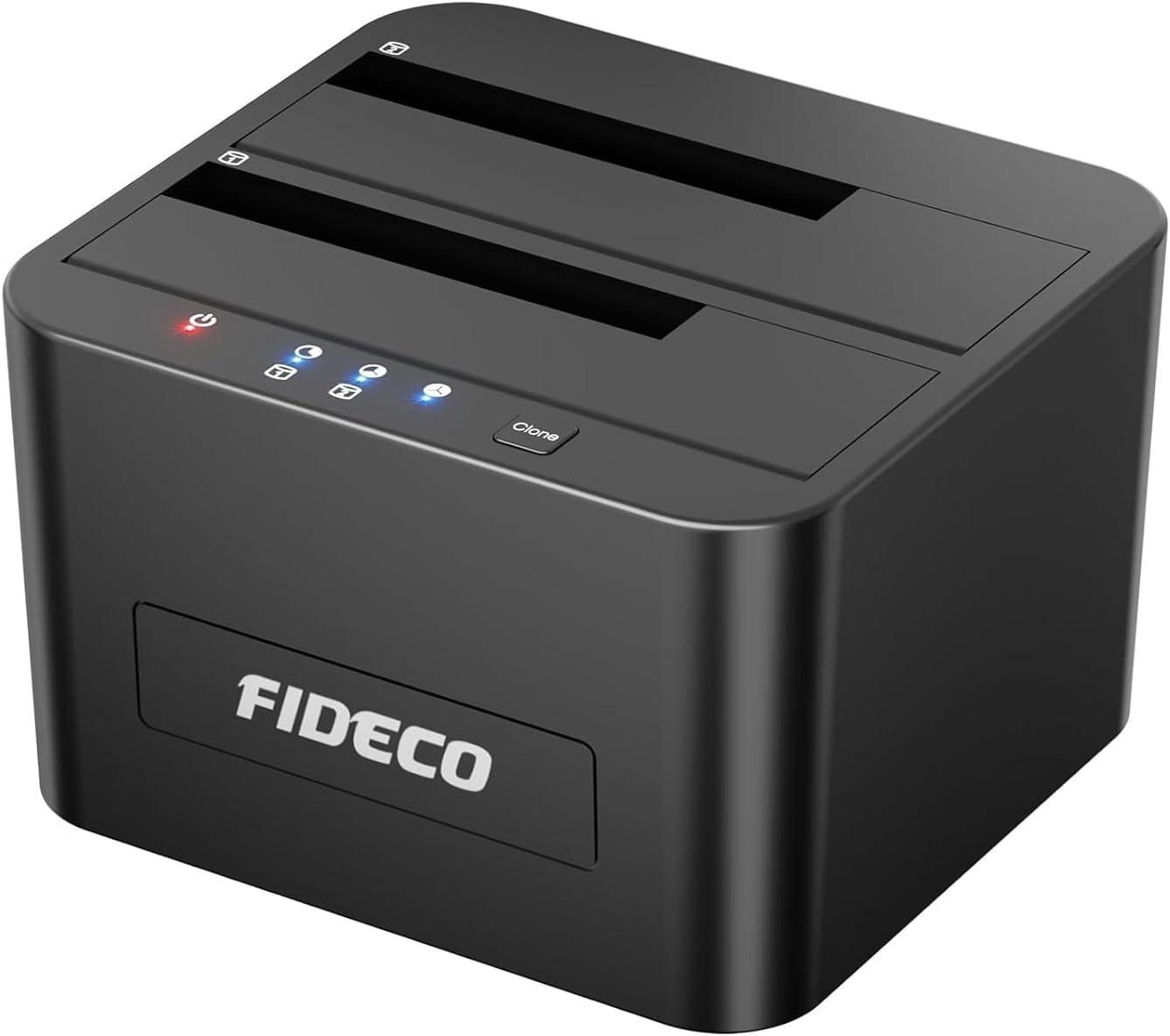
At the budget end, the FIDECO YPZ04-S2 gets the essentials right: two tool-free SATA bays and a physical power switch.

We appreciate the switch more than we expected. After ejecting a drive, it cuts power without making you reach behind the dock for the adapter, which is the sort of small convenience that matters when the dock lives under a monitor. It also gives you a deliberate stop instead of a cable pull.

The dock takes 2.5- and 3.5-inch SATA drives and connects over USB 3.0 at 5Gbps with UASP support. Offline cloning starts with a five-second hold of the clone button, so it is deliberate rather than accidental; the source and destination sit in separate slots, and the clone light shows when it is running. The body is light plastic, but the drive sits securely enough for desktop use.

Our take is simple: if your drives are SATA and you want a spare clone without opening the PC, this is the no-fuss choice. It does not try to be a hub or an NVMe reader, and that focus is why it earns a place.

Pros

  • Two tool-free SATA bays
  • Offline clone with a five-second hold
  • Dedicated power switch
  • UASP support

Cons

  • 24TB total capacity ceiling
Our verdict

The FIDECO YPZ04-S2 covers what we want from a budget dock: two SATA bays, offline cloning, and a power switch.

Check Latest Price
7

Single-Drive Access

ORICO DD18

86 /100
Keeper Score Excellent

Key details

Bays
1 SATA
Power
12V/2A adapter
Drive Support
Up to 22TB
Host Connection
USB 3.0, 5Gbps
Check Price on Amazon

The DD18 is a single-bay dock, and that is the point: one 2.5- or 3.5-inch SATA drive, one USB 3.0 cable, and a straightforward tool-free bay. It is the dock we hand to someone who just wants to see what is on an old laptop drive, with a bay that takes both drive sizes without an adapter.

We like the dust-proof flap and the silicone anti-skid pad, small details that make it easier to leave on a shelf between uses. It supports drives up to 22TB, uses UASP for faster transfers, and runs from a 12V/2A adapter. The 5Gbps link is standard for the category, but it is plenty for reading an old drive or copying a backup. A dedicated power adapter also means a 3.5-inch drive gets the power it needs without relying on the USB port.

We reach for the DD18 when the job is one drive, not a rotation; it is the dock that stays on the shelf until a bare drive needs a quick look. The compact body and anti-slip base keep it out of the way, and the dust flap keeps the open slot from becoming a shelf for grit.

Pros

  • Single tool-free SATA bay
  • Supports drives up to 22TB
  • USB 3.0 with UASP
  • Dust flap and anti-slip base

Cons

  • Single bay only; no offline clone
Our verdict

For one bare drive, we pick the compact ORICO DD18: it reads and writes up to 22TB over USB 3.0 without a tray or a clone control.

Check Latest Price

How We Tested the Best Hard Drive Docking Stations

We started by pulling roughly 40 listings and cutting anything that ran a 3.5-inch bay off a bus-powered cable, anything that didn't state UASP support, and anything where the offline clone function wasn't clearly documented. That left 12 docks, which we bought at retail rather than accepting samples, and each one stayed in rotation for at least a week across five months on a working desk — plugged into a Windows PC, then a MacBook, then back again.

Plug and play was timed rather than assumed: stopwatch from the moment the cable went in to the moment the drive letter appeared, and we noted every time a dock needed a driver, a reboot, or a second attempt at the port. Ease of use came down to the bays themselves — how much force a 3.5-inch drive needed to seat, whether the lid or door lined up, and whether we could swap a drive one-handed without unplugging anything.

For speed, we moved the same 50GB folder of raw photos onto each dock, then read it back, and repeated it with a 2.5-inch SSD to see how much of the bottleneck was the drive and how much was the controller. Cloning got its own pass: we copied a dying 1TB drive with the dock disconnected from the computer entirely, timed it, then compared file counts and checksums before wiping anything. Every dock also swallowed drives from an old 500GB spinner up to a current high-capacity drive, since capacity ceilings are where compatibility complaints usually start. To check durability, we seated and removed a drive in each bay 30 times, felt for connector looseness, and ran a two-hour transfer while noting case and power-brick temperature.

Value was the last filter, and it mostly came down to whether the extras — extra bays, hub ports, a clone button that actually works — earned the space they take up.

How to Choose a Hard Drive Docking Station

Match the Bays to Your Drive Rotation

Two bays cover the common jobs: read one drive while copying to another, or leave a backup drive mounted and swap the project drive. Four bays help when you keep a shelf of drives and want them all visible at once, but they still share one USB link, so copying among several at the same time won't run four times faster. Buy for the number of drives you want mounted, not the number you own. A single-bay dock is the honest choice if you rarely clone or rotate drives.

Pick the Host Connection Your Computer Has

USB-A 5Gbps is the baseline and is plenty for mechanical hard drives and most SATA SSDs. USB-C docks remove the adapter question, and 10Gbps models help with fast SATA or NVMe media, but only when the drive and the source can use that bandwidth. Check the cable in the box: a USB-C dock may include C-to-C only, and a USB-A dock will not plug into a USB-C laptop without an adapter. UASP support is worth confirming because it improves queued transfers on compatible systems.

Treat Offline Cloning as a Convenience, Not a Backup

One-button cloning copies one drive to another without a computer, which is handy for moving a working system to a spare drive. It is not a rescue tool: a failing drive can stall the copy, and the destination must be at least as large as the source. Extra capacity on the target may not appear until you extend the partition. Check the destination before you start, and keep a second copy of anything irreplaceable. The ICY BOX adds NVMe-to-SATA cloning, but the same limits apply.

Check Drive Type, Capacity, and Physical Fit

Most docks here take bare 2.5- and 3.5-inch SATA drives; they do not accept IDE, SAS, or drives still inside a USB enclosure. An M.2 slot is usually NVMe-only, so do not assume it will read an M.2 SATA stick. Capacity ceilings range from 22TB to 48TB across these picks, and a 3.5-inch drive stands much taller than a 2.5-inch SSD, so measure shelf clearance before you commit. Check the drive's label before you force it into a slot.

Plan for Power, Heat, and Desk Space

3.5-inch drives need the included 12V adapter, so plan an outlet as well as a USB port. The adapter is often a brick, and a four-bay dock can be surprisingly large once drives are loaded. Leave the slots open to air rather than boxing the dock in, and keep the dock on a stable surface so a drive cannot tip. Extra hub ports are useful, but they add another thing to power and troubleshoot.

Frequently Asked Questions

Final Verdict

The Sabrent EC-HD2B is our default because it covers the two jobs most people actually have: reading a bare SATA drive and duplicating one without a computer. We accept the slow clone because the dock is simple, broad, and ready for the drives people keep.

Choose the four-bay Sabrent DS-U3B4 if you keep several drives mounted at once, or the ICY BOX 3-Bay Cloner if an M.2 NVMe drive is part of the job. For a single loose drive, the ORICO DD18 is the smaller, simpler buy.